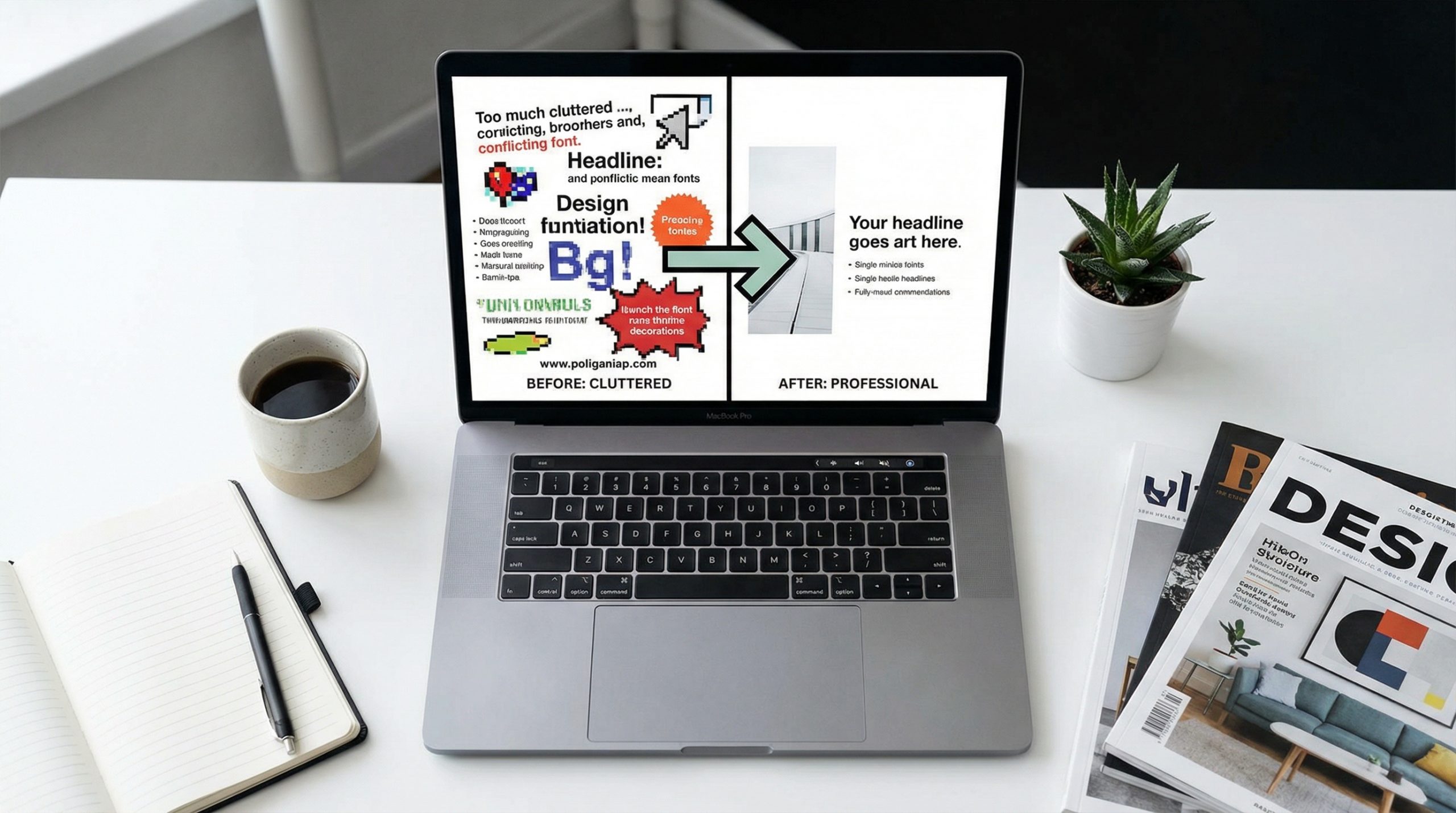
I want you to picture a slide. Six bullet points, three in bold, a chart squeezed into the bottom right corner, a company logo in both the header and footer, a background gradient that fights with the text color, and a clip art image of a handshake that adds absolutely nothing. You’ve seen this slide. You’ve probably made this slide. I’ve redesigned hundreds of slides, and the #1 mistake is always the same: too much stuff.
Cluttered slides aren’t a design problem. They’re a thinking problem. When a slide has too much on it, it usually means the presenter hasn’t decided what’s actually important. Everything looks essential, so everything goes on the slide. The result? Nothing stands out, the audience reads instead of listens, and the slide becomes a crutch instead of a tool.
Let’s fix that. Here’s why your slides look cluttered and exactly what to do about it.
You’re Putting Your Script on the Slide
This is the cardinal sin. If your slides contain full sentences — or worse, full paragraphs — you’ve turned your presentation into a reading exercise. The audience will read ahead of you, tune out your voice, and wonder why they couldn’t have just received this as an email.
Your slides are not your notes. They’re not your teleprompter. They’re visual aids — emphasis on visual. A slide should support what you’re saying, not duplicate it. Here’s the rule I swear by: if your audience can understand the presentation without you being there, your slides have too much text. Strip each slide down to one key idea. Use your voice for the rest. For more on fundamental principles, see our guide to 10 slide design principles every presenter must know.
Too Many Fonts, Too Many Colors
I’ve opened decks that use five different fonts and eight colors. It looks like a ransom note. Each font and color choice is a visual signal to the audience — and when you send too many signals at once, none of them register.
Keep it simple. Two fonts maximum: one for headings, one for body text. Three colors maximum: a primary brand color, a dark color for text, and an accent for emphasis. That’s it. Consistency isn’t boring — it’s professional. It tells the audience: “This person knows what they’re doing.” Every additional font or color you add dilutes that message. If you want specific font pairing guidance, stay tuned — I’ve got an entire article coming on the best font combinations for presentations.
The “One More Thing” Trap
This happens in the editing phase. You’ve got a clean slide with one clear point. Then you think: “But I should also mention this statistic.” So you add it. Then: “Actually, this quote supports the point.” In it goes. Before you know it, your clean slide has become a collage of loosely related information.
I call this the “one more thing” trap, and the antidote is ruthless. Every element on your slide needs to earn its place. Ask yourself: if I remove this, does the slide still communicate its main point? If yes, remove it. The slide will be better for it. Design isn’t decoration — it’s communication. And communication gets clearer when you strip away the noise.
Your Layout Has No Visual Hierarchy
Imagine walking into a room where someone is talking at normal volume, the TV is on at the same volume, and music is playing at the same volume. You can’t focus on any of them. That’s what a slide without visual hierarchy feels like.
Visual hierarchy tells the audience where to look first, second, and third. You create it through size (the most important thing should be biggest), contrast (it should stand out from everything else), and position (top-left gets read first in Western cultures). When everything on your slide is the same size, same weight, same color — nothing is important. Which means the audience has to work to figure out what matters. And audiences won’t work. They’ll just disengage. For a deeper get into visual structure, check out our piece on transforming a boring corporate deck into a visual masterpiece.
You’re Using Decorative Elements That Add Nothing
Borders. Drop shadows on every text box. Gradient backgrounds. Clip art. Decorative divider lines. These elements don’t communicate anything — they just take up space and add visual noise. I see this especially in corporate templates where someone added every design flourish PowerPoint offers.
Every element should have a purpose. A border can be useful if it separates distinct content areas. A shadow can work if it creates depth between overlapping elements. But if you’re adding them “because the slide looks empty otherwise” — that’s a red flag. An empty-looking slide with one bold statement is infinitely more powerful than a busy slide with twelve pieces of information. Edward Tufte, the godfather of data visualization, calls unnecessary visual elements “chartjunk.” The same principle applies to slide design: if it doesn’t inform, it distracts.
The Fix: The 6-Word Test
Here’s a practical test I use with every slide I design: can you summarize what this slide is saying in six words or fewer? If not, the slide is trying to say too much. Split it into two slides. Or three. There’s no rule that says you need to minimize your slide count — in fact, more slides with less on each one almost always makes for a better presentation.
Presentation expert Guy Kawasaki famously advocates the 10/20/30 rule: 10 slides, 20 minutes, 30-point minimum font size. While I think the specific numbers are debatable, the principle is gold — force yourself to use fewer words, bigger text, and more visual breathing room. Your audience’s attention is finite. Respect it. You can also explore our article on PowerPoint shortcuts to speed up your decluttering workflow.
Before and After: What Decluttering Actually Looks Like
Let me walk you through a transformation I do constantly with clients. The before slide has a title, a subtitle, five bullet points (each two lines long), a small chart, and the company logo. Everything is set in 14-point type because it all has to fit.
The after is three slides. Slide one: the title and one sentence that frames the section. Slide two: the chart, large, with a single callout highlighting the key data point. Slide three: the three most important takeaways, each as a short phrase with generous spacing between them. Same content. Triple the impact. And the presenter actually gets to talk about the information instead of competing with it.
If you take nothing else from this article, take this: clutter is the enemy of clarity, and clarity is the whole point of a slide. Your audience decides in the first 3 seconds whether a slide is worth reading. Give them something clean, focused, and purposeful — and they’ll pay attention to both your slides and your words. That’s design working the way it should. For more design inspiration, browse our guide to choosing the right presentation template.