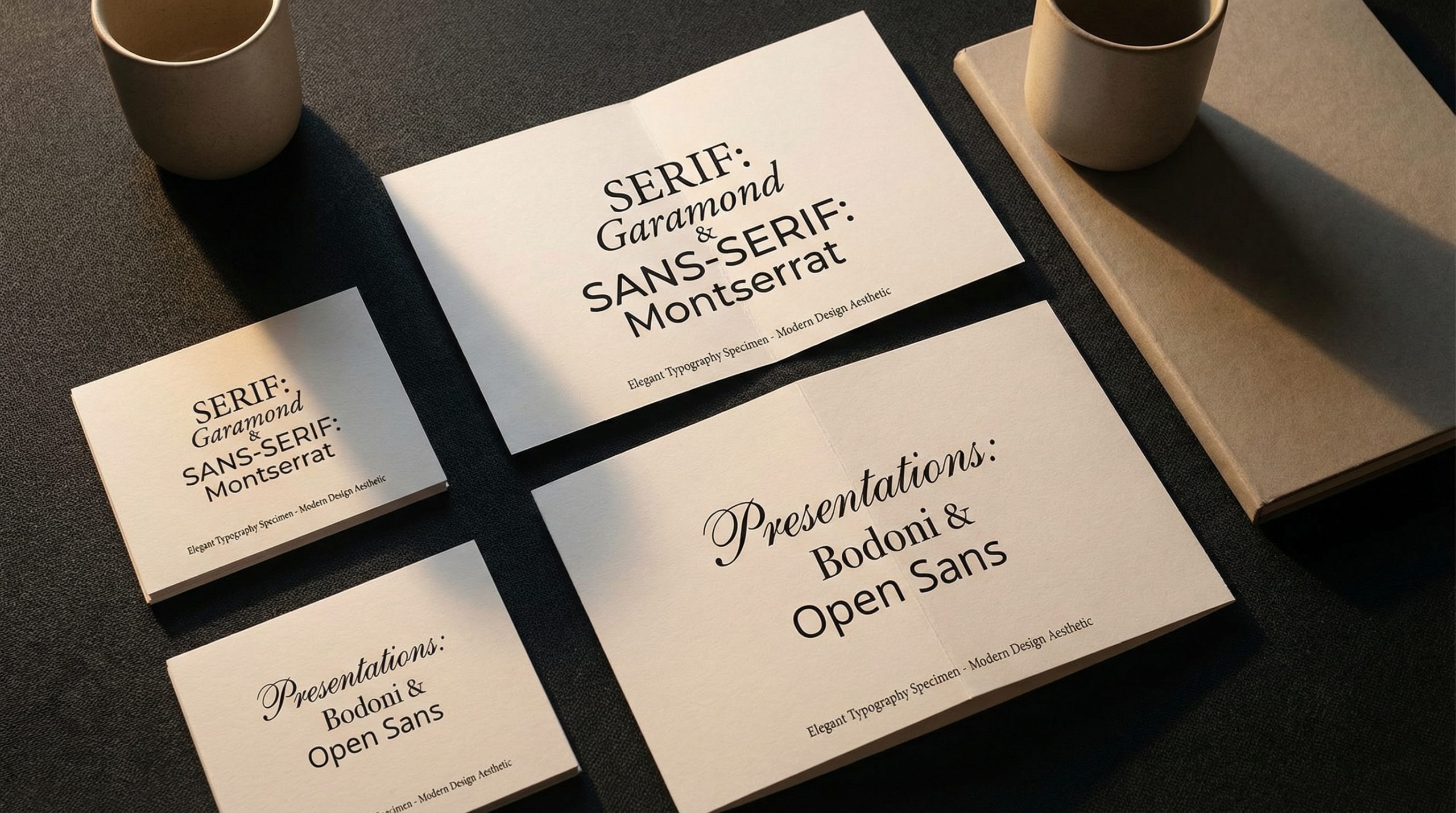
Last month, I opened a client’s pitch deck and physically winced. The headings were in Papyrus. The body text was in Comic Sans. And the data labels on the chart? Somehow in Impact. It looked like three different people had designed the deck at three different times, and none of them had spoken to each other.
Typography is one of those areas where most presenters either don’t think about it at all — defaulting to whatever their software suggests — or overthink it, scrolling through hundreds of fonts looking for something that feels “right.” Neither approach works. The best presentations use intentional font pairings: a heading font and a body font that complement each other, create contrast, and quietly tell the audience, “this person is a professional.”
Here are the font combinations I recommend most, along with the principles behind pairing fonts effectively.
The Golden Rule: Contrast Without Conflict
Good font pairing is like a good outfit — the pieces should be different enough to create visual interest but harmonious enough to look intentional. The most common pairing strategy is serif plus sans-serif: a serif font for headings (with its small decorative strokes) and a sans-serif for body text (clean and minimal), or vice versa.
Why does this work? Because serif and sans-serif fonts have fundamentally different visual textures. That difference creates natural contrast — your eye can instantly distinguish the heading from the body — without any additional formatting tricks. Two sans-serif fonts together can work too, but you need to make sure they’re different enough in weight and style to avoid looking like a mismatch rather than a pairing.
Pairing 1: Montserrat + Open Sans
This is my go-to recommendation for modern, clean presentations. Montserrat in bold or semibold for headings gives a strong, geometric feel that reads well at large sizes. Open Sans for body text is supremely readable, even at smaller sizes, and has a friendly but professional character. Both are available free via Google Fonts, which means they work across PowerPoint, Google Slides, and Keynote without licensing headaches.
I’ve used this combination in corporate decks, startup pitches, and educational presentations. It works everywhere because both fonts are neutral enough to adapt to any brand but distinctive enough to look intentional. If you’re using Google Slides, check out our Google Slides tips and tricks for how to add custom fonts.
Pairing 2: Playfair Display + Source Sans Pro
When you want something more elegant — think annual reports, thought leadership presentations, or keynotes at prestigious events — Playfair Display brings a sophisticated serif with high contrast between thick and thin strokes. Pair it with Source Sans Pro for body text, and you get a combination that feels editorial, like a high-end magazine.
Use Playfair Display sparingly — it works best for short headings rather than long titles. At very small sizes, its thin strokes can become hard to read. But for section dividers and key statements? It’s gorgeous. This pairing is my recommendation for any presentation where you want the audience to feel like they’re reading something premium.
Pairing 3: Roboto + Roboto Slab
This is a “same family, different style” pairing, and it’s one of the safest choices you can make. Roboto is Google’s workhorse sans-serif — clean, readable, modern. Roboto Slab is its serif sibling, sharing the same proportions but adding slab serifs that give headings more weight and presence.
Because they’re from the same type family, the harmony is built in. You can’t go wrong. This pairing works especially well for data-heavy presentations where readability is paramount. If your slides have lots of charts, tables, or small text, Roboto’s clarity at every size makes it a winner. For more on making data slides effective, see our guide on data visualization in presentations.
Pairing 4: Lato + Merriweather
I recommend this combination frequently for educational and training presentations. Lato has a warmth to it — slightly rounded terminals that make it feel approachable without being casual. Merriweather was designed specifically for screen readability, with generous spacing and strong strokes that hold up even on projectors with questionable resolution.
This pairing says “we’re serious about the content, but we’re not trying to intimidate you.” It’s perfect for training presentations where the audience needs to absorb information over extended periods. The readability of both fonts reduces eye strain and keeps the focus where it belongs — on the message.
Pairing 5: Raleway + Lora
For creative presentations — portfolio reviews, design showcases, marketing pitches — I reach for Raleway as a heading font. Its thin, elegant weight creates a contemporary feel that works beautifully at large sizes. Lora, a brushed serif with a calligraphic influence, provides an interesting contrast as body text without sacrificing readability.
This is a pairing with personality. It won’t work for every context — a quarterly financial review probably needs something more conservative. But for presentations where you want the design itself to make a statement, Raleway and Lora deliver. Your audience decides in the first 3 seconds whether a slide looks professional, and this pairing makes that first impression count.
Fonts to Avoid (and Why)
Let’s talk about the don’ts. Comic Sans — you know why. It screams “I didn’t think about this.” Papyrus — unless you’re presenting about ancient Egypt, there is no context where this font is appropriate. Times New Roman — it’s not terrible, but it screams “default” and signals that you didn’t make a conscious design choice. Impact — it’s a meme font now, and using it in a professional presentation creates an unintentional association you don’t want.
Also avoid using more than two fonts in a single deck. Every additional font is additional visual noise. Consistency in typography tells the audience you’re organized and intentional. Inconsistency tells them you’re winging it. For more design principles that apply beyond typography, explore our 10 slide design principles every presenter must know.
How to Test Your Font Pairing
Before committing to a font combination, run this quick test. Create one slide with a heading, a subheading, and a body paragraph using your chosen fonts. Then project it. Or at least view it at full screen. What looks great at 100% zoom on your laptop can look very different on a conference room screen at ten feet away.
Check three things: readability (can you read the body text comfortably from the back of the room?), contrast (does the heading clearly stand out from the body?), and consistency (do the fonts feel like they belong together?). If any of those three fail, swap one of the fonts and test again. This five-minute test will save you from typographic embarrassment in front of an audience.
If you take nothing else from this article, take this: fonts are not decoration — they’re the voice of your slide. Choose them with the same care you’d choose the words you speak. A well-paired combination makes everything on your slide feel more credible, more polished, and more professional. And that changes how your audience receives your message before they’ve read a single word. Browse our template guide for decks that already have expert typography built in.