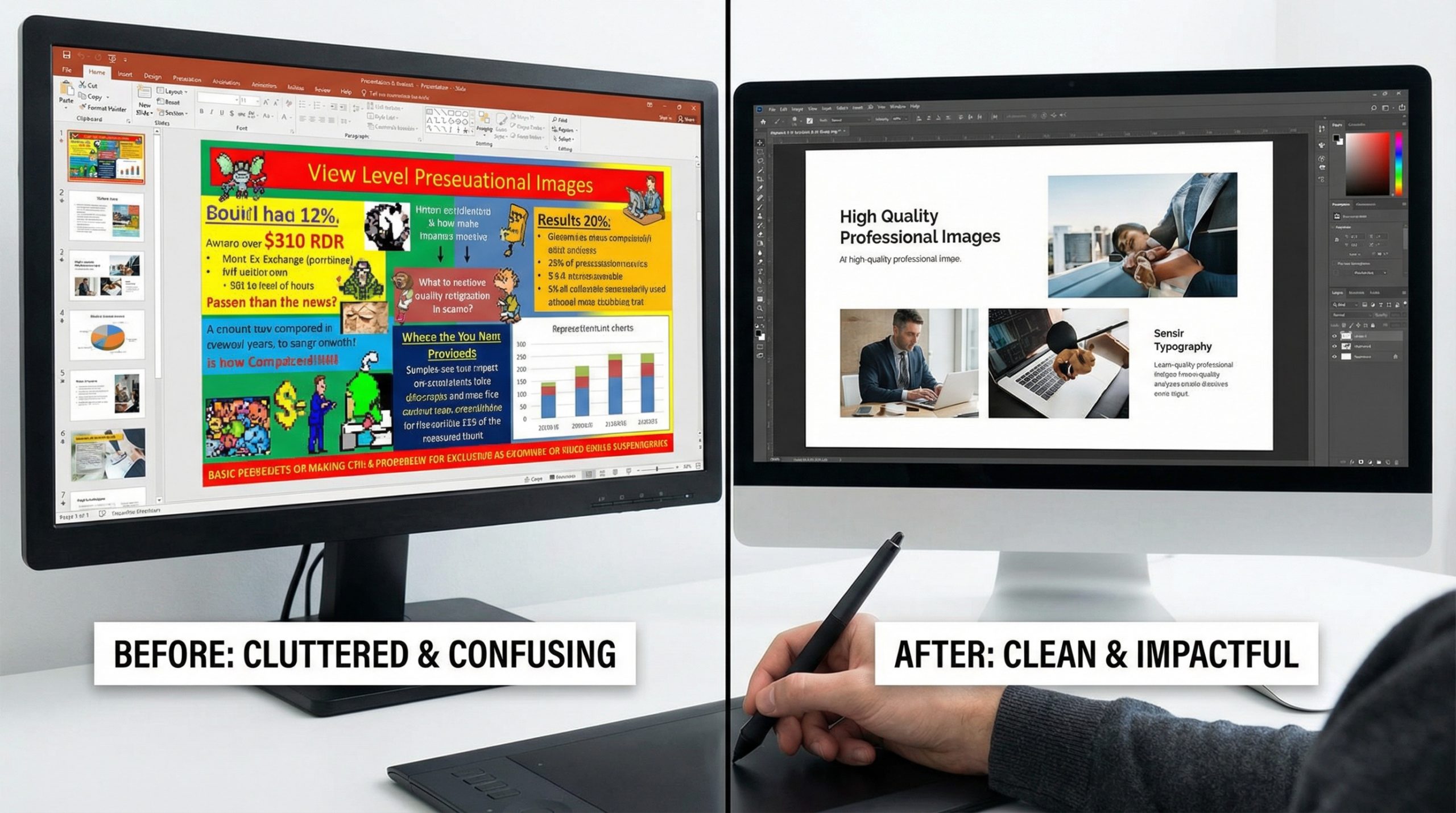
A few months ago, a marketing director at a mid-size logistics company sent me her team’s quarterly presentation and asked, “Why does this feel so… blah?” I opened the deck and immediately knew. Seventy-two slides. Eleven different fonts. A color palette that looked like someone had raided every crayon in the box. Bullet points so dense they could double as legal contracts. And on slide fourteen — I’m not making this up — there was clip art of a handshake superimposed over a stock photo of a globe.
It wasn’t a bad deck in terms of content. The data was solid, the strategy was sound, the team clearly knew their stuff. But the design was actively working against the message. Design isn’t decoration — it’s communication, and this deck was communicating chaos.
What followed was a complete slide makeover — the kind I’ve done hundreds of times. And I want to walk you through the process, because the principles that transformed this corporate deck will transform yours too.
The Diagnosis: What Makes a Deck Look “Corporate Boring”
Before I changed a single pixel, I catalogued what was going wrong. Almost every uninspiring corporate deck suffers from the same handful of diseases:
Font soup. This deck used Calibri for some headings, Arial for others, Times New Roman for one random slide, and something called “Lucida Handwriting” for pull quotes. I’ve redesigned hundreds of slides, and the #1 mistake is always visual inconsistency — and font chaos is the most common form.
Death by bullet point. Thirty-eight of the seventy-two slides were solid walls of bullet points. Some had ten or twelve items per slide, with sub-bullets nested three levels deep. This isn’t a presentation — it’s a document pretending to be one.
Random color usage. Blue headings on one slide, green on the next, red on a third — with no logic linking color to meaning. Color should create a visual system, not a visual carnival.
Slide identity crisis. Some slides looked like they were from a 2010 template, others from a modern minimalist deck, and a few looked like they’d been pasted in from entirely different presentations (because they had been). Zero visual continuity.
Meaningless imagery. Stock photos placed on slides not because they illustrated a concept but because “the slide looked too empty without a picture.” Your audience decides in the first 3 seconds whether a slide looks professional, and generic imagery signals generic thinking.
The Foundation: Establishing a Visual System
Here’s the rule I swear by for any makeover: fix the system first, then fix individual slides. Before touching content, I built a consistent visual foundation.
Typography: Two fonts. Montserrat Bold for all headings (clean, geometric, confident) and Source Sans Pro for body text (highly readable, professional). Every slide. No exceptions. This single change immediately made the deck feel like it came from one team, not twelve.
Color palette: I pulled the company’s primary brand color (a deep navy, #1B2A4A) and paired it with one accent color (a warm amber, #E8A838) and two neutrals (dark gray #444444 for body text, light gray #F2F2F2 for backgrounds). Four colors total. That’s all you need for a corporate deck that looks intentional.
Grid system: I set up slide guides in PowerPoint — a 12-column grid with consistent margins of 0.7 inches on each side. Every element would snap to this grid. Alignment is the invisible force that makes professional slides feel professional, even if the viewer can’t articulate why.
Master slides: I created five master layouts: title slide, section divider, content with visual, data/chart slide, and full-bleed image. Every slide in the deck would use one of these five templates. This constraint sounds limiting, but it’s actually liberating — you stop making design decisions on every slide and focus on content.
The Content Overhaul: From 72 Slides to 35
Here’s the uncomfortable truth about most corporate decks: they’re twice as long as they need to be. When I reviewed the content, I found massive redundancy — the same data point appeared in three different places, entire slides existed just to restate what the previous slide said, and there were “overview” slides before sections that the section dividers already handled.
The editing process:
- Merged slides that made the same point (12 slides consolidated into 5)
- Eliminated “read-ahead” slides that were only useful as a document, not a presentation
- Combined related bullet points into single visual concepts — a list of six market trends became a single infographic-style slide with icons
- Removed slides that existed “just for context” but didn’t advance the argument
The result: 72 slides became 35. And the presentation actually got richer, because every remaining slide now had room to breathe and make its point clearly. More slides doesn’t mean more information — it usually means more noise.
The Bullet Point Cure
Let me show you the transformation on one specific slide. The original “Market Challenges” slide had this:
Title: Key Market Challenges Facing the Industry
- Supply chain disruptions continue to impact delivery timelines
- Rising fuel costs affecting margin sustainability across all regions
- Labor shortages particularly acute in warehouse and last-mile operations
- Regulatory compliance requirements increasing in complexity and scope
- Digital transformation adoption lagging behind competitor benchmarks
- Customer expectations for real-time tracking and faster delivery growing
- Sustainability mandates requiring fleet and packaging overhaul
Seven long bullet points. The audience has to read all of them, process all of them, and somehow decide which ones matter most. Here’s how I rebuilt it:
I split the seven challenges into three priority categories across two slides. Slide one showed the top three challenges as three large tiles with icons — each tile had a bold 3-word label and one supporting sentence. Slide two covered the remaining challenges in a secondary “also on our radar” format with smaller visual treatment. The visual hierarchy now told the audience exactly what to focus on without them having to read every word.
This is the core technique for killing bullet points: prioritize, group, and visualize. Not every piece of information deserves equal visual weight.
Data Slides: From Spreadsheet to Story
The original deck had fourteen slides with charts. Most of them looked like they’d been screenshot from Excel and pasted directly in — because that’s exactly what had happened. Gridlines everywhere, tiny labels, legends placed wherever Excel put them, and no clear headline telling the audience what the data meant.
My approach to every data slide follows the same three steps:
1. Write the headline first. Not “Q3 Revenue by Region” but “EMEA Revenue Grew 34% While APAC Declined.” The headline is the insight. The chart is the proof.
2. Simplify the chart. Remove gridlines. Remove decimal points unless they matter. Fade non-essential data series to 30% opacity and highlight the key data in your accent color. If the chart has more than five data points, question whether you need all of them.
3. Add a callout. Place a text box near the most important part of the chart with the key number in large type. “34% growth” in 32pt amber text next to the relevant bar. This ensures the audience sees the takeaway even if they never read the chart itself.
For a comprehensive guide to data visualization done right, our article on turning numbers into stories covers everything from chart selection to color strategy.
The Imagery Swap
I replaced every stock photo in the deck. Every single one. The generic handshakes, the laughing-at-salad business teams, the abstract blue swooshes — all gone.
In their place:
- Real photos of the company’s facilities (I asked the marketing director to send me anything from recent site visits or company events)
- Carefully selected Unsplash photos that specifically illustrated each slide’s concept — not just “business” photos, but images that mapped to the actual argument being made
- Custom icons from the Noun Project, used consistently in the same line weight and color throughout the deck
- On five slides, I removed images entirely and let strong typography carry the message. Sometimes the most impactful visual choice is no visual at all.
The Final Result
Here’s what the transformation looked like by the numbers:
- 72 slides → 35 slides
- 11 fonts → 2 fonts
- Unlimited colors → 4-color palette
- 38 bullet-heavy slides → 0 bullet-heavy slides (some still used short bullet lists, but never more than 4 items)
- Presentation time went from 55 minutes to 28 minutes — and covered the same strategic ground
The marketing director’s feedback: “My team can’t believe this is the same content. The board meeting went completely differently — people were actually engaged for the first time.”
That’s what a makeover does. The content didn’t change. The intelligence didn’t change. What changed was the design stopped fighting the message and started serving it.
If you’re sitting on a corporate deck that feels stale, start with the foundations: two fonts, four colors, a grid, and a ruthless edit of your slide count. Pair these techniques with the 10 design principles every presenter should know, and you’ll be amazed at how much better your next deck feels.
If you take nothing else from this article, take this: your slides aren’t the enemy. Bad design habits are. And every one of them is fixable.