


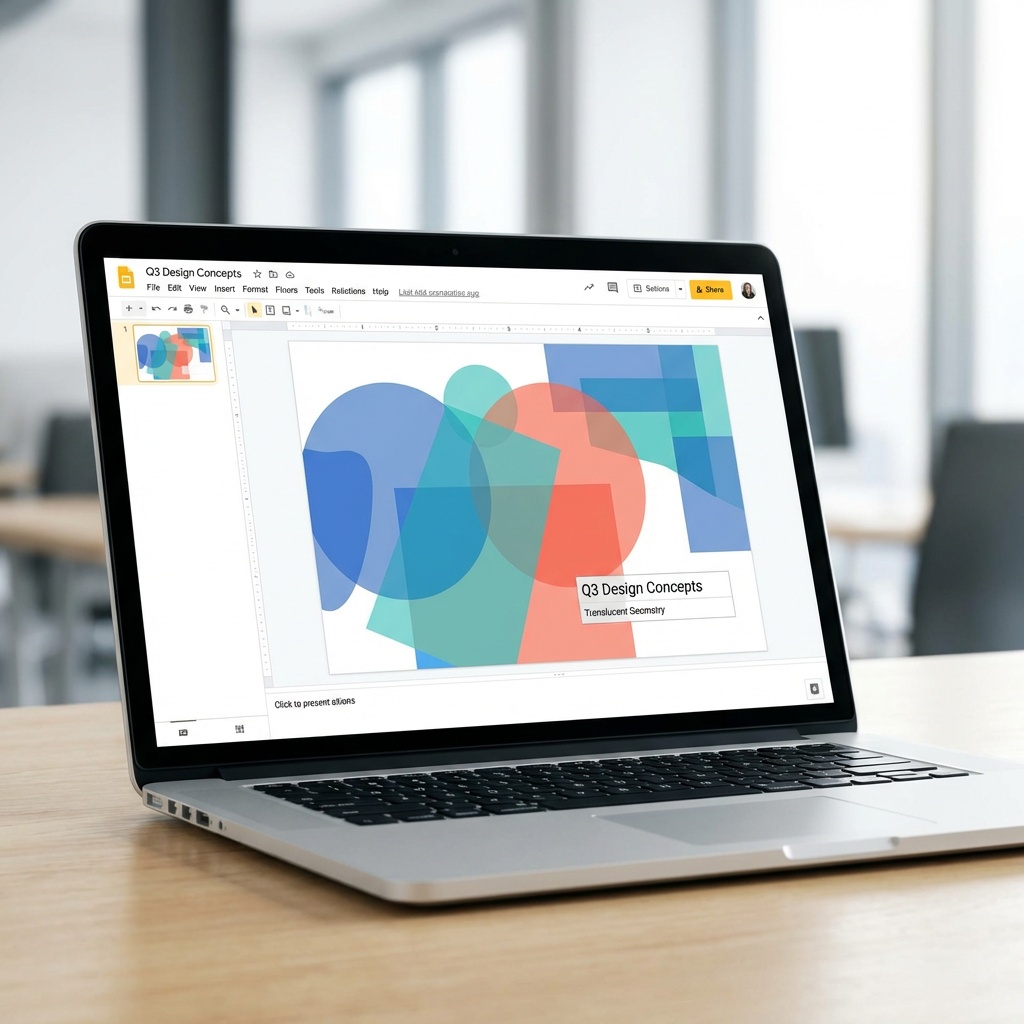
Opacity control is one of those features that sits quietly in Google Slides — no obvious button, no right-click shortcut — and a lot of people don’t realize it’s there until they see someone else’s slides and wonder how they got that layered, see-through effect. Once you know where it lives, you’ll use it constantly.
This isn’t just about making shapes look nice. Transparency is a practical tool. It’s how you put text on top of a photo without losing readability. It’s how you create subtle background watermarks. It’s how you build depth into a flat slide without overloading it with graphic elements. Let me show you exactly how it works.
Where Google Slides Hides the Opacity Control
Google Slides doesn’t put transparency in an obvious spot, and that’s the source of a lot of confusion. You’re looking for the Format Options panel — not the toolbar, not the right-click menu. Here’s the path:
Click on any shape to select it. Then go to Format > Format Options in the top menu. A panel opens on the right side. Look for the section called “Adjustments.” Under it, you’ll see an Opacity slider that goes from 0% (fully transparent) to 100% (fully opaque). Drag it where you need it, or type a number directly into the field.
That’s it. The reason most people miss it: they’re looking in the fill color picker, which doesn’t have a separate opacity slider for the whole shape. The Format Options panel is the right place for controlling overall shape transparency.
The Fill Color Method: More Control When You Need It
There’s a second way to control transparency, and it gives you finer control in specific situations. This method sets the transparency of the fill color independently — so you can have a 30% transparent fill while keeping the border fully opaque, or vice versa.
Click the shape. In the toolbar, click the Fill color button (the paint bucket icon). At the bottom of the color picker, you’ll see “Custom.” Click that. A dialog opens with a hex field and an opacity slider specifically for the fill. This is the RGBA model — you’re adjusting the alpha channel of the color directly.
Why does this matter? If you’re overlaying a shape on a photo for a text background, you often want the fill to be translucent but the border invisible (or removed entirely). The fill color method lets you nail that without affecting anything else on the shape.
When You’d Actually Use This
Opacity on shapes isn’t decorative — it solves real problems. Here are the situations where it earns its place:
Text readability over images. Drop a white or dark rectangle over a busy background photo and reduce it to 40-60% opacity. Your text goes on top of the shape, not directly on the photo, and suddenly it’s readable without covering the image entirely. This is one of the most common uses in professional decks.
Subtle call-out boxes. Instead of a solid colored box that competes with your content, a 20-30% opacity box in your brand color draws attention without dominating the slide.
Layered charts and infographics. Overlapping shapes at different transparencies can suggest depth or show relationships between elements — especially useful for data visualization work where you’re layering context onto a chart.
Watermarks. Paste your logo or a “DRAFT” text box on the slide, reduce opacity to 10-15%, and send it behind the main content. It shows without getting in the way. Google’s Slides help center covers the layering options (Arrange menu) you’ll need for positioning it correctly behind other elements.
Slide backgrounds with texture. Bring in a textured image, add a semi-transparent solid color rectangle over the entire slide, and you’ve got a tinted texture background — much richer than a flat color but less distracting than a full photo.
Working With Image Opacity: Same Panel, Different Element
Worth noting separately because people sometimes confuse the two: if you want to change the opacity of an image (not a shape), the Format Options panel works the same way. Select the image, go to Format > Format Options, and find the Adjustments section. The opacity slider controls image transparency specifically.
The practical use case here is ghost images — a barely-there image behind text at 10-15% opacity can add texture and context without competing with your message. If you’re building a layered slide design, knowing that both shapes and images share this control in the same panel is useful.
Things That Will Trip You Up
A few things about opacity in Google Slides that aren’t obvious until you’ve made the mistake:
Grouped shapes share the slider. If you group two shapes and then adjust opacity from Format Options, it affects the entire group, not individual shapes. Ungroup first if you need different transparency levels on different elements.
The opacity slider behaves differently for lines. Lines in Google Slides don’t have a Format Options opacity slider in the same way as shapes. To make a line translucent, go through the line color picker and use the Custom color dialog to adjust the alpha directly.
It doesn’t always export identically. Semi-transparent shapes export fine as PDFs and PNGs in most cases, but if you’re converting to PowerPoint for someone else to edit, test it. Complex transparency can occasionally render slightly differently across platforms. If that’s a concern, the Google Slides vs PowerPoint comparison covers the formatting compatibility gaps worth knowing about.
Color mode affects results. If you’re using a very dark or very saturated fill color and reduce opacity, the resulting blend with the slide background may not be what you expected. The easiest fix: preview on different background colors before finalizing, especially if the slide background isn’t white.
A Faster Workflow If You’re Doing This a Lot
If you find yourself adjusting shape opacity repeatedly across a deck — say, you’re building a template where every accent shape needs to be at 25% — here’s the move: get one shape exactly right (opacity, fill, border, everything), then right-click it and choose “Copy.” Now paste and modify. The copy retains all the formatting including opacity, so you’re just repositioning and resizing rather than re-doing the opacity setting each time.
For people who use Google Slides regularly, the Format Options panel becomes one of those places you have open almost constantly. Beyond opacity, it also controls shadow, reflection, and rotation. Getting comfortable with it across the board is worth the few minutes it takes — the principles behind professional-looking slides apply directly to how you use layering and depth in Google Slides.
Mobile: What You Can and Can’t Do
One honest note about the mobile Google Slides app: opacity control is more limited there. You can change fill colors with transparency using the color picker, but the full Format Options panel with the opacity slider isn’t available in the same way on iOS or Android. If opacity control matters for what you’re building, do it from a desktop browser — Chrome works best, though the feature functions in Firefox and Edge too.
The web version is also where you’ll get access to the “Send to back” and “Bring to front” layering options you’ll need when stacking semi-transparent elements, so desktop is really the place to do this kind of design work. The mobile app is fine for reviewing and minor edits — not for building layered slides from scratch.

