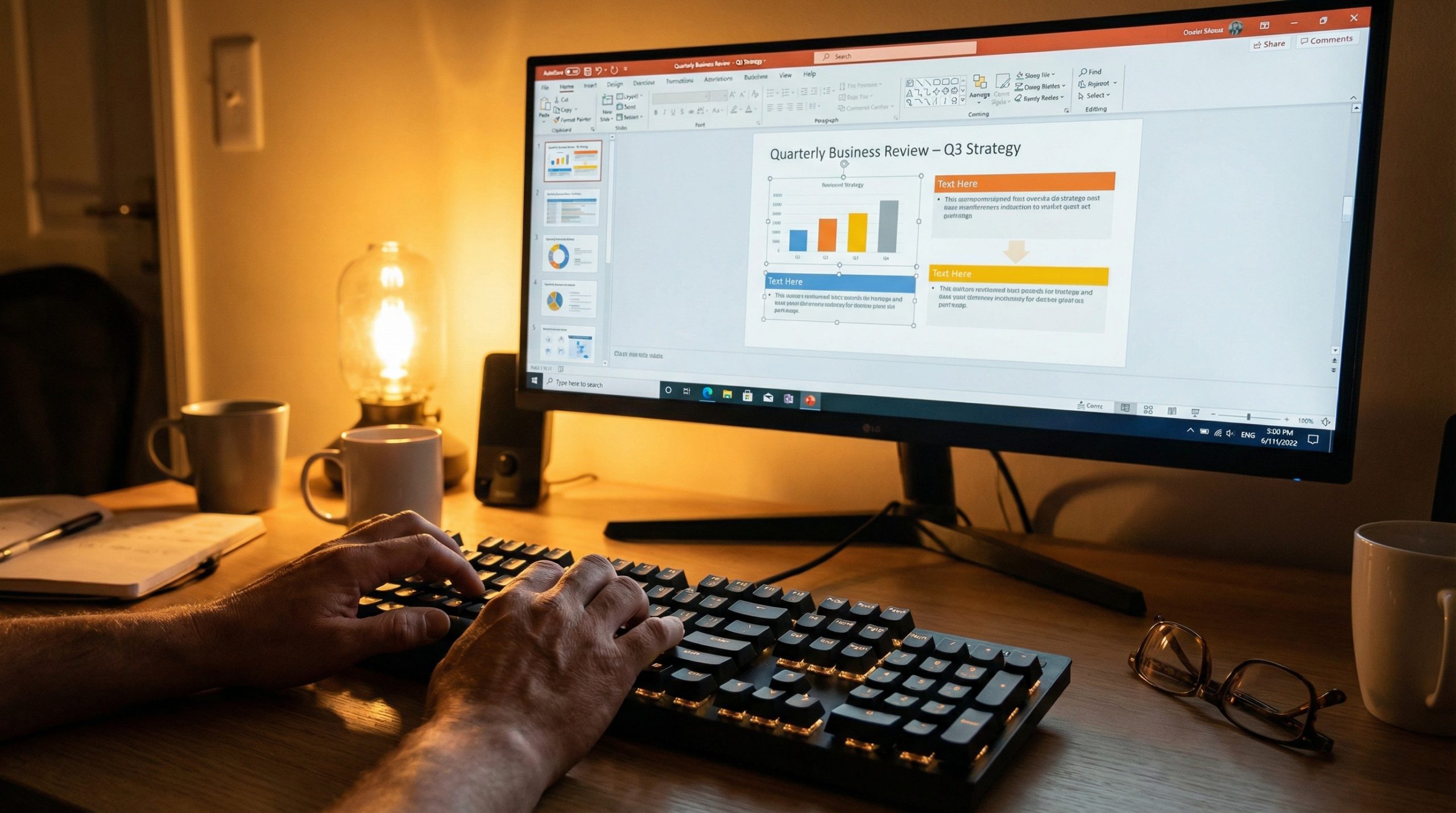
I’ve been using PowerPoint since version 97, and I still watch people spend 45 seconds navigating through three menus to do something that takes one keystroke. It physically pains me. Not in a judgmental way — in a “let me help you get those 45 seconds back, 200 times a day” way.
Here’s the math that should motivate you: if you save just 2 minutes per hour through keyboard shortcuts and power-user techniques, that’s 16 minutes a day, 80 minutes a week, and nearly 70 hours a year that you get back. Seventy hours. That’s almost two full work weeks you’re currently spending clicking through menus.
These are my 15 most-used PowerPoint shortcuts and tricks — the ones I use daily, the ones I teach first in every workshop, and the ones that consistently get the reaction: “Why didn’t I know about this sooner?”
1. Duplicate Objects Instantly: Ctrl + D
Stop clicking through 5 menus. There’s a shortcut for that. Most people copy and paste objects with Ctrl+C, Ctrl+V. That works, but Ctrl+D does it in one step — and here’s the magic: it remembers your last move. Duplicate an object, drag it to the right, then hit Ctrl+D again. PowerPoint duplicates it AND places it the same distance from the previous copy. You can build evenly spaced grids of elements in seconds.
This one feature alone will save you hours if you build any kind of repeated layouts — icon grids, timeline markers, comparison columns, or pricing tables.
2. Format Painter on Steroids: Ctrl + Shift + C / Ctrl + Shift + V
You know the Format Painter button — click it, click another object, formatting copies. But most people never discover that Ctrl+Shift+C copies formatting and Ctrl+Shift+V pastes it. The advantage? You can paste that formatting multiple times without double-clicking the painter button. Copy the formatting once, paste it on fifteen different objects. Done.
Here’s my power-user trick: this works on shapes, text boxes, images, and even chart elements. Formatted one bar in your chart exactly how you want it? Ctrl+Shift+C on that bar, Ctrl+Shift+V on the others.
3. Align Objects Perfectly: Alt + H, G, A
Eyeballing alignment is how amateur slides happen. Select the objects you want to align, then use Alt → H → G → A to open the Align menu. From there:
- A, L — Align Left
- A, C — Align Center
- A, R — Align Right
- A, M — Align Middle (vertically)
- A, H — Distribute Horizontally
- A, V — Distribute Vertically
That last pair — Distribute Horizontally and Distribute Vertically — is criminally underused. Select five objects, distribute horizontally, and they’ll space themselves perfectly evenly. No measuring, no dragging, no guessing. For why alignment matters so much, our slide design principles guide explains the visual impact.
4. Quick Access to Any Feature: Alt Key Shortcuts
Press Alt by itself in PowerPoint. Every ribbon tab and button gets a letter overlay. Press that letter to activate it. Then the next level of buttons gets letters. You can work through the entire ribbon — every feature, every setting — without touching the mouse.
My most-used Alt sequences:
- Alt, N, P — Insert a picture
- Alt, N, X — Insert a text box
- Alt, H, F, S — Change font size
- Alt, G — Go to Design tab (for theme colors and slide size)
You don’t need to memorize all of them. Just press Alt and follow the letters. After a week, the most common paths become muscle memory.
5. Selection Pane: Your Layers Panel
Most people never discover this because it’s buried in Home → Select → Selection Pane (or press Alt, H, S, L, P). The Selection Pane shows every object on your slide as a named list — like a layers panel in Photoshop.
From here you can:
- Click to select objects that are behind other objects (no more clicking blind)
- Toggle visibility with the eye icon (hide elements temporarily without deleting them)
- Rename objects (essential for complex animations — “Revenue Chart” is more useful than “Rectangle 47”)
- Reorder the stacking order by dragging
For slides with many overlapping elements — complex diagrams, animated builds, layered graphics — the Selection Pane is indispensable.
6. Slide Master: Edit Once, Apply Everywhere
Go to View → Slide Master. This is where you set fonts, colors, logo placement, and layout templates that apply to every slide in your deck. Change the heading font in the Slide Master, and every slide updates automatically.
I’m amazed how many people manually change the font on 40 individual slides instead of changing it once in the master. This isn’t a shortcut exactly — it’s a fundamental workflow change that prevents hours of repetitive formatting.
Set up your Slide Master at the beginning of every new project: define your fonts, set your color palette, position your logo, create the 4-5 layout variations you’ll need. Then close the master and build your content. If you need a template that handles all this for you, our guide on choosing presentation templates can help.
7. Morph Transition: Cinematic Effects in 30 Seconds
This one feature alone will change how you think about PowerPoint. Select two adjacent slides, set the transition to Morph (Transitions tab → Morph), and PowerPoint automatically animates the differences between them. Move an object from the left side on slide 1 to the right side on slide 2? Morph slides it smoothly. Change its size? Morph scales it. Change its color? Morph fades between colors.
The trick for advanced Morph: name your objects the same on both slides (use the Selection Pane from tip #5). If “Revenue Chart” exists on slide 1 and slide 2 but in different positions, Morph knows they’re the same element and animates between states. For more animation techniques, our slide animations guide covers when Morph works best.
8. Quick Resize and Position: Size & Position Pane
Right-click any object and choose “Size and Position” (or press Alt, J, D, S, Z when a shape is selected). This opens precise controls where you can type exact dimensions and positions in inches or centimeters. No dragging, no guessing.
This is how you make two objects exactly the same size, place an element at exactly the center of a slide, or create pixel-perfect layouts. Type the numbers, press Enter, done.
9. Group and Ungroup: Ctrl + G / Ctrl + Shift + G
Select multiple objects and press Ctrl+G to group them into a single unit that moves, resizes, and aligns as one. Ctrl+Shift+G to ungroup. Simple, but the time savings compound fast when you’re arranging complex slide layouts.
Pro tip: you can group objects, then group groups. This creates nested groups that let you work at different levels of a complex layout — move the whole diagram, or ungroup one level to move a section, or ungroup further to adjust individual elements.
10. Zoom Into Your Work: Ctrl + Scroll Wheel
Hold Ctrl and scroll your mouse wheel to zoom in and out of the slide canvas. When you’re aligning small elements, adjusting subtle spacing, or working with fine typography, zooming to 200-400% gives you precision that’s impossible at normal zoom. Scroll back out to see the slide as your audience will.
11. Paste Special: Ctrl + Alt + V
When you paste content from Word, Excel, or the web, PowerPoint brings in all the original formatting — which usually destroys your slide’s design. Ctrl+Alt+V opens the Paste Special dialog, where you can choose exactly how to paste: as formatted text, unformatted text, an image, or embedded object.
For pasting text from other sources, “Unformatted Text” is almost always what you want. It pastes the words and applies your slide’s existing font and formatting automatically.
12. Presentation Mode Shortcuts
These work during your live presentation and most people know almost none of them:
- B — Black screen (press again to return). Use this during Q&A or discussion to remove visual distraction.
- W — White screen (same idea, white background)
- Number + Enter — Jump to a specific slide. Press “12” then Enter to go directly to slide 12. Essential for Q&A when someone asks about a specific section.
- Ctrl + P — Turn cursor into a pen for live annotations
- Ctrl + I — Turn cursor into a highlighter
- E — Erase all pen/highlighter marks
The black screen shortcut alone is worth memorizing. When you need the audience to focus on you instead of the slides — for a story, a discussion, a key point — pressing B removes the visual competition. For more on presentation delivery techniques, our complete presentation guide covers how to command a room.
13. Quick Access Toolbar: Your Personalized Shortcut Bar
Click the small dropdown arrow above the ribbon (or go to File → Options → Quick Access Toolbar). Add your most-used commands here — they appear as one-click buttons at the top of the window, and they get Alt+number shortcuts automatically (Alt+1 for the first, Alt+2 for the second, etc.).
My Quick Access Toolbar has: Align Objects, Distribute Horizontally, Selection Pane, Format Painter, and Save As PDF. These five commands account for probably 40% of my non-typing actions in PowerPoint.
14. Export Individual Slides as Images
Go to File → Save As, and in the file type dropdown, choose PNG or JPEG. PowerPoint asks if you want to export all slides or just the current one. Choose “All Slides” and it creates a folder with each slide as a numbered image file.
This is incredibly useful for creating social media graphics, email newsletter images, or web content from your presentation. Design in PowerPoint (which many people find faster than Photoshop for simple graphics), export as images, use everywhere.
15. Compress Media for Smaller File Sizes
Large presentations with embedded videos and high-res images can balloon to hundreds of megabytes. Go to File → Info → Compress Media (for videos) or select an image and use Picture Format → Compress Pictures.
Choose “Email (96 ppi)” for the smallest files, “Internet (150 ppi)” for a balance of quality and size, or “Print (220 ppi)” for high-quality output. For most screen presentations, Internet resolution is perfectly sufficient and can reduce file size by 60-80%.
Quick Wins: Try These Three Right Now
If you only adopt three shortcuts from this list, make them these:
- Ctrl+D for duplicating with memory — you’ll use it constantly
- Selection Pane (Alt, H, S, L, P) — it transforms how you work with complex slides
- B key in presentation mode — instant black screen for those moments when the audience should look at you, not the slide
Shortcuts aren’t about being fancy. They’re about spending your time on what matters — the content, the story, the design — instead of fighting the software. Master these fifteen, and you’ll work faster, present better, and wonder how you ever survived without them.
For the full toolkit of resources beyond shortcuts, our ultimate presenter’s toolkit covers 20 resources every speaker needs.