


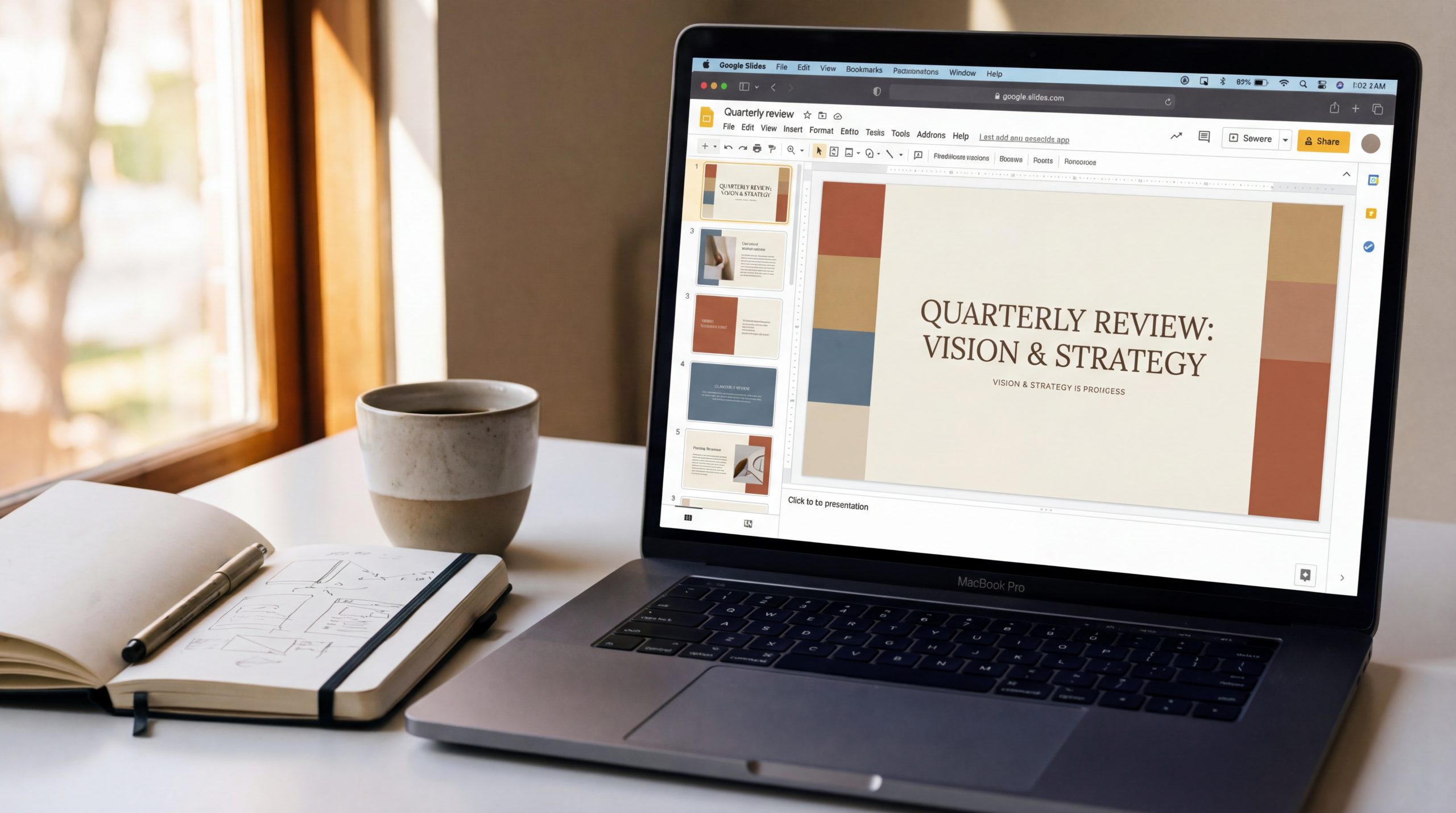
You’ve seen it happen. Someone shares their screen on a team call, and the Google Slides deck looks like it was assembled during a panic attack — five different fonts, a background color that burns your retinas, clip art from 2007 sitting next to a blurry screenshot. Everyone politely ignores it, but you know the message died the moment slide two loaded.
Google Slides gets a bad rap for producing ugly presentations, but the tool itself isn’t the problem. The default themes are bland, sure. But with a few deliberate choices — and I mean genuinely deliberate, not just “pick a nicer template” — you can build slides that look like a designer made them. Here’s how to actually do it.
Start With a Blank Slide, Not a Template
This sounds counterintuitive, but hear me out. Google Slides templates train you to fill boxes. There’s a title box here, a bullet list there, maybe a stock photo placeholder in the corner. You end up with slides that look exactly like everyone else’s, and worse, you’re designing around the template’s layout instead of your content’s needs.
Open a new presentation, go to Slide > Change theme, and pick the completely blank white option. Now you control everything. Set your slide dimensions first — go to File > Page setup. The default 16:9 (widescreen) works for most situations, but if you’re building a presentation that’ll primarily be viewed on mobile or shared as a PDF, consider switching to 16:10 or even a custom size.
Once you’re blank, set up a master slide with your colors and fonts (Slide > Edit theme). This takes five minutes and saves you from the “every slide looks different” problem that plagues most Google Slides decks. Pick two fonts maximum — one for headings, one for body text. That’s it. Three fonts is already chaos.
A strong pairing to start with: Montserrat for headings and Open Sans for body text. Both are free in Google Slides, both are highly readable on screens, and they have enough contrast between them to create visual hierarchy without clashing. For more pairing ideas, check out our guide to font combinations for presentations.
The Three-Color Rule (And Why Most People Break It)
Color is where most Google Slides presentations fall apart. People pick colors they “like” without considering how those colors work together on a projected screen or shared monitor. Here’s the rule: choose exactly three colors.
- Primary color: Your dominant brand or theme color. This shows up in headings, key highlights, and shape fills. Example: a deep navy (#1B2A4A).
- Accent color: A contrasting color for call-outs, icons, and emphasis. If your primary is dark, go warm — like a coral (#E8735A) or amber (#F0A500).
- Neutral color: Your background and body text. Typically near-white (#F7F7F7) for backgrounds and dark gray (#333333) for text. Never use pure black (#000000) on pure white (#FFFFFF) — it’s harsh on screens. That subtle softening makes a real difference.
To set these in Google Slides, go to Slide > Edit theme > Colors. Add your three colors as custom colors so they’re always one click away. This prevents the gradual color drift that happens when you eyeball-match colors across 30 slides.
If you’re stuck choosing a palette, our color scheme guide has hex codes ready to paste for different occasions — corporate pitches, creative decks, educational presentations, and more.
Alignment Is the Difference Between Amateur and Professional
Here’s something that separates polished slides from messy ones, and it has nothing to do with creativity: alignment. When elements on your slide are precisely aligned — text boxes sharing the same left edge, images evenly spaced, nothing floating in visual limbo — your brain reads the slide as “organized” even before processing the content.
Google Slides has alignment guides built in (those red lines that appear when you drag objects), but most people ignore them. Don’t. Use them religiously. Better yet, use the Arrange menu: select multiple objects, then go to Arrange > Align > pick your alignment type. “Distribute horizontally” is your best friend when you have three or four items that need even spacing across a slide.
A practical test: take any slide you’ve made and squint at it. Literally squint until the text blurs. What you see is the layout — the shapes, the spacing, the weight distribution. If it looks lopsided or cluttered when squinted, the alignment needs work. This trick sounds silly, but designers use it constantly. It strips away content and lets you see pure structure.
One more thing: leave margins. Don’t let any element touch the edge of the slide. Keep at least a thumb’s width of space around all four sides. In pixel terms, that’s roughly 60-80 pixels of padding. Slides that bleed to the edge feel cramped and rushed, even if they have less content than a well-padded slide.
Images: How to Use Them Without Making Your Slides Look Like a Scrapbook
There’s a specific move people make in Google Slides that instantly tanks the quality of their deck: they insert a small image and just… leave it sitting there, surrounded by white space, like a postage stamp on a billboard. Or they stretch a low-res image to fill the slide, turning a perfectly decent photo into a pixelated mess.
Here’s what to do instead. If you’re using a photo, commit to it. Make it full-bleed — stretch it to cover the entire slide background. Then add a semi-transparent overlay shape on top (a rectangle, set to your primary color at 60-70% transparency) and place your text over that. This gives you readable text with a professional, editorial look. It’s the single fastest way to make a Google Slides deck look like it cost money.
For the overlay technique: Insert > Shape > Rectangle, drag it to fill the entire slide, right-click > Format options > Adjustments > set Opacity to around 35-40%. Then right-click > Order > Send to back (but in front of the image). Place white text on top. This works with almost any photo and prevents the “I can’t read the text because the image is too busy” problem.
Where to find good images: Unsplash and Pexels are both free for commercial use. But here’s the real tip — search for images that are simple and have clear areas of solid color or negative space. A photo of a crowded street market will fight your text. A photo of a single coffee cup on a clean desk gives you room to work.
Google Slides also has a built-in image search (Insert > Image > Search the web), but the results tend to be lower quality and may have licensing issues. Stick with dedicated stock sites.
Text Formatting That Doesn’t Make People’s Eyes Glaze Over
The default text in Google Slides is set to Arial, which is fine — functional, readable, boring. But the bigger problem isn’t the font itself; it’s how people format their text. They dump entire paragraphs onto slides and then shrink the font size to 12pt to make everything fit. If you’re doing this, you’ve written a document, not a presentation.
Here are the numbers that actually work on projected slides and shared screens:
- Slide titles: 36-44pt. Bold. Short — aim for 5-7 words max.
- Body text and bullet points: 24-28pt. Regular weight. No more than 3-4 bullets per slide, and each bullet should be one line, maybe two.
- Captions and source text: 14-16pt. Light gray (#999999), not black. This creates visual hierarchy — readers know instantly what’s primary and what’s supplementary.
Line spacing matters more than most people realize. Select your text, go to Format > Line & paragraph spacing, and set it to 1.3 or 1.4 for body text. The default 1.0 spacing makes text feel cramped. That extra breathing room between lines is one of those invisible changes that makes a slide look “designed” without anyone being able to pinpoint why.
And stop centering everything. Centered text works for titles and single-line statements. For anything more than that — bullets, short paragraphs, labels — left-align. Centered multi-line text creates a ragged shape on both sides that looks disorganized. Left-alignment gives a clean vertical edge that the eye can track down easily.
Use Shapes and Lines as Visual Architecture
Most people think of shapes in Google Slides as decoration — a circle here, a rounded rectangle there, maybe an arrow pointing at something. But shapes are actually your layout infrastructure. They’re how you create sections, group information, and guide the viewer’s eye across the slide.
A technique that works remarkably well: use thin horizontal lines (1-2pt weight) to divide sections of a slide instead of cramming everything together. Go to Insert > Line, draw it across the slide, set it to a light gray color. It creates breathing room and visual structure without adding bulk.
Rounded rectangles make excellent containers for key statistics or pull quotes. Here’s how to make them look good: set the fill to your accent color at about 10-15% opacity, with a 1pt border in the full accent color. This creates a subtle highlighted box that draws attention without screaming at the audience. To adjust corner roundness, select the rectangle and drag the small yellow diamond near the corner.
One pattern that works well for comparison slides or feature lists: create two or three equal-width columns using rectangles, each with a slightly different shade of your primary color (use the same hue but adjust lightness). Drop your content into each column. This instantly looks more professional than scattered bullet points, and it’s dead simple to build in Google Slides.
Consistency: The Boring Secret That Fixes Everything
I’ve saved the least exciting tip for this section because it’s honestly the most important one. Consistency is what separates a “nice slide” from a “nice presentation.” Individual slides can look great in isolation but feel like a mess when you click through them because every slide uses different spacing, different heading sizes, different color treatments.
The fix is to build three to four slide layouts in your master theme (Slide > Edit theme) and reuse them throughout your deck:
- Title slide: Big text, centered, minimal elements. Use for section breaks too — not just the opening slide.
- Content slide: Heading at top-left, body content below, consistent padding on all sides.
- Visual slide: Full-bleed image with overlay and minimal text.
- Data slide: Heading, chart or table, source citation in small text at bottom.
When every slide in your deck is built from one of these four templates, the whole presentation develops a visual rhythm. The audience stops noticing the design (in a good way) and focuses entirely on your content. That’s the goal — design that’s invisible because it works.
Check consistency by switching to the filmstrip view (View > Grid view) and looking at all your slides as thumbnails. Color distribution should feel even. If one slide is 80% red and everything else is mostly white, it’ll stick out like a siren. Same with text density — if one slide has fifty words and the rest have fifteen, that slide needs splitting.
Quick Fixes for Common Google Slides Eyesores
Sometimes you don’t have time to redesign a deck from scratch. Here are five-minute fixes that have an outsized impact on how your slides look:
Kill the drop shadows. Google Slides adds a subtle shadow to text boxes and shapes by default. Select the element, go to Format options, and turn off Drop shadow. Shadows make elements look like they’re floating above the slide, which made sense in 2010 and now just looks dated.
Replace bullet points with icons. Instead of a bullet list with five items, try five simple icons arranged in a row with short labels underneath. Google Slides has a built-in icon library (Insert > Image > Search the web, then search for simple icons), or use Google Material Icons as downloadable SVGs. This one change makes slides feel modern instantly.
Make your charts less ugly. If you’ve inserted a Google Sheets chart, double-click it to edit, then remove the gridlines, lighten the axis labels, and change the chart colors to match your presentation palette. Default Google chart colors (that royal blue and red combo) clash with almost every custom color scheme.
Add slide numbers. Go to Insert > Slide numbers. It’s a small detail, but it signals “this person cares about the details.” It also helps during Q&A when someone says “go back to that slide about revenue” — they can say “slide 14” instead.
Crop images to shapes. Select an image, click the dropdown arrow next to the Crop icon in the toolbar, and pick a shape — circle, rounded rectangle, whatever fits. This is far more polished than leaving every photo as a standard rectangle, and it takes two clicks.
For more Google Slides features you might not know about, check out our tips and tricks guide.
What Good Google Slides Design Actually Looks Like
Picture a slide with a white background, the title “Q3 Sales Results” in 20pt Arial centered at the top, a cramped table of numbers below it, and a red-green pie chart jammed into the bottom-right corner. Every quarterly report you’ve ever sat through, right?
Now picture this: same information, but the background is a very light warm gray (#F5F3F0). The title reads “Q3: Sales Up 23% Year-Over-Year” in 38pt Montserrat Bold, left-aligned, with a thin coral accent line underneath. Instead of a full table, the three most important numbers are displayed as large stat callouts (68pt, bold, in the primary color) with small descriptive labels below each. The pie chart is gone — replaced with a simple horizontal bar chart in two colors showing this quarter versus last quarter. A single source line sits at the bottom in 12pt light gray.
Same data. Same tool. Completely different impression. The second version took maybe ten minutes longer to build. The difference is intent — every element is there for a reason, nothing is decorative, and the design serves the message instead of competing with it.
That’s really all “making Google Slides look good” comes down to: making decisions on purpose instead of accepting defaults. The defaults are designed to be inoffensive, which means they’re also designed to be forgettable. Your presentations don’t have to be.

