


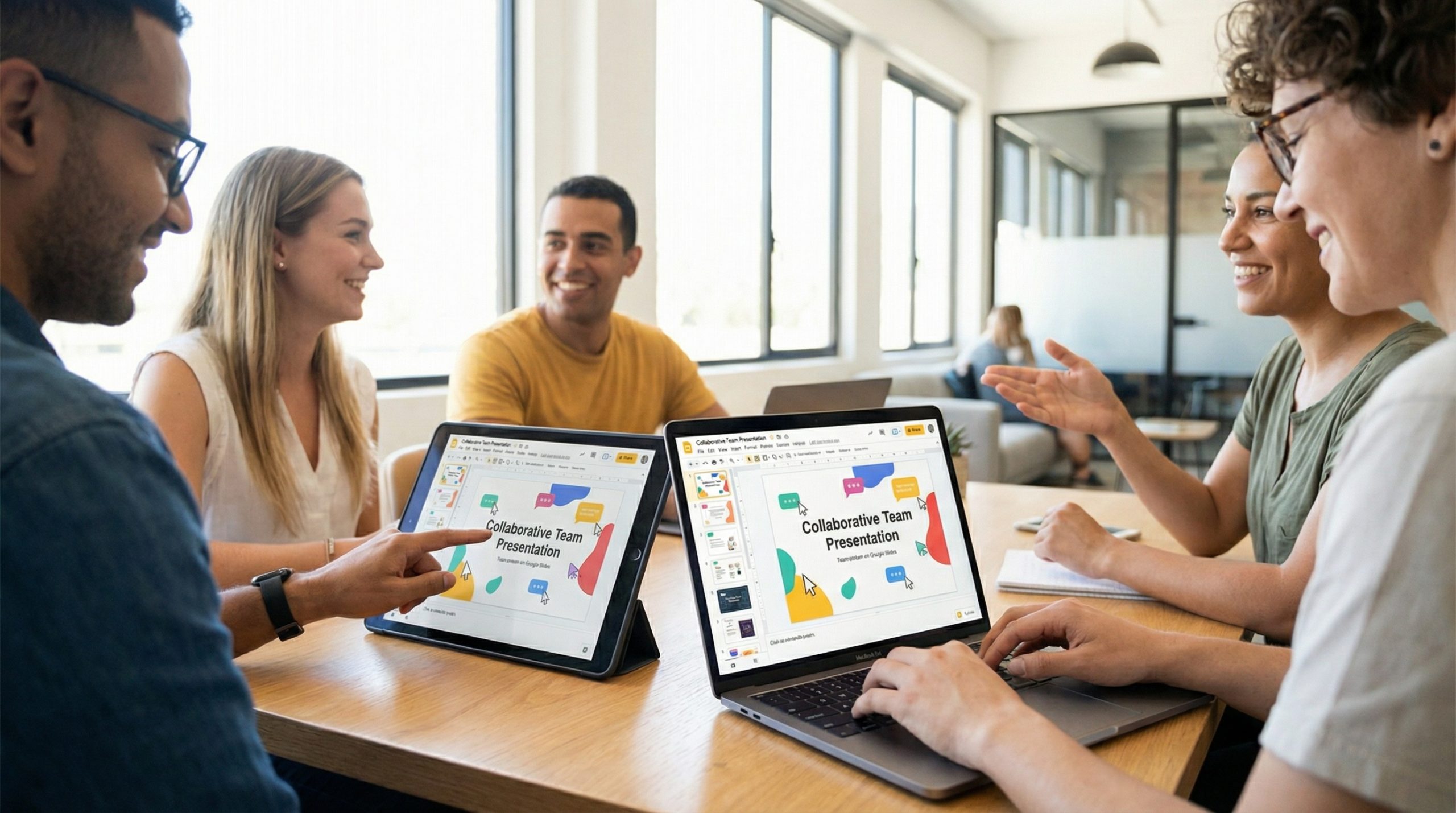
Your team is on a deadline. Everyone’s editing the same deck. Marketing wants to update the brand colors, sales needs to add three slides for a new client case study, and your manager just pinged you asking why slide 17 doesn’t match the approved messaging. Sound familiar?
This is the exact workflow Google Slides was built for — and honestly, it handles it better than any other presentation tool I’ve used. But here’s the thing: most people use maybe 20% of what Google Slides can actually do. They create slides, share a link, and call it a day.
I’ve spent years working with teams that live in Google Workspace, and I’ve collected a library of tips and tricks that genuinely change how people work. Google Slides isn’t PowerPoint Lite — it’s a different tool for a different workflow. And once you unlock its hidden features, you’ll understand why I’ve seen entire companies switch to Slides and never look back.
Collaboration Features Most People Miss
The real power of Slides is what happens when 5 people edit at once. But even teams that collaborate daily in Slides often miss these features:
Linked Slides from other presentations. Go to Insert → Link → Slides from other presentations. You can embed a slide from a different deck, and it stays linked — meaning when the source slide gets updated, your version updates too. I’ve seen this feature alone save teams hours of manual copying when a company overview slide needs to appear in twelve different decks.
Version naming. You know about version history (File → Version history). But did you know you can name versions? Click “Name current version” and give it a meaningful label — “Pre-client review,” “Board-approved final,” “After Sarah’s edits.” When you need to roll back, you’re not guessing which timestamp had the right content.
Assigned action items in comments. When you add a comment, type “@” followed by someone’s email address and check “Assign to [name].” This creates an actionable task that appears in their Google Tasks. It’s not just a comment anymore — it’s a tracked to-do item tied to a specific slide. For teams managing deck reviews, this is powerful.
Comment-only sharing. When sharing, choose “Commenter” instead of “Viewer” or “Editor.” This lets stakeholders provide feedback without accidentally (or intentionally) changing your slides. Perfect for review cycles where you want input without chaos.
Design Tricks That Level Up Your Slides
Google Slides gets criticized for its design limitations compared to PowerPoint, and some of that criticism is fair. But there are design capabilities hiding in Slides that most users never discover:
Custom master slides. Go to Slide → Edit theme. This opens the master slide editor where you can create custom layouts that appear in your “Layout” dropdown for every new slide. Set up your fonts, colors, placeholder positions, and branding elements once — and every team member who uses this theme gets consistent design automatically. If your team lives in Google Workspace, this is your secret weapon for brand consistency.
The Explore panel. Click “Explore” (bottom-right corner, or Ctrl+Alt+Shift+I). This AI-powered panel suggests layout options based on your slide content. Paste in some text and an image, open Explore, and it’ll offer several layout arrangements. The suggestions aren’t always perfect, but they’re a fast way to try different compositions without manual resizing.
Masking images into shapes. Select an image, then click the dropdown arrow next to the crop tool. You’ll see shape options — circles, arrows, stars, custom shapes. Your image gets cropped into that shape. This is how you create those clean circular headshots, hexagonal image grids, or custom image shapes without touching an external editor.
Word Art for impact text. Insert → Word Art gives you a text element that you can fill with colors, add outlines to, and manipulate like a shape. It’s limited compared to PowerPoint’s text effects, but for creating a big, bold statement slide — a single impactful word or phrase — it gets the job done cleanly.
Google Workspace Integration Tips
The magic of Google Slides isn’t just in Slides itself — it’s in how it connects to the rest of Google Workspace. Here are integrations that most people don’t know about:
Linked Charts from Google Sheets. Insert a chart from Sheets (Insert → Chart → From Sheets), and it maintains a live connection. When the source spreadsheet updates — new quarterly numbers, updated survey results — click the “Update” button on your chart in Slides and it pulls the latest data. No more manually rebuilding charts every month. For making those charts presentation-ready, our guide on data visualization in presentations has formatting tips that apply perfectly to Slides charts.
Drag and drop from Google Drive. Open Google Drive in another browser tab and drag images, videos, or even other Slides files directly onto your slide canvas. It’s faster than Insert → Image → Drive and works reliably in Chrome.
Google Keep integration. If you use Google Keep for notes, open the Keep panel inside Slides (Tools → Keep notepad) and drag notes directly onto slides. I use this workflow for brainstorming: capture ideas in Keep throughout the week, then drag them into a presentation framework when it’s time to build the deck.
Publishing to the web. File → Share → Publish to web creates a live, auto-updating version of your slides that anyone can view via URL — no Google account needed. You can set it to auto-advance for kiosk-style displays. I’ve used this for lobby screens, trade show booths, and classroom displays that update whenever I edit the source deck.
Keyboard Shortcuts That Save Real Time
These are the shortcuts I use daily that most people don’t know exist in Google Slides:
- Ctrl + Shift + V — Paste without formatting. Every presenter needs this. It matches pasted text to your slide’s font and size instead of bringing in whatever formatting it came from.
- Ctrl + Alt + M — Add a comment on the selected element. Faster than right-clicking.
- Ctrl + Shift + F — Toggle full screen presentation from the editor. Instant preview without navigating menus.
- Tab / Shift + Tab — In presentation mode, advance or reverse animations (not just slides). Many people don’t realize Google Slides supports step-by-step animation builds.
- Ctrl + Alt + Shift + G — Group selected objects. Essential when you’re aligning multiple elements and want them to move as one unit.
- Ctrl + D — Duplicate the selected slide or object. Faster than copy-paste, and it maintains position when duplicating objects.
For a deep get into shortcuts across presentation tools, including PowerPoint equivalents, check out our 15 PowerPoint shortcuts guide — many of the principles transfer directly to Slides.
Add-Ons That Boost Google Slides
Here’s where Google Slides punches above its weight. The add-on ecosystem fills in features that Slides doesn’t have natively, and some of these are genuinely excellent:
Pear Deck — Transforms your slides into an interactive experience with student response features, drawing activities, and formative assessments. Massively popular in education. If you teach with Google Slides, this add-on alone justifies the platform.
Lucidchart Diagrams — Embed editable flowcharts, org charts, wireframes, and diagrams directly into your slides. The diagrams stay connected to Lucidchart, so updates flow through automatically.
Extensis Fonts — Access the entire Google Fonts library (900+ fonts) within Slides. The default font selection in Slides is limited, but this add-on unlocks professional typefaces that can dramatically improve your slide typography.
Slides Toolbox — A Swiss army knife add-on that adds features like removing all animations, changing colors across all slides, resizing multiple objects uniformly, and exporting slides as individual images. The batch operations alone save significant time on large decks.
To install add-ons: Extensions → Add-ons → Get add-ons. Browse or search for the ones above. Most have free tiers that are sufficient for individual use.
Google Slides vs. PowerPoint: An Honest Comparison
I get asked this question constantly, so let me address it directly — and fairly:
Choose Google Slides when: Your team collaborates in real time. You work across different devices and operating systems. You need version control without manual file management. You’re in education (Google Classroom integration is unbeatable). You want simplicity and speed over advanced features.
Choose PowerPoint when: You need advanced animations, Morph transitions, or complex multimedia. You regularly present offline. You need pixel-perfect design control. Your organization uses the Microsoft ecosystem. You’re doing video-heavy presentations.
The honest truth: For 80% of presentations, Google Slides does everything you need — and the collaboration features make it the better choice for team-built decks. For the other 20% — keynote speeches, high-stakes pitches, animation-heavy decks — PowerPoint still has the edge. And there’s no rule that says you can’t use both: draft collaboratively in Slides, export to PowerPoint for final polish.
Presenting Like a Pro in Google Slides
A few presentation-mode features that most people overlook:
Q&A mode. When presenting, click the three dots menu and enable “Audience tools → Q&A.” This generates a URL that audience members can visit to submit and upvote questions in real time. It’s built into Slides — no Slido subscription needed. I’ve used this for team all-hands meetings and it works remarkably well.
Laser pointer. Press “L” during presentation mode to activate a virtual laser pointer. Simple, but effective when you’re pointing out specific elements on a data-heavy slide during a screen share. It’s especially useful for remote presentations where you can’t physically point at a screen.
Speaker notes on your phone. Open the presentation on your laptop in presentation mode, then open the same presentation on your phone’s browser. Your phone shows speaker notes while your laptop shows the slides. No Presenter View monitor needed — your phone becomes your personal teleprompter.
Auto-captions. In presentation mode, toggle captions to display real-time captions of your speech. This accessibility feature is powered by Google’s speech recognition and works surprisingly well. For inclusive presentations — especially with multilingual audiences — this is invaluable.
Making the Most of Google Slides
Google Slides isn’t trying to be PowerPoint, and that’s its greatest strength. It’s built for a world where presentations are collaborative documents, where five people contribute to a deck, where slides need to work across devices, and where the fastest path from idea to finished presentation matters more than having 500 animation presets.
Start by setting up a custom theme with your brand elements. Explore the add-ons that fill in any feature gaps. Learn the keyboard shortcuts that shave minutes off your daily workflow. And use the Google Workspace integrations — linked charts, Keep integration, publishing to web — that no other presentation tool can match.
For the broader principles of building presentations that connect with your audience — regardless of which tool you use — our complete guide to powerful presentations covers everything from structure to delivery. Combine that strategic foundation with the Google Slides tricks you’ve learned here, and you’ll be building better decks faster than you thought possible.

