


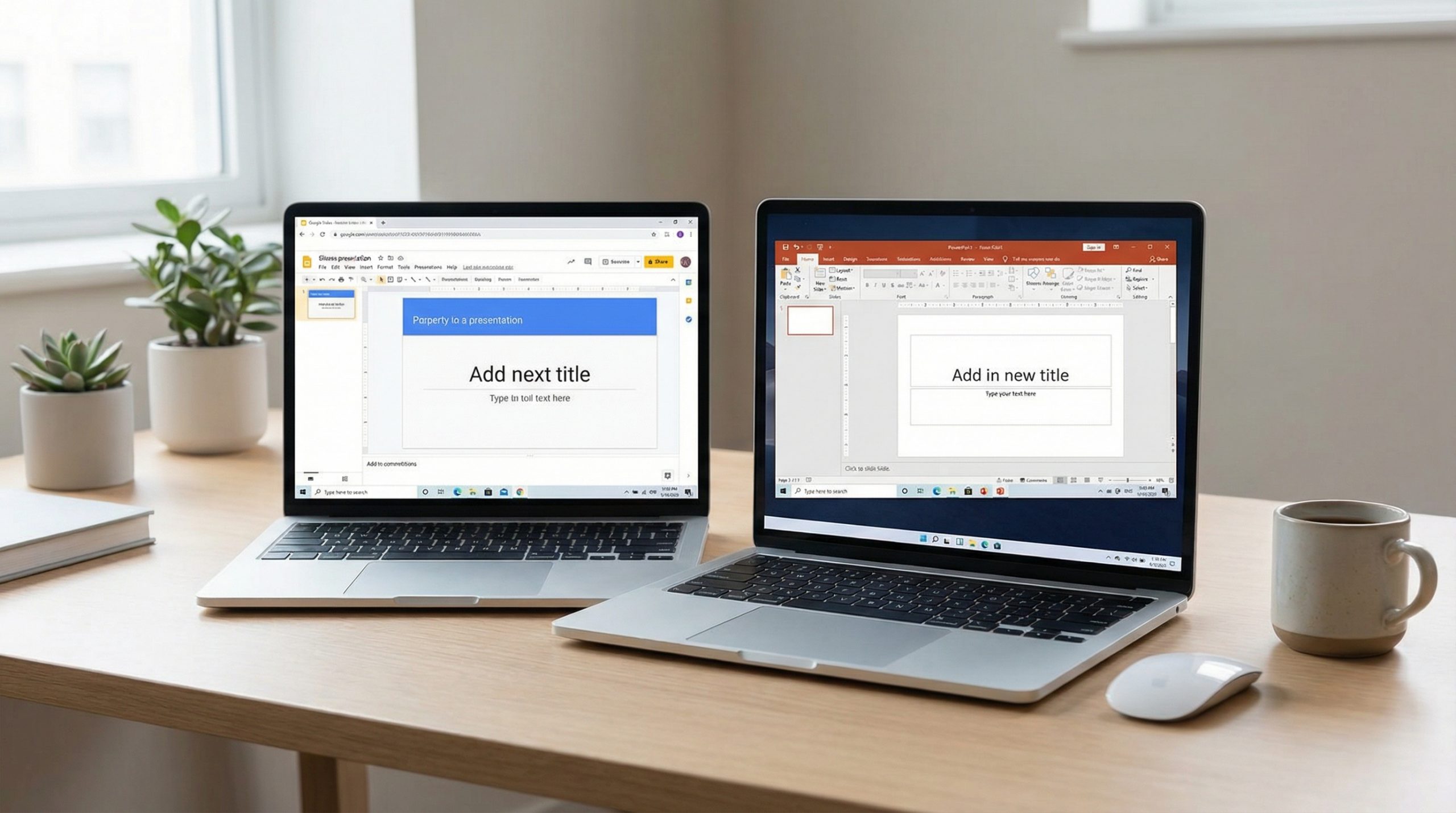
The Debate My Team Has Every Quarter
Every three months, someone on our team asks the question: “Why aren’t we using PowerPoint?” And every three months, I give the same answer: “Because we don’t need to.” That usually sparks a 20-minute debate that ends with everyone agreeing to keep using Google Slides — until the next quarter, when someone asks again.
I’ve been a Google Slides advocate for years, but I’m not dogmatic about it. I’ve used PowerPoint for client projects, and I respect what it does well. The truth is, the Google Slides vs PowerPoint debate isn’t about which tool is “better” — it’s about which tool fits your workflow, your team, and your specific needs. So let me give you the honest comparison I wish I’d had five years ago.
Collaboration: Google Slides Wins (And It’s Not Close)
This is where Google Slides dominates, and it’s the single biggest reason teams switch. The real power of Slides is what happens when 5 people edit at once. No file versioning. No emailing attachments back and forth. No “Final_v3_FINAL_actuallyFinal.pptx” in your downloads folder.
In Google Slides, everyone works on the same deck simultaneously. You see each other’s cursors. Comments and suggestions happen in real time. Version history is automatic and granular — you can roll back to what the deck looked like Tuesday at 3:47 PM.
PowerPoint has added co-authoring through OneDrive and SharePoint, and it’s improved significantly. But in my experience, it’s slower, occasionally creates version conflicts, and requires everyone to have compatible Microsoft 365 licenses. For teams that live in Google Workspace, the collaboration gap is still wide.
Design Capabilities: PowerPoint Has the Edge
Let me be fair: PowerPoint is a more powerful design tool. Its animation engine is vastly more sophisticated. Morph transitions — where elements smoothly transform between slides — are genuinely impressive and have no equivalent in Google Slides. Custom shapes, advanced layering, embedded fonts, and precise alignment tools give PowerPoint users a level of control that Slides simply doesn’t offer.
If you need pixel-perfect slide design with complex animations and transitions, PowerPoint is still the right choice. Understanding when to use animations effectively is important regardless of which tool you choose.
Google Slides’ design tools are adequate for most business presentations. You can create clean, professional slides with good typography and consistent layouts. But “adequate” and “exceptional” are different things, and for design-heavy work, PowerPoint’s ceiling is higher.
Templates: Both Are Strong, Differently
PowerPoint has decades of template ecosystem behind it — thousands of premium templates from marketplaces, corporate template systems with locked elements and brand compliance, and deep Slide Master functionality for enterprise-wide consistency.
Google Slides has a growing template library, and third-party templates are increasingly available. But Slides’ template system is simpler — you can set a theme, but you don’t have the same level of master slide control. For organizations with strict brand guidelines, PowerPoint’s template architecture is more solid.
That said, for most people who just want a good-looking starting point, both tools deliver. Check out how to choose the right template regardless of your platform.
AI Features: An Evolving Race
PowerPoint’s Copilot integration is its biggest recent advantage. You can generate entire presentations from Word documents, get design suggestions, create speaker notes, and summarize long decks. It’s powerful if you’re already in the Microsoft ecosystem.
Google Slides has Gemini AI integration, which offers similar features — generating slides from prompts, suggesting images, and creating summaries. In my testing, Copilot produces slightly better structured content, while Gemini is better at image suggestions. Neither is dramatically better than the other.
For a deeper look at the AI space, this overview of AI in presentations covers both ecosystems.
Presenting and Delivery: PowerPoint Is More Polished
PowerPoint’s Presenter View is the gold standard. You get your current slide, next slide preview, speaker notes, a timer, and annotation tools — all on your screen while the audience sees only the presentation. It’s refined from decades of use.
Google Slides has Presenter View too, and it works fine. You get speaker notes and a timer. But it lacks some of PowerPoint’s finesse — no annotation tools, no zoom functionality, and the experience can vary depending on your browser and display setup.
For in-person presentations at conferences or large meetings, PowerPoint’s delivery tools are noticeably better. For quick team presentations over Google Meet, Slides is smooth — you literally click “Present” from the same window, and your audience sees it instantly.
Offline Access: PowerPoint Wins by Default
PowerPoint is a desktop application that works offline by default. Your files are on your computer. No internet? No problem. You can create, edit, and present without any connection.
Google Slides offers offline mode through Chrome, and it works — but you have to set it up in advance, and it’s less reliable than a native desktop app. If you present in venues with unreliable wifi (which is most venues), having your presentation locally on your machine provides peace of mind that cloud-first tools can’t match.
I’ve seen entire companies switch to Slides for the collaboration, then panic when they can’t access their deck at a conference venue with no wifi. Always download a backup PDF or .pptx before presenting in unfamiliar locations.
Pricing: Google Slides Has the Advantage
Google Slides is free. Not “free with limitations” — actually free. You can create unlimited presentations, collaborate with unlimited people, and access your files from any device with a browser. Google Workspace business plans (starting at $7/user/month) add admin controls and storage, but the core Slides functionality is identical to the free version.
PowerPoint requires either a one-time purchase of Microsoft Office (increasingly rare) or a Microsoft 365 subscription ($12.50/user/month for business plans). Copilot AI adds another $30/user/month. For teams, especially in education and small business, the cost difference is significant.
Ecosystem Integration
If your team lives in Google Workspace, Google Slides is deeply integrated. You can embed Sheets charts that auto-update, link to Docs, pull data from Forms, and share via Drive. Everything connects smoothly.
If your organization is on Microsoft 365, PowerPoint integrates with Word, Excel, Outlook, Teams, and SharePoint in ways Google can’t match. Your choice of presentation tool often comes down to which ecosystem you’re already in — and switching ecosystems is expensive and disruptive.
The Education Factor
Google Slides dominates education. Millions of students and teachers use it daily because it’s free, works in any browser, and integrates with Google Classroom. The entire K-12 and higher education ecosystem has built workflows around Google tools.
If you work in education, Google Slides isn’t just an option — it’s practically a requirement. PowerPoint is available through educational licenses, but the collaboration and Classroom integration makes Slides the default in most schools. For educators looking for more Slides tips, explore hidden Google Slides features.
My Honest Recommendation
Choose Google Slides if:
- Your team collaborates on decks frequently
- You’re already in Google Workspace
- Budget is a concern
- You value simplicity and speed over design power
- You work in education
- You share presentations via link more than presenting in person
Choose PowerPoint if:
- You need advanced animations and transitions
- Your organization has strict brand templates
- You present in person frequently and need solid Presenter View
- You’re already in the Microsoft ecosystem
- You work offline often
- You need maximum design control
Google Slides isn’t PowerPoint Lite — it’s a different tool for a different workflow. The best choice isn’t the “better” tool — it’s the one that fits how you actually work. And honestly? The smartest presenters I know are fluent in both.

