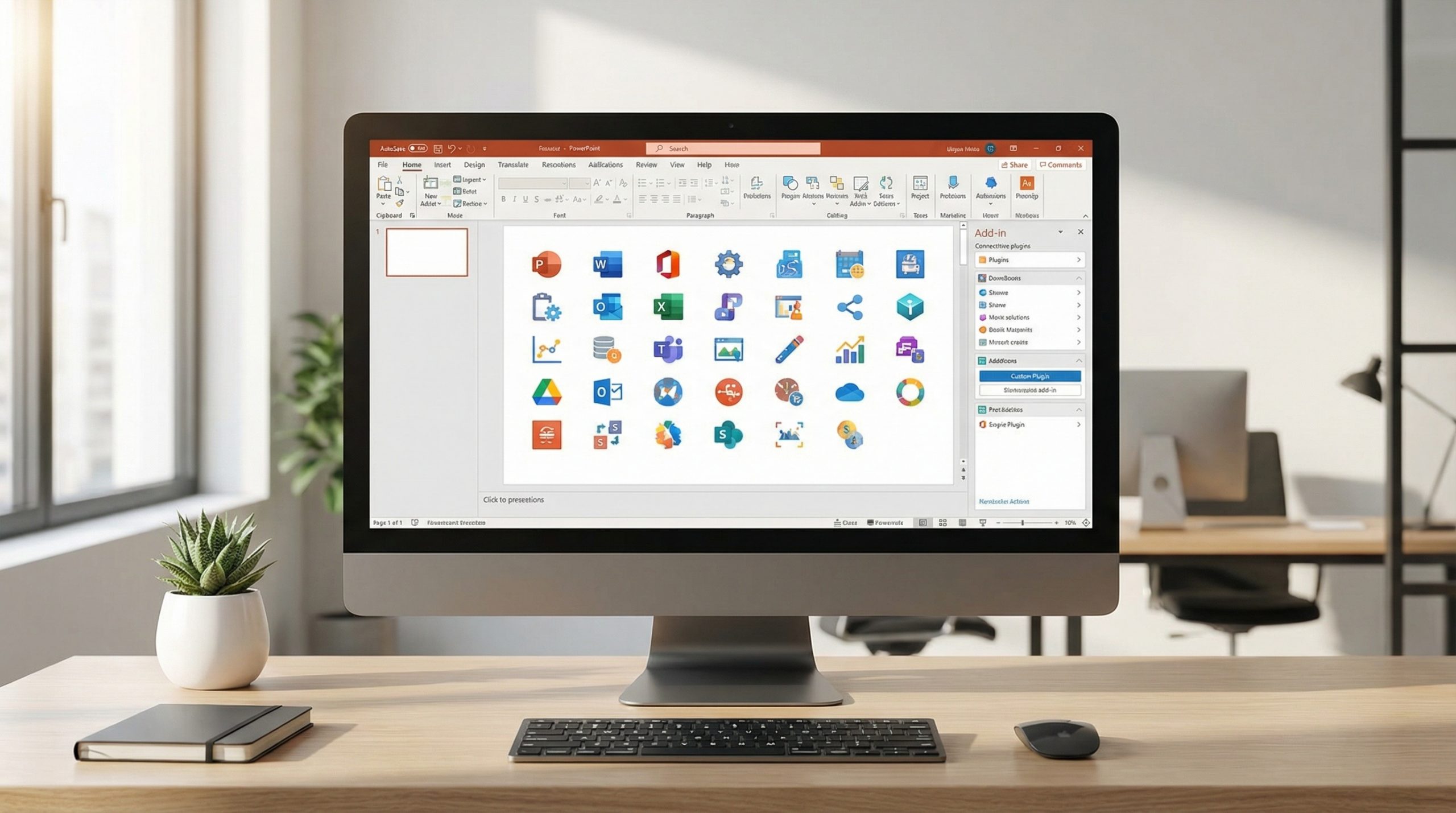
The Add-in That Made Me Throw Out Half My Workflow
I’ve been using PowerPoint since version 97, and I thought I knew every trick in the book. Then a colleague showed me an add-in that did in 30 seconds what used to take me 15 minutes. I sat there, genuinely annoyed — not at the tool, but at myself for not finding it sooner. That moment sent me down a rabbit hole of testing every PowerPoint add-in I could find, and seven of them permanently changed how I work.
Most people never discover these because they’re buried in PowerPoint’s Insert menu under “Get Add-ins” — a button most users have never clicked. But the right add-ins can transform PowerPoint from a presentation tool into a full design, data, and productivity platform. Here are the ones worth your time.
1. Pexels — Free Stock Photos Without Leaving PowerPoint
Stop opening your browser, searching for images, downloading them, and then importing them into PowerPoint. The Pexels add-in puts millions of free, high-quality stock photos directly inside PowerPoint. Search, preview, and insert — all without switching windows.
Why it matters: Image search is one of the biggest time sinks in slide creation. This add-in eliminates it completely. Every photo is free for commercial use, so there’s no licensing worry. I use it in almost every deck I build.
Power tip: Search by color to find images that match your slide’s color scheme. Type “blue office” or “warm sunset” and you’ll get results that feel intentionally designed for your palette.
2. THOR — The Slide Formatting Superhero
THOR (by PPTools) is a formatting and consistency add-in that should come bundled with PowerPoint but doesn’t. It checks your entire deck for formatting inconsistencies — misaligned text boxes, inconsistent fonts, orphaned bullets, slides that don’t match your master layout — and fixes them automatically.
Why it matters: If you’ve ever inherited someone else’s deck and spent an hour fixing formatting, THOR is your salvation. It’s also invaluable for brand compliance. Run it before any client presentation and catch the mistakes your eyes missed.
Power tip: Use THOR’s batch operations to change all instances of a specific font across your entire deck at once. This one feature alone will save you hours when updating branded templates.
3. Mentimeter — Turn Passive Audiences Into Active Participants
Mentimeter adds live polls, word clouds, quizzes, and Q&A directly to your PowerPoint slides. Your audience participates via their phones, and results appear on screen in real time. No app download required — just a browser.
Why it matters: Audience engagement is the difference between a presentation people sit through and one they participate in. Mentimeter turns monologues into conversations. I use a word cloud slide at the start of every workshop to gauge the room’s mood and knowledge level.
Power tip: Use the competition quiz feature for training presentations. Teams compete in real time, and the energy in the room transforms instantly. It’s how you make training sessions stick.
4. QR4Office — Generate QR Codes Instantly
Need your audience to visit a URL, download a resource, or fill out a survey? QR4Office generates QR codes directly on your slides. Enter a URL, customize the size and color, and insert it. Done.
Why it matters: QR codes have experienced a massive comeback since 2020. They’re now the standard way to bridge the gap between your presentation and digital resources. Instead of saying “I’ll send you the link later” (and forgetting), put the QR code on your final slide and let people scan it immediately.
Power tip: Create a QR code that links to a feedback form. Place it on your closing slide with text like “Rate this session — takes 30 seconds.” You’ll get more responses than emailing a survey link afterward.
5. Lucidchart — Professional Diagrams Without the Struggle
Creating flowcharts, org charts, process diagrams, and wireframes in PowerPoint’s native shape tools is painful. Lucidchart’s add-in lets you build professional diagrams in their intuitive editor and insert them directly into your slides. Changes sync automatically.
Why it matters: Diagrams are some of the most important slides in business presentations, but they’re also the ugliest because PowerPoint’s shape tools are clunky. Lucidchart produces diagrams that look like a graphic designer made them, and you can update them without starting over.
Power tip: Use Lucidchart’s data linking feature to create org charts that automatically update when your company structure changes. This is a big deal for HR and operations presentations. It pairs perfectly with effective data visualization principles.
6. Pixton — Custom Comic-Style Characters and Scenes
Pixton might sound like an odd recommendation for professional presentations, but hear me out. It creates custom illustrated characters and scenes that you can use to tell stories visually. Instead of generic stock photos, you get characters that match your narrative — with customizable expressions, poses, and settings.
Why it matters: In training and education presentations, illustrated scenarios are more engaging than bullet points. Pixton lets you create visual stories — a frustrated customer, a confused employee, a celebrating team — without hiring an illustrator.
Power tip: Create a recurring character that represents your audience’s persona. Use them throughout the deck to illustrate pain points, solutions, and outcomes. The consistency creates a narrative thread that holds attention. This approach connects to broader presentation storytelling techniques.
7. iSpring Free — Record and Share Presentations as Videos
iSpring Free converts your PowerPoint presentations into video files or web-ready packages — complete with narration, animations, and transitions preserved. Record yourself presenting, sync it with your slides, and export. It’s the fastest way to turn a live presentation into an on-demand video.
Why it matters: Every presentation you give has a limited audience — the people in the room at that moment. iSpring extends that reach by turning your deck into a shareable video. This is especially valuable for training content that needs to be delivered to multiple groups. Learn more about the trend toward video presentations and why they matter.
Power tip: Use iSpring to create “evergreen” versions of your recurring presentations. Instead of presenting the same onboarding deck every month, record it once and send new hires the video. Save your live energy for presentations that need real-time interaction.
How to Install Add-ins (If You’ve Never Done It)
For those who’ve never ventured into the add-in world, here’s how:
- Open PowerPoint and go to the Insert tab
- Click “Get Add-ins” (or “Office Add-ins” in some versions)
- Search for the add-in by name
- Click “Add” and accept any permissions
- The add-in will appear in your ribbon or as a sidebar panel
Most add-ins have free tiers that cover basic usage, with premium features available through subscriptions. I’d recommend starting with the free versions to see which ones fit your workflow before upgrading.
The Real Value: Time Saved, Quality Gained
Every add-in on this list does one thing: it removes friction between your idea and a finished slide. That friction — searching for images, aligning shapes, creating diagrams from scratch, converting presentations to video — is what turns a 30-minute deck-building session into a 3-hour one.
Here’s my power-user trick: install all seven, spend one hour exploring each, then keep the three or four that match your most frequent tasks. You’ll cut your presentation creation time significantly, and the quality improvement will be obvious.
PowerPoint is a 38-year-old tool that keeps evolving. The add-in ecosystem is where its real power lives — buried under a menu most people never click. Now you know what’s there. Go explore. And pair these tools with keyboard shortcuts for maximum efficiency.
Stop clicking through 5 menus. There’s an add-in for that.