


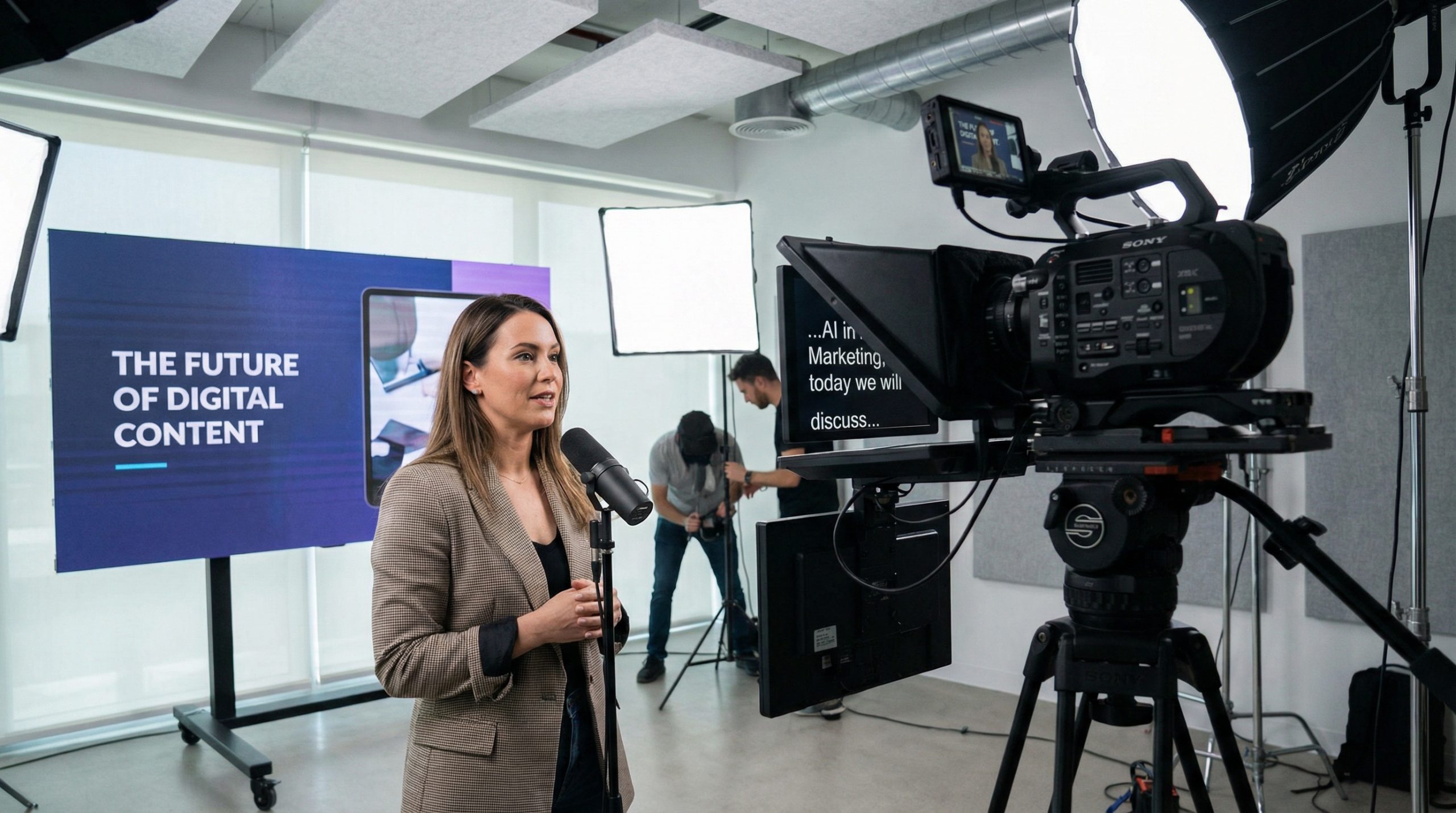
You hit record. The camera’s rolling, the slides are ready, and you take a breath. The first 5 seconds determine if anyone keeps watching. No pressure.
Here’s the truth I’ve learned after producing video presentations for startups, Fortune 500 training departments, and everything in between: video isn’t the future of presentations — it’s the present. Loom messages have replaced half of corporate meetings. Video pitches land in investors’ inboxes before founders even get a call. Training departments produce video libraries instead of scheduling live sessions. And if you’re not making video presentations, you’re already behind.
The good news? You don’t need a studio. You need a plan. And maybe a £30 ring light. Let me walk you through everything — from scripting to recording to editing to distribution — at every budget level.
Why Video Presentations Work
Before we get into the how, let’s talk about the why — because understanding why video is so effective will inform every decision you make in production.
Video is asynchronous. Unlike live presentations, video can be watched anytime, anywhere, by anyone. A sales rep in Tokyo and a prospect in Toronto can engage with the same presentation without scheduling a meeting. This is transformative for global teams, distributed workforces, and anyone who’s tired of “finding a time that works for everyone.”
Video combines your best assets. In a live presentation, your audience gets your face OR your slides. On video, they get both — simultaneously and optimally framed. Your face in a corner builds trust and personal connection. Your slides fill the screen providing visual support. It’s the best of both worlds.
Video is rewatchable. People don’t rewatch live presentations (unless they were recorded). But video presentations can be paused, rewound, and rewatched. For training content, this alone makes video dramatically more effective than live sessions — learners can review complex sections at their own pace. Our training presentations guide covers how this fits into a blended learning strategy.
Video scales infinitely. A live presentation reaches the people in the room. A video presentation reaches anyone with a link. One recording of your best pitch can be sent to 1,000 prospects. One recording of your onboarding presentation can train every new hire for the next two years.
The Video Presentation Toolkit (At Every Budget)
The best video presentation I ever saw was shot on an iPhone, recorded in someone’s spare bedroom, with a desk lamp for lighting and a £15 clip-on microphone. It worked because the content was strong, the audio was clean, and the presenter was prepared. You don’t need expensive gear to be effective — but you do need the right basics.
Free tier (£0):
- Recording: Loom (free plan) or OBS Studio (completely free, powerful but steeper learning curve). Loom is the easiest way to record screen + camera simultaneously.
- Editing: DaVinci Resolve (free version — genuinely professional-grade). CapCut for simpler edits.
- Slides: Google Slides, Canva, or PowerPoint — whatever you already use.
- Lighting: A window. Sit facing a window during daylight hours — it’s the best free lighting on the planet.
- Audio: Your phone’s earbuds with a built-in mic, positioned close to your mouth.
Starter tier (£50-150):
- USB condenser microphone (Blue Yeti, Fifine, or Rode NT-USB Mini — £50-100)
- Ring light or LED panel (£20-40)
- Simple webcam upgrade (Logitech C920 — £60 — or use your phone with a tripod and Camo app)
- Camtasia for recording and editing in one tool (subscription, but worth it for frequent producers)
Professional tier (£500+):
- Mirrorless camera as webcam (Sony A6400, Canon M50 — used via HDMI capture card)
- Two-point lighting setup (key light + fill light)
- Shotgun or lavalier microphone
- Teleprompter for scripted content
- Professional editing in DaVinci Resolve or Adobe Premiere
Lighting is 80% of looking professional on camera. If you invest in one thing, invest in light. A properly lit face on a laptop webcam looks better than a poorly lit face on a £2,000 camera.
Scripting Your Video Presentation
Video presentations require tighter scripting than live ones because there’s no audience energy to riff off, and every second counts. Here’s my scripting framework:
Hook (first 10 seconds): State the value immediately. “In this video, I’ll show you three techniques that will cut your slide design time in half.” No introductions, no “hi, welcome to my channel,” no throat-clearing. If the first 10 seconds don’t give the viewer a reason to keep watching, they won’t.
Structure preview (10 seconds): Tell them what’s coming. “I’ll cover X, then Y, then Z.” This creates a mental roadmap that reduces cognitive load and gives viewers a reason to stay through each section.
Content sections (2-4 minutes each): Break your content into clear segments. Each section should open with a transition (“Now let’s talk about…”) and close with a recap or bridge (“So that’s the first technique. Here’s where it gets interesting…”). This segmented structure also makes editing easier — you can tighten or remove sections without affecting the flow.
Call to action (final 15 seconds): What should viewers do next? “Download the template at [link].” “Watch the next video in this series.” “Try this technique in your next presentation.” Be specific and singular — one CTA, not five.
Write the full script, but don’t read it word-for-word on camera. Use it as a guide — know the key phrases and transitions, but let the delivery be conversational. Reading a script sounds like reading a script, and it creates a disconnect with the viewer.
Recording Techniques That Make a Difference
Here’s where most people’s video presentations fall short — not in the concept, but in the execution of recording. These techniques apply whether you’re using Loom, OBS, or a dedicated camera setup:
Look at the camera lens, not the screen. This is the single hardest habit to build and the single most impactful change you can make. Looking at the screen while talking creates an “off-center gaze” that feels impersonal. Looking at the camera lens creates the illusion of eye contact. It feels like you’re talking to the viewer, not at a screen.
Tip: put a sticky note with a small arrow next to your camera lens. It’ll remind you where to look until the habit becomes natural.
Record in segments, not in one take. Unless you’re doing a casual Loom walkthrough, don’t try to record a 20-minute video in a single take. Record section by section, with pauses to review and re-record as needed. This reduces pressure, minimizes mistakes, and makes editing significantly easier.
Leave silence at edit points. When you make a mistake, don’t immediately restart. Pause for 3 full seconds of silence, then begin the sentence again. Those 3 seconds of silence become visible in your audio waveform during editing, making it trivial to find and cut the mistake. This technique alone has saved me hours of editing time.
Mind your energy level. Camera flattens energy. What feels “normal” to you in person will look low-energy on video. Increase your vocal energy, facial expressiveness, and hand gestures by about 20% from what feels natural. It’ll feel slightly over the top to you and look perfectly normal to the viewer.
Editing: Where Good Becomes Great
Edit ruthlessly. If it doesn’t serve the message, cut it. That’s the core principle, and everything else flows from it.
Cut the dead air. Remove pauses longer than 1 second, “um”s and “ah”s, false starts, and any moment where you’re thinking but not speaking. This is called a “jump cut” style, and it’s the standard for modern educational and business video. Viewers expect it and prefer it — it keeps the pace tight and the energy high.
Add visual variety. Don’t show the same camera angle for 15 minutes straight. Alternate between: face-on camera, screen recording with camera overlay, full-screen slides, and occasional B-roll or supplementary visuals. Change the visual every 30-60 seconds to maintain engagement.
Use text overlays for key points. When you state an important number, term, or concept, reinforce it with on-screen text. This dual-coding (hearing + reading simultaneously) significantly improves retention. Most editing tools make this simple — DaVinci Resolve, Camtasia, and even Canva’s video editor handle text overlays well.
Add a simple intro and outro. 3-5 seconds of branded intro (your logo, the video title) and a 5-second outro with a CTA. This frames the content professionally without the 30-second intros that YouTube veterans rightfully despise.
Distribution: Where to Put Your Video Presentations
A video presentation that lives on your hard drive is worthless. Here’s where to distribute based on your purpose:
Sales and prospecting: Loom is purpose-built for this. Record a personalized video walk-through, send the link directly. Loom tracks who watched, for how long, and whether they replayed sections — invaluable sales intelligence. Our sales presentations guide covers how video fits into the deal-closing framework.
Training and onboarding: Host on your LMS (Learning Management System) for tracking, or on an internal platform like SharePoint or Google Drive with organized folder structures. Always include chapter markers or timestamps in the description so learners can navigate to specific sections.
Thought leadership: YouTube for searchability and long-term discovery. LinkedIn native video for professional audience engagement. Your company blog for SEO value — embed the video with a written summary beneath it.
Client presentations: Private hosting on Vimeo (with password protection) or cloud storage with expiring share links. Don’t put confidential client presentations on public platforms.
Common Mistakes (And How to Avoid Them)
Making it too long. For most business purposes, 5-10 minutes is the sweet spot. Training modules can go to 15-20 minutes per topic, but break longer content into a series. A 45-minute recorded presentation will not get watched — split it into five focused videos.
Ignoring audio quality. I’ve said it before, but it bears repeating: bad audio is the number one reason people stop watching a video. Echoey room sound, keyboard clatter, fan noise — these are amateur signals that undermine your credibility. A cheap USB microphone or even a pair of earbuds will solve 90% of audio quality issues.
No face on camera. Screen recordings with voiceover work for quick tutorials, but for anything where trust and connection matter — sales, training, leadership communication — show your face. People connect with people, not with cursor movements on a screen.
Skipping the review. Always watch your video before distributing. All the way through. You’ll catch mistakes, awkward pauses, and moments where you said something differently than intended. This 10-minute review saves you from the much larger cost of distributing a flawed video to your audience.
The Future Is Already Here
Video presentations aren’t an emerging trend — they’re how modern communication works. The pandemic accelerated adoption, but the advantages of asynchronous, scalable, rewatchable video content ensure it’s permanent.
AI is making video production even more accessible: tools like AI presentation generators can create slides in minutes, AI-powered editing tools can remove background noise and generate captions automatically, and AI avatars can even present scripted content without a human on camera (though I’d argue the human element is still what makes video presentations resonate).
Start small. Record a 3-minute Loom walkthrough of your next presentation instead of scheduling a meeting. Send a video pitch instead of a PDF. Create one training video instead of a live session. See how your audience responds.
The fundamentals of great presenting — strong structure, clear messaging, authentic delivery — don’t change just because there’s a camera involved. Our complete guide to powerful presentations covers those fundamentals, and everything in it applies to video.
You don’t need a studio. You need a plan, a quiet room, and something worth saying. The camera is ready whenever you are.

