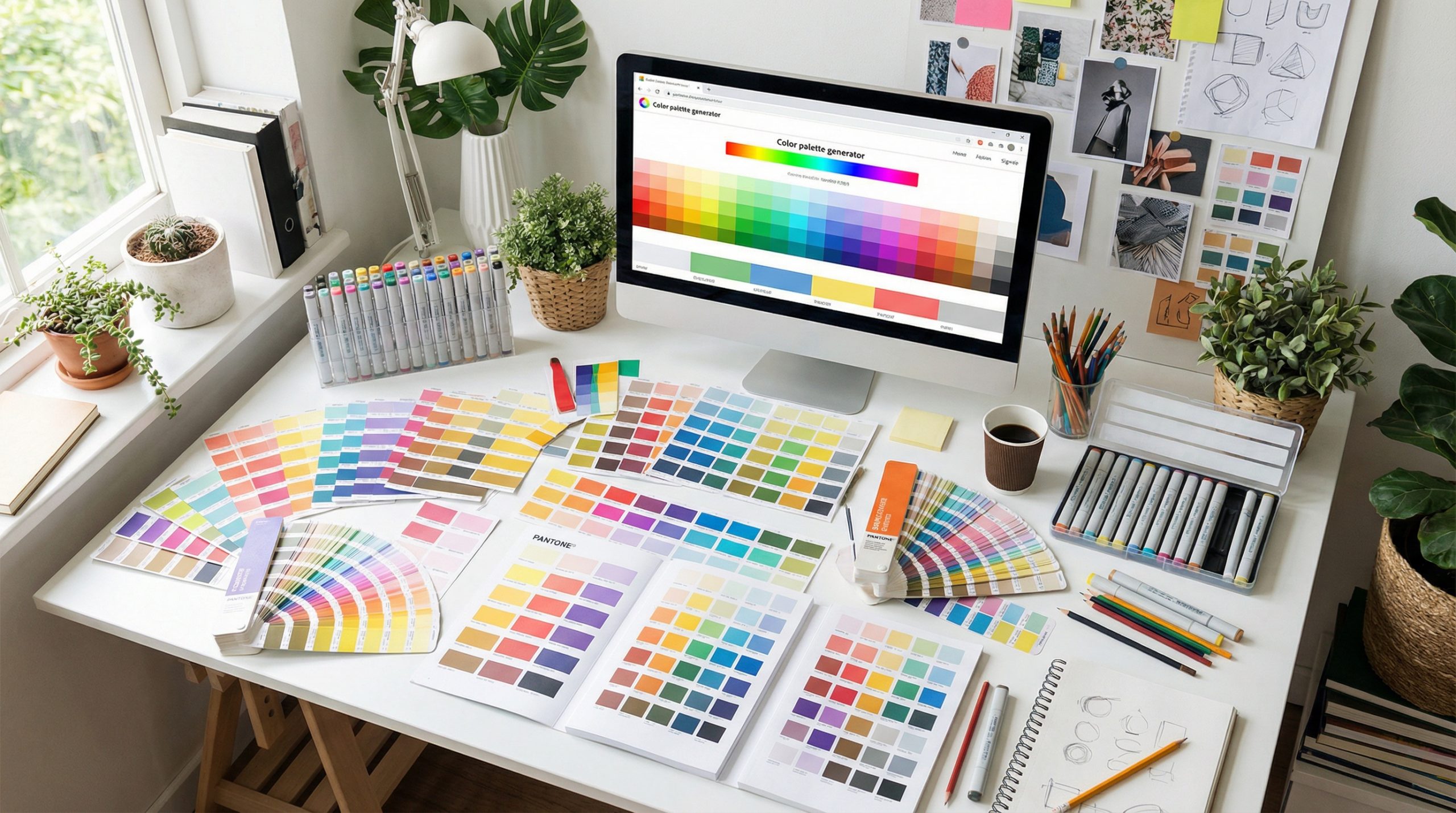
Color is one of the most powerful design elements in any presentation, yet most people default to whatever colors their template came with. A well-chosen color palette creates visual harmony, reinforces your brand, and guides your audience’s attention. The wrong colors make slides look chaotic, unprofessional, or hard to read.
You don’t need to be a color theory expert to get this right. These seven free color palette generators will help you find the perfect color scheme for your next presentation in minutes.
1. Coolors — The Fastest Palette Generator
Website: coolors.co
Best for: Quick palette generation with endless options
Coolors is the most popular color palette generator on the web, and for good reason. Press the spacebar to instantly generate a new 5-color palette. Lock colors you like, and Coolors generates complementary options for the remaining slots.
Key features for presenters:
- Generate palettes from uploaded images — perfect for matching your slides to a featured photo
- Explore trending palettes created by the community
- Export palettes as PNG, PDF, SVG, or copy hex codes directly
- Color blindness simulator to check accessibility
- Contrast checker to ensure text readability
How to use it for presentations: Start by locking your primary brand color (or a color you know you want), then generate until you find 4-5 colors that work together. Copy the hex codes and apply them in your presentation software.
2. Adobe Color — Professional-Grade Color Theory
Website: color.adobe.com
Best for: Designers who want control over color relationships
Adobe Color lets you create palettes based on color theory rules — analogous, monochromatic, triadic, complementary, split-complementary, and more. The interactive color wheel gives you precise control over each color in your palette.
Key features for presenters:
- Color wheel with adjustable harmony rules
- Extract palettes from uploaded images
- Explore thousands of community-created palettes
- Accessibility checker for contrast compliance (WCAG standards)
- Save palettes to your Adobe Creative Cloud library
How to use it: If you know one color you want to use (like your brand color), enter its hex code and select a harmony rule. Adobe Color automatically generates a mathematically harmonious palette.
3. Canva Color Palette Generator — Image-Based Palettes
Website: canva.com/colors/color-palette-generator
Best for: Extracting color schemes from photos and images
Canva’s color palette generator works differently from most tools — you upload an image, and it extracts the dominant colors automatically. This is incredibly useful when you want your presentation colors to match a specific photo, product, or visual theme.
Key features for presenters:
- Upload any image and get a 4-color palette instantly
- Colors come with hex codes ready to copy
- Integrates directly with Canva’s design platform
- Free to use without an account
How to use it: Upload your presentation’s hero image or your company logo, extract the palette, and use those exact colors throughout your slides for a cohesive look.
4. Color Hunt — Curated Palette Collections
Website: colorhunt.co
Best for: Browsing pre-made palettes for inspiration
Color Hunt is a curated collection of beautiful 4-color palettes, organized by popularity, freshness, and category (warm, cold, pastel, vintage, neon, etc.). Instead of generating random palettes, you browse human-curated options that have been upvoted by the design community.
Key features for presenters:
- Thousands of curated 4-color palettes
- Filter by category: warm, cool, pastel, dark, earth, fluorescent, and more
- Click any palette to copy individual hex codes
- New palettes added daily
- No account required
How to use it: Browse the “Popular” section for tried-and-tested combinations, or filter by mood (“warm” for inviting presentations, “cool” for corporate ones, “pastel” for soft, creative decks).
5. Paletton — Advanced Color Scheme Designer
Website: paletton.com
Best for: Creating complete color systems with tints and shades
Paletton goes deeper than most generators by showing you not just a palette but variations of each color — lighter tints, darker shades, and desaturated versions. This is valuable for presentations because you need multiple versions of your colors for backgrounds, text, accents, and hover states.
Key features for presenters:
- Interactive color wheel with adjacency, triad, tetrad, and freestyle modes
- Shows light and dark variants of each color
- Live preview of how colors look in a website-like layout
- Export as CSS, SASS, or simple color values
- Color blindness simulation
How to use it: Select your primary color, choose a scheme type (adjacent for subtle, triad for vibrant), then use the tints and shades for different slide elements — darker shades for headings, lighter tints for backgrounds.
6. Muzli Colors — AI-Powered Palette Discovery
Website: colors.muz.li
Best for: Seeing how colors look in realistic design mockups
Muzli Colors (by InVision) stands out because it shows your palette applied to realistic design previews — websites, apps, and illustrations. This helps you visualize how your colors will actually look in practice, not just as abstract swatches.
Key features for presenters:
- Enter any color and see complementary palettes instantly
- Realistic mockup previews show colors in context
- Gradient generator for modern slide backgrounds
- Two-color combination explorer
- Clean, intuitive interface
How to use it: Enter your primary color and scroll through the generated palettes. The design mockups help you quickly judge which palette will work best for your presentation style.
7. Khroma — AI That Learns Your Color Preferences
Website: khroma.co
Best for: Personalized color recommendations based on your taste
Khroma uses machine learning to learn your color preferences. When you first visit, it asks you to select 50 colors you like from a large grid. Based on your choices, it generates an infinite feed of personalized color combinations.
Key features for presenters:
- AI learns your personal color taste
- Generates 2-color, 4-color, and gradient combinations
- Shows type/text previews so you can judge readability
- Save favorites to a personal library
- Includes font pairing suggestions
How to use it: Complete the initial color selection, then browse Khroma’s personalized suggestions. Since it’s trained on your preferences, the palettes feel more “you” than random generators.
How to Apply Your Color Palette to Your Presentation
Once you’ve found the perfect palette, here’s how to apply it effectively:
- Assign roles to each color: Pick one primary color (for headings and key elements), one secondary color (for accents), one background color, and one text color. The remaining colors are for highlights and charts.
- Use the 60-30-10 rule: 60% of your slide should be the dominant color (usually the background), 30% the secondary color, and 10% an accent color for emphasis. This creates visual balance.
- Test contrast: Make sure text is easily readable against backgrounds. Dark text on light backgrounds or light text on dark backgrounds — never dark on dark or light on light.
- Stay consistent: Use the same colors for the same purposes throughout your deck. If blue means “key insight” on slide 3, it should mean the same thing on slide 15.
- Save your palette: In PowerPoint, go to Design → Colors → Customize Colors to save your palette as a custom theme. In Canva, add your hex codes to your Brand Kit.
Color is the fastest way to make a presentation look professional. It takes just a few minutes with any of these free tools to find a harmonious palette that elevates your entire deck. Choose one generator, pick your colors, and apply them consistently — your audience will notice the difference even if they can’t articulate why your slides look so polished.