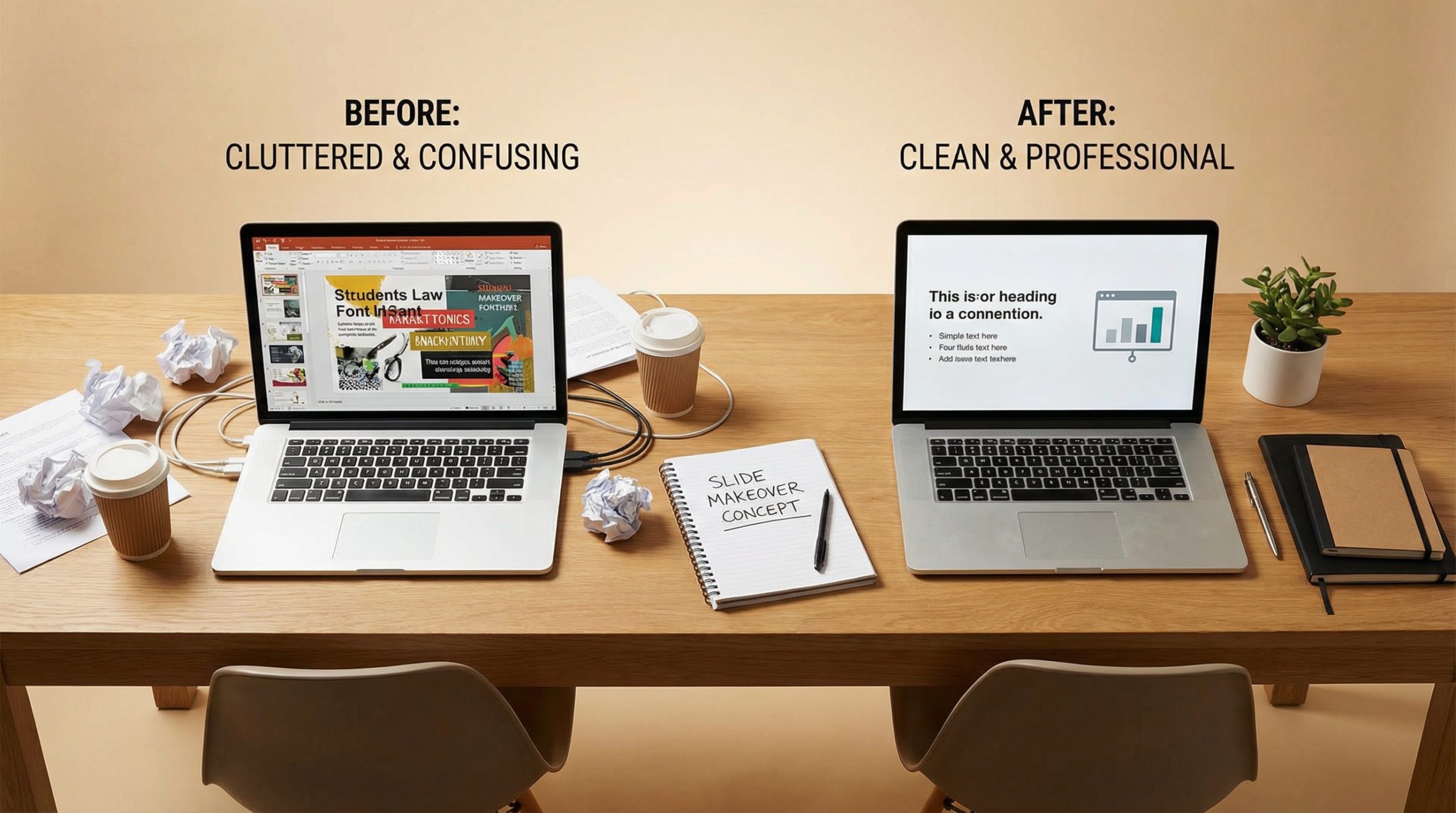
There’s a slide I keep in my portfolio. Not because it’s beautiful — though the after version is — but because the before version is so spectacularly bad that it perfectly illustrates every design mistake a presenter can make in a single slide. Eight bullet points. Three fonts. A clip art image of a light bulb. A gradient background that transitions from dark blue to teal. And at the bottom, in 10-point type: “Source: Internal Data, 2024.” It’s magnificent in its awfulness.
I’ve redesigned hundreds of slides, and the #1 mistake is always the same: people think of slides as documents. They cram information onto them the way they’d fill a Word document or an email — as much as possible, because more content must mean more value. But a slide isn’t a document. It’s a visual moment. And transforming a bad slide into a great one starts with understanding that difference.
Let me walk you through several real transformations — the kind I do every week — so you can see exactly what changes and why.
Transformation 1: The Wall of Text
The before: A slide titled “Our Q4 Strategy” with six bullet points, each two lines long, explaining various strategic initiatives. Total word count on the slide: 127 words. The font is 14-point because it has to be — anything larger wouldn’t fit.
The after: Six slides. The first is a section header — “Q4 Strategy” in large, bold text with nothing else on the slide. Then five slides, each featuring one strategic initiative as a single sentence in 28-point type, with a relevant icon and generous white space. Same content, zero information lost, but now each initiative gets its own moment and the presenter can actually talk about each one instead of reading from the screen.
The principle: split, don’t shrink. When text is too small, the answer is never “make it fit.” The answer is “use more slides.” For deep design foundations, see our 10 slide design principles every presenter must know.
Transformation 2: The Chart Graveyard
The before: Three charts on one slide — a pie chart showing market share, a bar chart showing quarterly revenue, and a line chart showing customer growth. Each chart is about 4 inches wide. The legends overlap. The data labels are unreadable. The presenter says “as you can clearly see” and nobody can clearly see anything.
The after: Three slides. Each chart gets the full slide. The pie chart is simplified from eight slices to four (the smaller segments merged into “Other”). The bar chart is redesigned with a single accent color highlighting the most important quarter. The line chart has a text callout on the key inflection point: “Customer base doubled after April launch.” Each chart now tells a specific story instead of competing for attention.
The principle: one chart, one story, one slide. Your data deserves room to breathe. For more on making data work on slides, check out our guide on data visualization in presentations.
Transformation 3: The Corporate Template Gone Wrong
The before: A slide using a company template with a header bar, a footer bar, a sidebar with the company logo and tagline, a page number, a date stamp, a copyright notice, and a “Confidential” watermark. The actual content area? About 40% of the slide. The remaining 60% is chrome — structural elements that communicate nothing except “we have a brand guidelines document.”
The after: The logo appears once — small, in the bottom right corner. The footer, sidebar, and watermark are removed. The background is a clean, solid color from the brand palette. The content now occupies about 80% of the slide, with proper margins. The slide still looks “on brand” — same colors, same font — but without the visual clutter that was eating the space.
The principle: brand elements should whisper, not shout. Your audience knows what company you work for. You don’t need to remind them on every slide. If you’re working from templates, our guide to choosing presentation templates can help you pick ones that balance branding and content.
Transformation 4: The Screenshot Slide
The before: A full-screen screenshot of a software dashboard, pasted onto the slide at 100% size. Every pixel of the dashboard is visible — navigation menus, sidebars, user avatars, notification icons — but the actual data the presenter wants to discuss is a small section in the center, roughly the size of a postage stamp relative to the whole image.
The after: The screenshot is cropped to just the relevant section and enlarged to fill 70% of the slide. A red circle or highlight box draws attention to the specific metric being discussed. A text callout to the side explains what the audience is looking at: “Active users increased 34% week over week.” The rest of the dashboard — the irrelevant chrome — is gone.
The principle: crop to the story. A screenshot isn’t a slide — it’s raw material. Your job is to edit it down to only the part that supports your point.
Transformation 5: Death by Bullet Points
The before: “Benefits of Our Solution” followed by nine bullet points. Each bullet starts with a verb: “Reduces cost,” “Improves efficiency,” “Streamlines workflow,” “Enhances security”… on and on. It reads like a feature list from a product brochure. The audience reads ahead, finishes before the presenter, and checks out.
The after: A single slide with three icons representing the three most important benefits. Each icon has a two-word label underneath: “Lower Cost,” “Faster Workflow,” “Stronger Security.” The other six bullets? They’re in the speaker’s notes, mentioned verbally. The slide doesn’t need them — the slide needs to communicate the big picture at a glance.
The principle: curate, don’t list. Not everything deserves to be on the slide. Pick the three most impactful points and let your voice handle the rest. This is the difference between a presentation and a handout. For inspiration on curating content effectively, browse our slide makeover case study.
The Universal Fix: Ask Three Questions
Every slide transformation I do starts with the same three questions. What is the single most important thing this slide needs to communicate? If you can’t answer that in one sentence, the slide is trying to do too much. Can the audience get the point in five seconds? Set a timer. If it takes longer, simplify. Is there anything on this slide that doesn’t directly support the main point? If yes, remove it.
These three questions will fix 90% of bad slides without any design skill at all. You don’t need to know about typography, color theory, or grid systems — though those help. You just need the discipline to cut what doesn’t serve the slide’s purpose. Design isn’t decoration — it’s communication. And communication gets better when you subtract.
Your Slides Deserve Better
If you take nothing else from this article, take this: every bad slide is a good slide with too much on it. The content isn’t usually wrong — it’s just not curated for a visual medium. Strip it down. Give it space. Let each slide do one job and do it well.
The before-and-after difference isn’t just aesthetic. When your slides are clean and focused, your delivery improves because you’re not reading from the screen. Your audience improves because they’re listening to you instead of decoding your slides. And your credibility improves because clean design signals competence, preparation, and respect for the audience’s time.
Look at your current deck. Pick the worst slide. Run it through the three questions. Transform it. Then do the next one. Your audience decides in the first 3 seconds whether a slide is worth their attention — make every slide worth it. For more on leveling up your overall presentation game, explore our complete guide to powerful presentations.