


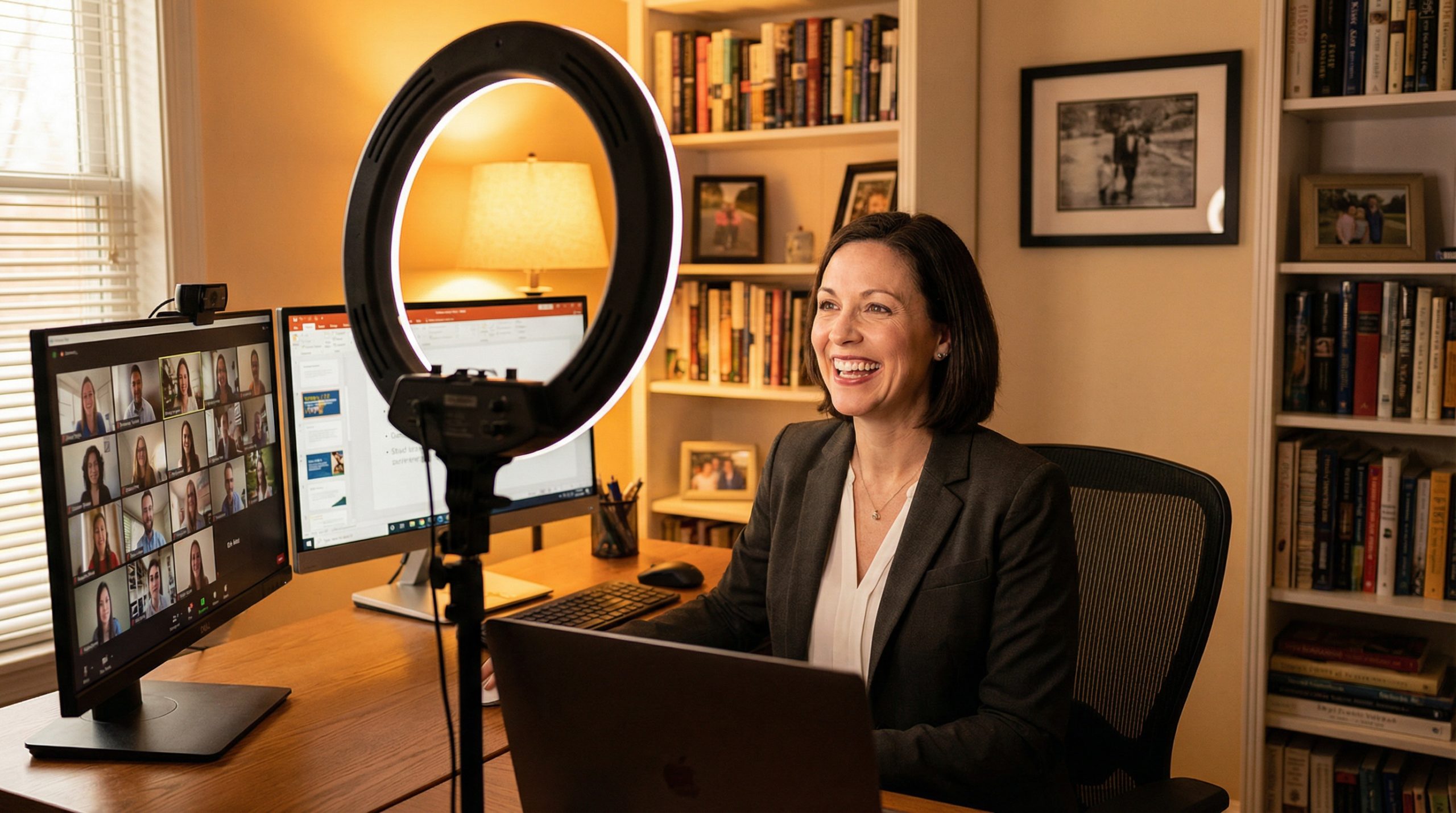
You’re sharing your screen. You’ve just made what you thought was a compelling point. You look at the grid of faces on Zoom and see… nothing. Cameras off. One person clearly multitasking. Someone’s cat walks across their keyboard. And the chat is silent.
Welcome to remote presenting — where every technique you learned for in-person speaking gets tested, and most of them fail. I’ve done 500+ virtual presentations since remote work became the default, and I can tell you this with certainty: remote presenting isn’t worse — it’s different. And once you understand the differences, you can be just as engaging on a screen as you are in a room. Sometimes more.
Let me share what actually works, what definitely doesn’t, and how to stop hating the webcam.
Why In-Person Techniques Fall Flat on Screen
The first thing to understand is why virtual presenting feels so hard. It’s not just “Zoom fatigue” — it’s a fundamental change in the communication channel:
You’ve lost 80% of your body language. In person, you use your full body — movement, gestures, proximity — to hold attention. On Zoom, you’re a floating head in a rectangle. Your most powerful communication tools have been amputated.
You can’t read the room. In person, you see nods, confused looks, crossed arms, people checking phones. On Zoom, you see thumbnail images — if cameras are on at all. The feedback loop that guides your pacing and emphasis is severely degraded.
You’re competing with everything. In a physical room, your audience’s distractions are limited. On Zoom, they have email, Slack, social media, and their entire digital life one alt-tab away. You’re not just presenting — you’re competing with the internet for attention.
Engagement drops at the 8-minute mark. Research on virtual meetings consistently shows attention declining sharply after about 8 minutes of continuous speaking. In person, you might hold attention for 15-20 minutes before needing an attention reset. Online, that window is cut in half.
Your Camera Is Your Stage — Set It Up Right
Your camera is your stage. Treat it that way. The technical setup for virtual presenting matters more than most people realize — not because you need to look like a news anchor, but because poor tech creates distraction that undermines even great content.
Camera at eye level. Not looking up your nostrils (laptop on desk), not looking down at you from a shelf. Stack books under your laptop or get a small tripod. Eye-level camera creates the impression of direct eye contact, which is the foundation of virtual presence.
Lighting from the front. A window behind you turns you into a silhouette. A window beside you creates half-shadow. Position your main light source in front of you and slightly above — a desk lamp with a warm bulb works fine. If you present frequently, a ring light or LED panel (£30-50) is worth the investment. The difference it makes to how professional you look is disproportionate to the cost.
Audio is more important than video. People will tolerate a grainy camera. They won’t tolerate echo, background noise, or robotic audio. Use a headset with a microphone, or at minimum, a pair of earbuds with a built-in mic. Your laptop’s built-in microphone picks up keyboard clatter, fan noise, and room echo that a close-proximity mic eliminates.
Clean your background. A cluttered background is a continuous source of visual distraction. You don’t need a professional studio — a tidy bookshelf, a plain wall, or a tasteful virtual background all work. Just eliminate anything that competes with your face for the viewer’s attention.
Engagement Techniques That Actually Work Online
This is the section that matters most. The mute button is not your enemy. The monotone voice is. Here’s how to keep people engaged when they’re sitting alone at their desks:
Break the 8-minute rule. Never speak for more than 8 minutes without changing something — ask a question, launch a poll, switch from slides to camera-only, or have someone else speak. Plan these breaks before your presentation, not during it. I literally time-stamp my notes: “8:00 — poll question. 16:00 — open discussion. 24:00 — breakout rooms.”
Use the chat proactively. Don’t wait for people to type in chat. Prompt them. “Type in chat: what’s the biggest challenge you’re facing with [topic]?” This does three things: it creates participation, it gives you real-time audience data, and it forces people who were multitasking to re-engage.
Ask direct questions by name. “Sarah, what’s your team’s experience with this?” This feels awkward at first, but it’s the most effective engagement technique in virtual settings. It signals to everyone that passive lurking isn’t an option — and after you’ve called on two or three people, the energy in the room shifts measurably.
Use annotation and spotlight. Zoom’s annotation tools let you draw, highlight, and stamp on shared screens in real time. Circling a key data point while talking about it mimics the physical act of pointing at a screen — and it draws the eye exactly where you want it.
Toggle between camera and slides. Don’t share your screen for 30 straight minutes. Show slides when visual content matters, then stop sharing to bring your face back on screen for stories, discussions, and key arguments. Your face creates human connection. Your slides deliver information. Alternate between them.
Slide Design for Remote Presentations
Slides that work on a conference room projector don’t always work on a 13-inch laptop screen. Here’s how to adapt your design for virtual presenting:
Increase font sizes by 20%. What’s readable on a 55-inch TV across a meeting room might be unreadable in a small Zoom window. My minimum for virtual: 24pt for body text, 36pt for headings, 48pt+ for key numbers.
Reduce content per slide. You can’t control your audience’s screen size, resolution, or Zoom window arrangement. Some people view your slides in a small window while keeping other apps visible. Design for the smallest reasonable viewport — which means less content per slide than you’d use in person.
Use high contrast colors. Zoom’s video compression can muddy subtle color differences. Strong contrast between text and background ensures readability regardless of compression, screen calibration, or brightness settings. For comprehensive slide design guidance, our 10 design principles article adapts well to virtual contexts.
Add visual variety every 2-3 slides. In person, you are the visual variety — your movement, gestures, and stage presence keep things dynamic. On screen, your slides need to provide that variety. Alternate between text slides, image slides, data slides, and full-bleed visuals to prevent monotony.
The Hybrid Challenge: In-Room + Remote Simultaneously
Hybrid presentations — where some audience members are physically present and others are joining remotely — are genuinely the hardest format. I’ve done dozens, and they require specific strategies:
Treat the remote audience as primary. This sounds counterintuitive when you have people in the room, but remote attendees are at a disadvantage by default. They can’t hear sidebar conversations, they miss body language cues, and they feel like second-class participants unless you actively include them.
Repeat in-room questions for the camera. When someone in the room asks a question, repeat it before answering: “The question from the room is…” This simple habit ensures remote attendees aren’t hearing one-sided conversations.
Use a dedicated chat moderator. If possible, have someone monitoring the virtual chat and flagging questions or comments. Trying to present, manage the room, AND monitor chat is a recipe for dropping balls.
Position your camera to capture you, not the room. Don’t use a wide-angle room camera as your primary feed. Remote attendees want to see you — your face, your expressions, your eye contact. A separate webcam pointed at you, in addition to a room camera, creates a much better experience for virtual participants.
Platform-Specific Tips
Each platform has quirks worth knowing:
Zoom: Use “Share Screen → Portion of Screen” to share only your slide window, keeping your notes visible on the rest of your screen. Enable “Touch up my appearance” in video settings for subtle smoothing. Use breakout rooms for discussions — they’re the closest thing to in-person group work. The Reactions feature (emoji responses) gives you low-effort audience feedback.
Microsoft Teams: PowerPoint Live is Teams’ best feature for presenters. It lets attendees navigate slides independently while you present, and it shows your notes privately. Use the “Spotlight” feature to pin your video for all participants during key moments. Teams’ together mode can reduce the grid-of-faces fatigue for longer sessions.
Google Meet: Use the Q&A feature for structured audience questions (it’s separate from chat and allows upvoting). Google Meet’s noise cancellation is excellent — turn it on if you’re in a noisy environment. For Google Slides users, presenting directly from Meet integrates beautifully.
Your Pre-Presentation Virtual Checklist
Run through this 15 minutes before any virtual presentation:
- ☐ Camera at eye level, lens clean
- ☐ Lighting from front, no backlight from windows
- ☐ Headset/mic connected, tested with a colleague
- ☐ Background tidy or virtual background enabled
- ☐ Slides loaded, screen share tested
- ☐ Chat prompts and poll questions prepped
- ☐ Water within reach (without needing to leave frame)
- ☐ Notifications silenced — phone, email, Slack, calendar
- ☐ Backup plan if tech fails (PDF of slides, phone dial-in number)
- ☐ Close unnecessary browser tabs and applications
That last point is more important than it sounds. A Slack notification popping up during screen share, a calendar alert about your next meeting, or Chrome autoplaying a video in a background tab — these are the micro-disasters that remote presenters face constantly.
Remote presenting isn’t going away. The skills you build now — the tech setup, the engagement techniques, the adapted design — will serve you for the rest of your career. And for the foundational presentation skills that underpin everything, whether you’re on stage or on screen, our complete guide to powerful presentations covers the principles that never change regardless of format.
Your camera is your stage. Make it count.

