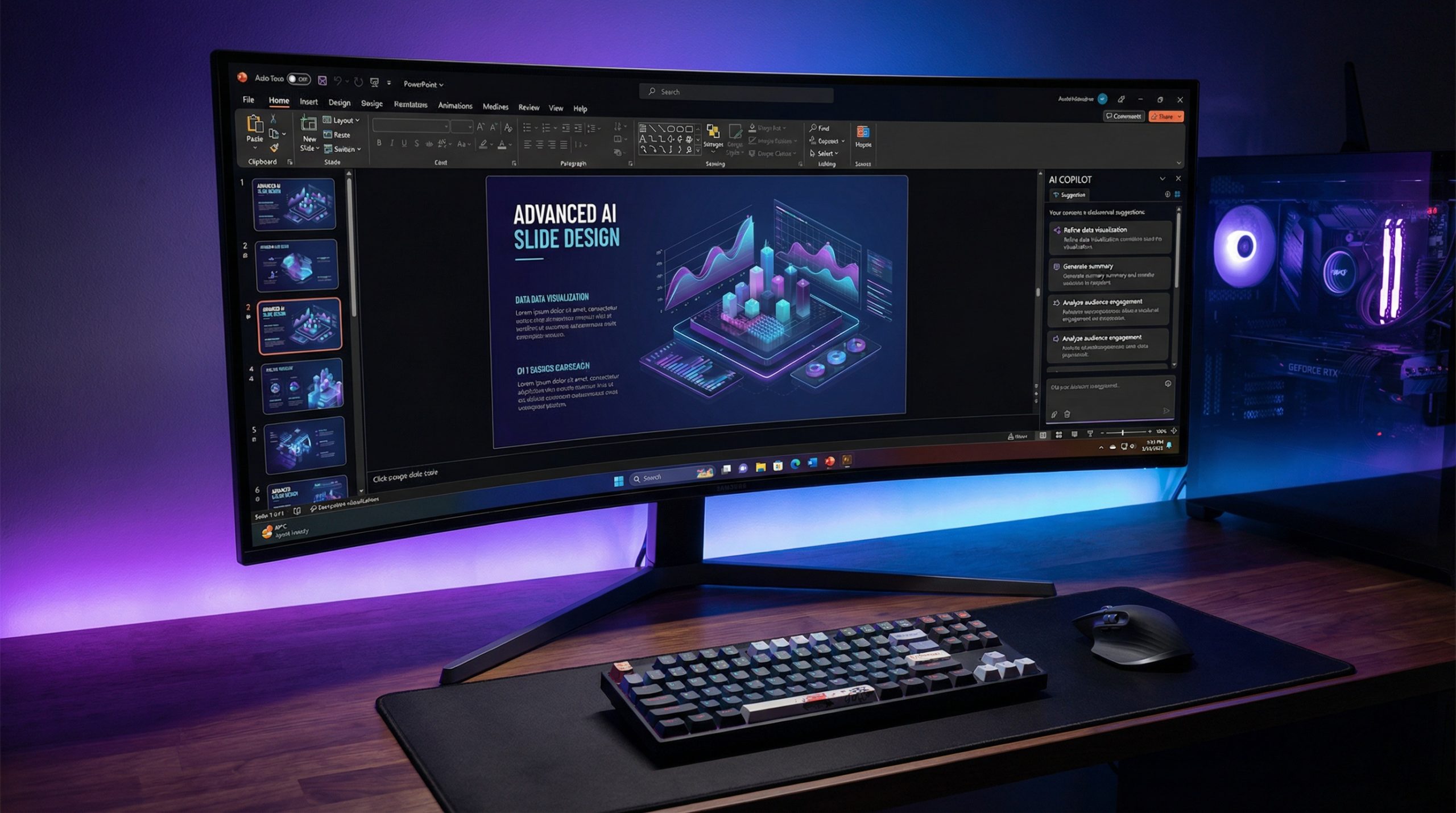
PowerPoint has been around for nearly four decades, but it’s far from a legacy tool. Microsoft’s 2026 updates have introduced AI-powered features, modern design capabilities, and collaboration improvements that make it more powerful than ever. Whether you’re a daily PowerPoint user or someone who fires it up a few times a year, these tips and tricks will help you work smarter and create better presentations.
What’s New in PowerPoint 2026
Before diving into tips, let’s look at the most significant new features Microsoft has added:
Copilot AI Integration: The headline feature of PowerPoint 2026. Copilot can generate entire slide decks from a text prompt, summarize long documents into presentation format, suggest design improvements, and create speaker notes automatically. You can tell it “Create a 10-slide pitch deck about sustainable energy” and get a working first draft in seconds.
Cameo: This feature embeds your live webcam feed directly into a slide. You can place your video in a specific shape or position on the slide, making hybrid and virtual presentations feel more dynamic and personal.
Designer Upgrades: PowerPoint Designer now uses AI to analyze your content and suggest sophisticated layouts, including multi-column arrangements, timeline graphics, and data-driven visual templates. The suggestions have improved dramatically from earlier versions.
Live Captions and Subtitles: PowerPoint can now generate real-time captions in over 40 languages during presentations. This is a big deal for accessibility and international audiences.
Essential Keyboard Shortcuts Most People Don’t Know
Power users live and die by keyboard shortcuts. These are the ones that save the most time:
- Ctrl + D: Duplicate selected objects or slides instantly. Faster than copy-paste.
- Ctrl + Shift + C / V: Copy and paste formatting only. Select a perfectly formatted text box, copy its formatting, then apply it to other elements.
- F5: Start slideshow from the beginning. Shift + F5: Start from the current slide.
- Ctrl + G: Group selected objects. Ctrl + Shift + G: Ungroup.
- Alt + F5: Start Presenter View on a single monitor — perfect for rehearsing.
- Ctrl + Shift + >: Increase font size. Ctrl + Shift + <: Decrease font size.
- Ctrl + E / L / R: Center, left-align, or right-align text.
- Tab: During a slideshow, cycle through clickable objects on the slide.
- B or W during slideshow: Black out or white out the screen. Press again to return. Essential for redirecting audience attention.
Design Tricks That Make Your Slides Look Professional
You don’t need to be a designer to create clean, professional slides. These techniques make an immediate difference:
Use the Eyedropper tool: When choosing colors, use the Eyedropper (found in any color picker) to sample colors directly from images, logos, or other elements on your slide. This ensures perfect color matching without memorizing hex codes.
Align everything: Select multiple objects, then use Format → Align to distribute them evenly. Nothing says “amateur” like slightly misaligned elements. PowerPoint’s alignment tools are precise — use them.
Use the Selection Pane: Go to Home → Select → Selection Pane to see a list of every object on your slide. You can rename objects, change their stacking order, and toggle visibility. This is essential for complex slides with overlapping elements.
Master the Slide Master: Go to View → Slide Master to edit the underlying template. Changes here apply to every slide that uses that layout. Set your fonts, colors, logo placement, and footer information once in the Slide Master, and every new slide will be consistent automatically.
Use consistent margins: Add guides (View → Guides) to create consistent margins around your slide content. A rule of thumb: keep all content at least 0.5 inches from the slide edges.
Advanced Animation Techniques
Animations can enhance or destroy a presentation. Here’s how to use them well:
Morph transition: The Morph transition is PowerPoint’s most powerful animation tool. Place the same object on two consecutive slides in different positions, sizes, or states. Apply the Morph transition, and PowerPoint smoothly animates between them. Use it for moving objects across the slide, zooming into details, or creating smooth storytelling transitions.
Motion paths: Instead of basic entrance animations, use motion paths to move objects along custom paths. This is perfect for showing processes, timelines, or journeys on a slide.
Trigger animations: Set animations to trigger on click of a specific object. This creates interactive slides where clicking different elements reveals different information — useful for dashboard-style presentations.
The one-animation rule: Use a maximum of one animation type per slide. Mixing Fly In, Bounce, Spin, and Fade on the same slide looks chaotic. Pick one style and stay consistent.
Data Presentation Tricks
If you work with data regularly, these tricks will transform your charts and graphs:
- Simplify your charts: Remove gridlines, reduce axis labels, and eliminate chart borders. Clean charts communicate faster than busy ones.
- Highlight what matters: Use color to draw attention to the one data point that matters most. Make everything else gray or muted, and make your key metric bold and colorful.
- Use data callouts: Instead of making people read the y-axis, add a text callout directly on the chart that states the key finding: “Revenue up 23% year-over-year.”
- Animate chart elements: Use the Animation Pane to reveal chart data series one at a time. This lets you tell a story with data instead of showing everything at once.
- Consider alternative visuals: Not everything needs a bar chart. Icon arrays, pictographs, and simple number callouts can be more impactful than traditional charts for simple comparisons.
Collaboration and Sharing Tips
PowerPoint’s collaboration features have improved significantly:
- Real-time co-authoring: Save your file to OneDrive or SharePoint, and multiple people can edit simultaneously. Changes sync in real-time with colored cursors showing who’s editing where.
- Comments and @mentions: Use Insert → Comment to add feedback on specific slides. @mention team members to notify them directly.
- Version history: Go to File → Info → Version History to see every saved version. You can restore any previous version — a lifesaver when someone accidentally overwrites your work.
- Export as video: Go to File → Export → Create a Video to convert your presentation into an MP4 file with all animations and timings intact. Perfect for sharing with people who don’t have PowerPoint.
Tips That Have Always Worked (And Still Do)
Some PowerPoint wisdom is timeless:
- Less text, more visuals: If your slide has more than 6 lines of text, it has too much text. Cut ruthlessly.
- One idea per slide: The moment a slide tries to make two points, it makes zero effectively.
- Use high-quality images: Blurry or pixelated images are the fastest way to make a professional presentation look amateur. Use images that are at least 1920×1080 pixels.
- Consistent fonts: Use a maximum of two fonts throughout your deck — one for headings, one for body text.
- Save frequently: Even with auto-save, hit Ctrl+S regularly. Technology fails at the worst possible moments.
PowerPoint in 2026 is more capable than it’s ever been. The AI features accelerate creation, the design tools enable professional polish, and the collaboration capabilities make team workflows smooth. Master these tips and tricks, and you’ll create presentations that don’t just inform — they impress.