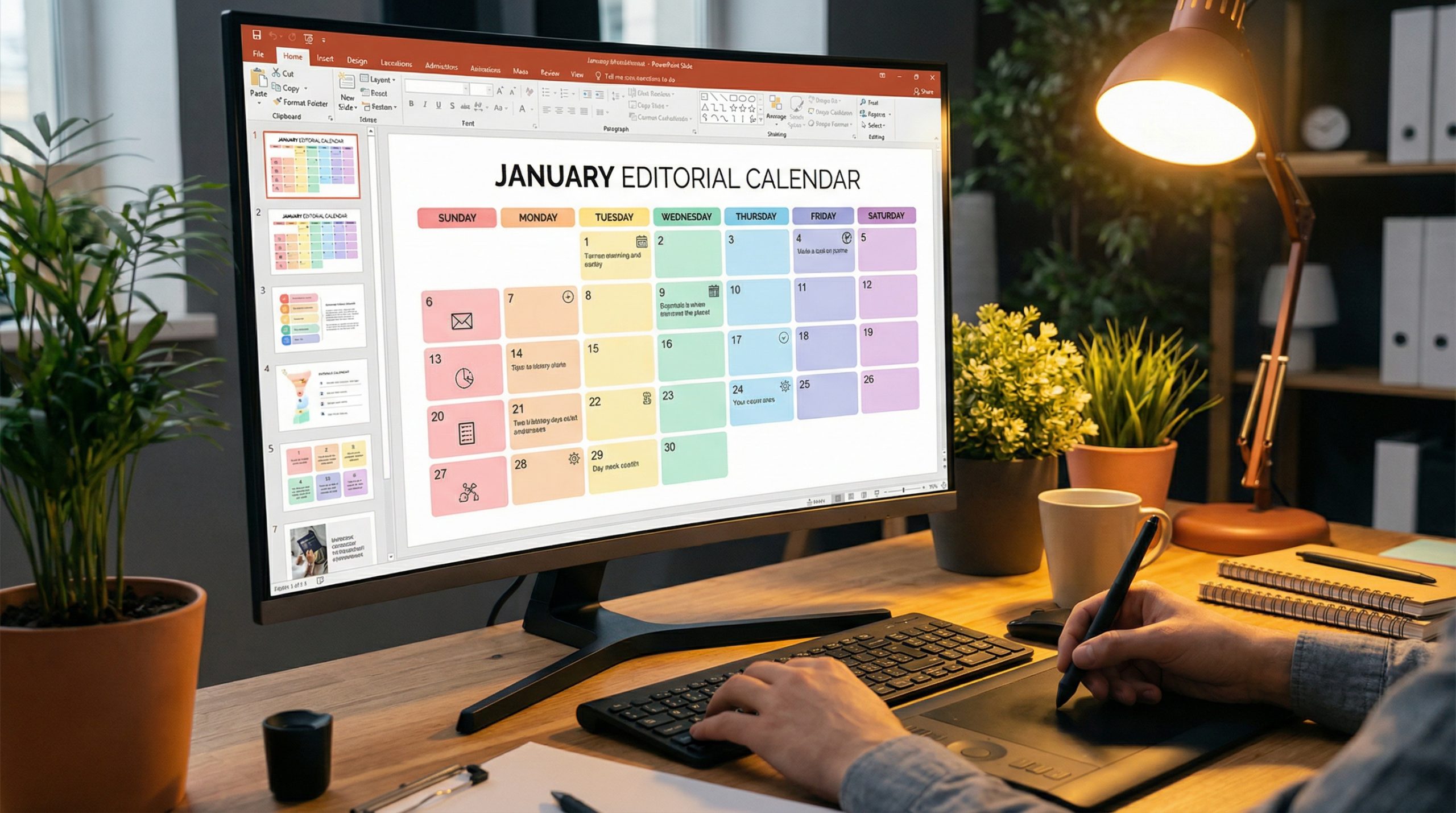
Need to show a project timeline, schedule, or event plan in your presentation? Adding a calendar to your PowerPoint slides is one of the most practical things you can do — and there are several ways to make it happen.
In this step-by-step guide, we’ll show you how to insert a calendar in PowerPoint using built-in tools, templates, and manual methods. Whether you want something quick or fully customized, there’s an option for every skill level.
Why Use a Calendar in Your PowerPoint Presentation?
Calendars aren’t just for planners and wall art. In a presentation context, a well-designed calendar slide can communicate schedules, deadlines, milestones, and availability at a glance. Here are some common use cases:
- Project timelines: Show when key deliverables are due across weeks or months.
- Event planning: Display upcoming events, meetings, or conferences in a visual format.
- Content calendars: Present marketing or social media schedules to stakeholders.
- Academic schedules: Share semester plans, exam dates, or class timetables.
- Sales cycles: Map out quarterly goals and key dates for the sales team.
Whatever the purpose, a calendar slide makes date-based information much easier to digest than a bullet-point list.
Method 1: Use a PowerPoint Calendar Template
The fastest way to insert a calendar in PowerPoint is to use a pre-built template. Microsoft offers several calendar templates that you can customize with your own dates and information.
- Open PowerPoint and go to File → New.
- In the search bar, type “calendar” and press Enter.
- Browse the available calendar templates. You’ll see options for monthly calendars, yearly overviews, academic calendars, and more.
- Click on a template you like and select Create.
- The template opens as a new presentation. You can now edit the dates, colors, fonts, and content to match your needs.
- Once customized, copy the calendar slide and paste it into your main presentation.
Pro tip: If the built-in templates don’t suit your style, search for free PowerPoint calendar templates on sites like SlidesCarnival, SlideBazaar, or Microsoft’s own template gallery online. You’ll find hundreds of professionally designed options.
Method 2: Create a Calendar Using a Table
If you want full control over your calendar’s look, building one from a table is the way to go. It’s manual but gives you complete creative freedom.
- Open the slide where you want the calendar to appear.
- Go to the Insert tab and click Table.
- Create a 7-column by 6-row table (7 columns for the days of the week, and up to 6 rows for weeks in a month, plus a header row).
- In the first row, type the days of the week: Mon, Tue, Wed, Thu, Fri, Sat, Sun (or start with Sunday if you prefer).
- Fill in the dates for your desired month. Leave cells empty where the month doesn’t start or end on that day.
- Style the table: Use the Table Design tab to change colors, borders, and shading. You can highlight specific dates with different fill colors.
- Add a text box above the table with the month and year as a title.
This method takes more time but produces a calendar that perfectly matches your presentation’s design. You can use your brand colors, add icons, or include event names directly in the cells.
Method 3: Insert a Calendar Using SmartArt or Shapes
For a more visual approach, you can build a calendar using PowerPoint’s shapes and SmartArt tools. This works well for stylized calendars that don’t need to show every single date.
Using Shapes:
- Go to Insert → Shapes and select a rounded rectangle or square.
- Draw 35 small squares arranged in a 7×5 grid (representing a month’s worth of days).
- Add text to each square with the date number.
- Use different fill colors to highlight important dates — for example, red for deadlines, green for milestones.
- Group all the shapes together (Select All → Right-click → Group) so you can move and resize the calendar as one unit.
Using SmartArt: While SmartArt doesn’t have a dedicated calendar layout, you can repurpose layouts like the Matrix or Table List to create calendar-like visuals. Go to Insert → SmartArt, choose a grid-based layout, and customize it with dates and events.
Method 4: Embed an Outlook or Google Calendar Screenshot
Sometimes the fastest approach is the simplest — just screenshot your existing calendar and insert it as an image.
- Open your calendar app (Outlook, Google Calendar, Apple Calendar, etc.).
- Navigate to the month or week view you want to show.
- Take a screenshot (Windows + Shift + S on Windows, or Cmd + Shift + 4 on Mac).
- In PowerPoint, go to Insert → Pictures → This Device and insert the screenshot.
- Resize and position the image on your slide.
This method is quick but has limitations — the calendar image isn’t editable, and it may not match your slide’s design. It works best for internal presentations where visual polish is less important than accuracy.
How to Customize Your Calendar Slide
No matter which method you use, here are some tips to make your calendar slide look polished and professional:
- Use your brand colors: Match the calendar’s color scheme to your presentation’s theme. Consistency makes everything look intentional.
- Highlight key dates: Use bold colors, icons, or callout boxes to draw attention to important dates. Don’t make your audience search for the important stuff.
- Keep it readable: Don’t cram too much text into calendar cells. If you have lots of events, consider using a weekly view instead of monthly.
- Add a legend: If you’re using color coding, include a small legend explaining what each color means.
- Use consistent fonts: Stick to one or two fonts that match the rest of your deck. Avoid decorative fonts in small calendar cells — they become unreadable.
- Consider animation: You can use Appear or Fade animations to reveal calendar events one by one during your presentation. This keeps the audience focused.
Best Practices for Calendar Slides in Presentations
A few strategic tips to make sure your calendar slide actually serves its purpose:
- One month per slide: Don’t try to fit an entire year on one slide. If you need to show multiple months, use one slide per month or a simplified timeline view.
- Label the year: Always include the year in your calendar title. Presentations get shared and revisited — make sure viewers know exactly which month and year they’re looking at.
- Update before presenting: If your calendar shows real dates and events, double-check them before every presentation. Nothing undermines credibility like outdated information.
- Make it interactive: In live presentations, you can link calendar dates to other slides with detailed information. Use hyperlinks on specific dates to create a navigable schedule.
Adding a calendar to your PowerPoint presentation doesn’t have to be complicated. Whether you grab a template, build one from a table, use shapes for a custom look, or simply screenshot your existing calendar, the key is choosing the method that fits your timeline and design needs. Now you know how to insert a calendar in PowerPoint — go make that schedule visual.