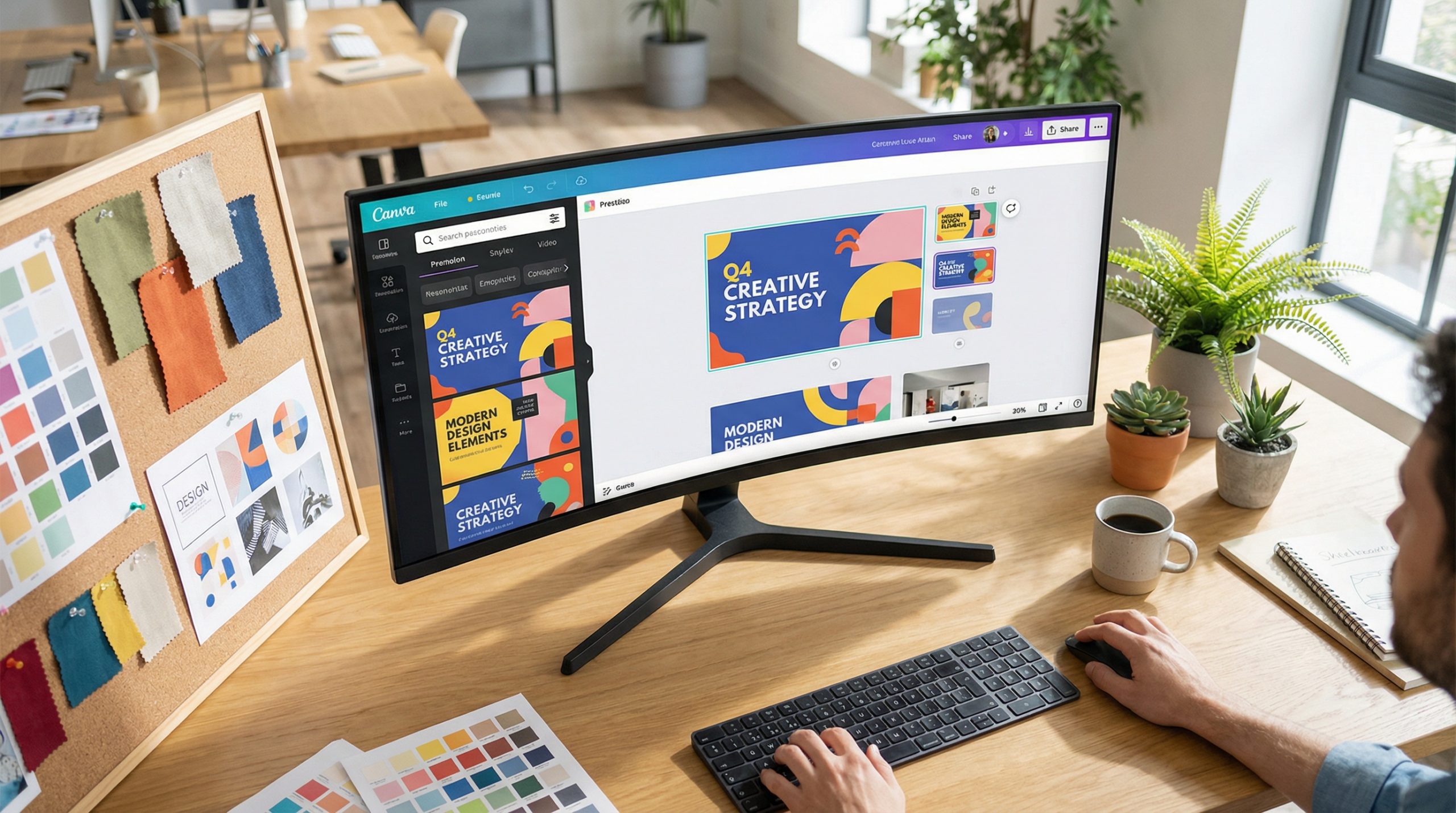
Canva has quietly become one of the most popular presentation tools in the world. It’s free, it’s beautiful, and it’s incredibly easy to use. But most people only scratch the surface of what Canva can do for presentations.
In this guide, we’ll share the best Canva presentation tips and tricks that will take your slides from basic to brilliant — including hidden features that even regular users often miss.
1. Use Magic Resize to Repurpose Your Presentation
One of Canva’s most powerful features for presenters is Magic Resize (available in Canva Pro). It lets you instantly convert your presentation into different formats — social media posts, documents, infographics, or any custom dimension.
Finished your presentation and need to share key slides on Instagram? Select the slides you want, click Resize in the top menu, choose your target format, and Canva automatically adjusts the layout. It’s not always perfect — you’ll need to tweak positioning — but it saves enormous amounts of time compared to recreating content from scratch.
This is particularly useful for marketers and educators who need to repurpose presentation content across multiple channels.
2. Master the Presenter View and Notes
Many Canva users don’t realize the platform has a built-in Presenter View — similar to PowerPoint’s speaker view. Here’s how to access it:
- Click the Present button in the top-right corner.
- Choose Presenter View from the dropdown options.
- A new window opens showing your current slide, next slide preview, and your speaker notes.
To add speaker notes, click the Notes icon at the bottom of the editor for each slide. Write your talking points there — your audience won’t see them, but you’ll have them available during your presentation.
Pro tip: Use Canva’s Autoplay feature for self-running presentations at kiosks, events, or trade shows. Set the timing for each slide, and Canva will advance automatically.
3. Animate Individual Elements (Not Just Transitions)
Most people know Canva has slide transitions, but fewer realize you can animate individual elements on a slide. Click any text box, image, or shape, then click Animate in the top toolbar.
You can choose from effects like:
- Fade: Subtle and professional
- Rise: Elements slide up from below
- Pop: A bouncy entrance for playful presentations
- Drift: Gentle floating movement
- Breathe: A slow scale effect that adds life to static elements
The key is restraint. Animate your headline and one key visual per slide — don’t animate everything or it becomes distracting. Also, note that element animations play in the order the elements were added to the slide. To change the order, right-click an element and use Send to Back or Bring to Front.
4. Use Brand Kit for Instant Consistency
If you’re creating presentations for a company or personal brand, Canva’s Brand Kit feature (Canva Pro) is a big deal. Set up your brand colors, fonts, and logos once, and they’re available across every design.
When building a presentation, your brand colors appear in the color picker, your custom fonts show at the top of the font list, and your logo is one click away. This ensures every presentation you create stays on-brand without manual checking.
Even on the free plan, you can save colors to your palette and upload custom fonts — it’s just less automated.
5. Record Your Presentation Directly in Canva
One of Canva’s most underused features is the ability to record yourself presenting right inside the platform. Click the Present and Record option, and Canva captures your webcam, voice, and slides simultaneously.
This creates a video presentation you can share as a link or download as an MP4. It’s perfect for:
- Asynchronous meetings where not everyone can attend live
- Online course content and tutorials
- Video proposals and pitches
- Student assignments that require a recorded presentation
The recording feature includes a countdown timer and teleprompter-style notes, making it easy to stay on script.
6. Use Canva’s Built-in Stock Library Strategically
Canva gives you access to millions of stock photos, illustrations, icons, and videos — many of which are free. But here’s the trick most people miss: use the search filters to find cohesive imagery.
When searching for images, try these approaches:
- Search by color: Type your keyword, then filter by color to match your brand palette.
- Use “flat” or “minimal” keywords: Adding style descriptors to your search (e.g., “teamwork minimal” or “technology flat illustration”) returns more design-friendly results.
- Stick to one style: If you use a photo on one slide, use photos throughout. If you use illustrations, keep it consistent. Mixing styles looks unprofessional.
- Try Canva’s AI image generator: Type a description of the image you need, and Canva generates custom options using AI. Great for unique visuals you can’t find in stock libraries.
7. Collaborate in Real-Time With Your Team
Canva’s collaboration features rival Google Slides. You can invite team members to edit your presentation simultaneously, leave comments on specific slides, and tag people for feedback.
Collaboration tips:
- Share your design with “Can edit” permissions for team members who need to contribute content.
- Use “Can comment” for reviewers who should give feedback but not change anything.
- Use the comment feature (click anywhere and press the comment icon) to have discussions about specific design choices.
- Create a team template that everyone starts from, ensuring consistency across the organization.
8. Export Options Most People Overlook
Canva’s export options go far beyond downloading a PDF or image. Here are the formats that presenters should know about:
- PowerPoint (.pptx): Export your Canva presentation as a PowerPoint file. It’s not a perfect translation — some effects and fonts may shift — but it works well for sharing with colleagues who prefer PowerPoint.
- Video (MP4): Export your slides as a video with transitions and timing built in. Perfect for social media or embedding in websites.
- GIF: Turn individual slides or short sequences into animated GIFs for social sharing.
- SVG: For print-quality graphics, export individual elements as SVG files.
- Website: Canva can publish your presentation as a simple website with its own URL. Great for portfolios and proposals.
Power move: Use the “Share as link” option to send your presentation to anyone without them needing a Canva account. You can also embed Canva presentations directly into websites using the embed code.
Canva keeps adding new presentation features with every update. The platform has evolved from a simple design tool into a legitimate presentation powerhouse. Whether you’re a student, marketer, educator, or business professional, these tips and tricks will help you create presentations that look like they were designed by a pro — because, with Canva, they were.