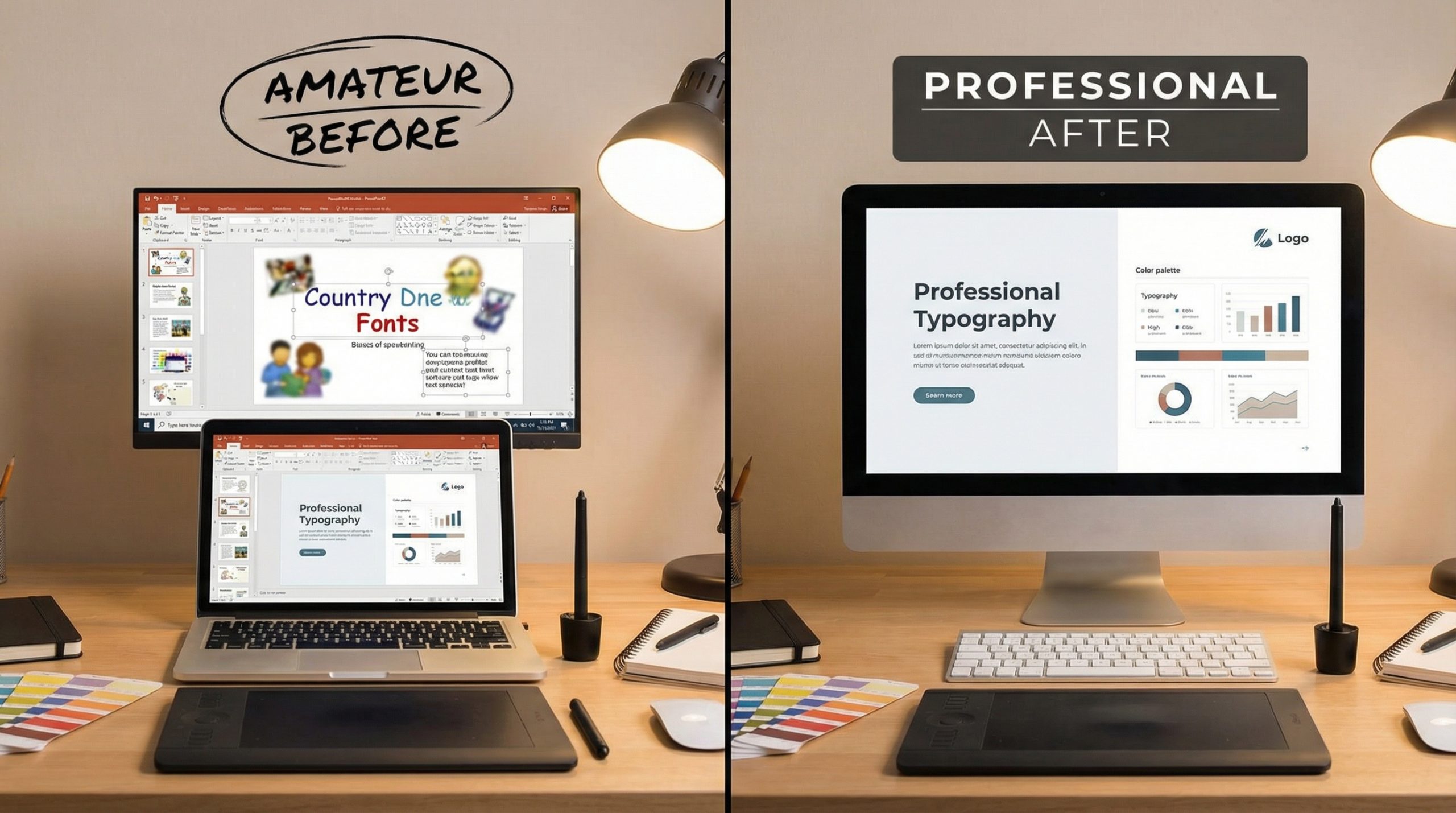
You don’t need to be a graphic designer to make slides that look like a graphic designer made them. That’s the truth most presentation advice won’t tell you — professional-looking slides follow simple rules, not artistic talent.
I’ve spent years reviewing slide decks from Fortune 500 companies, startups, and students. The ones that look polished almost always follow the same handful of design principles. The ones that look amateur almost always break them. Once you know the rules, you can’t unsee the difference.
Here are the specific, practical design principles that will transform your slides from amateur to professional — no design degree required.
Limit Text to the Essentials
This is the single biggest upgrade you can make. Your slides are not a document. They’re a visual aid. The moment you put a full paragraph on a slide, you’ve lost the audience — because they’re reading instead of listening to you.
Here’s the rule: no more than 6 words per line, no more than 6 lines per slide. Even better, aim for fewer. The best slides have one sentence or just a few keywords that reinforce what you’re saying verbally.
Before: “Our Q3 revenue grew by 23% compared to Q2, driven primarily by strong performance in the APAC region and new enterprise customer acquisition.”
After: “Q3 Revenue: +23%” — with a simple bar chart showing the growth.
The difference is dramatic. The “after” version lets the audience process the data instantly while you provide the context verbally. That’s how slides are meant to work.
Use Two Fonts Maximum
Font chaos is one of the fastest ways to make a slide look unprofessional. Mixing four different typefaces signals disorganization, even if the content is brilliant.
The two-font rule:
- Font 1 (headings): A bold sans-serif like Montserrat, Raleway, or Poppins
- Font 2 (body text): A clean, readable font like Open Sans, Lato, or Roboto
Both PowerPoint and Google Slides include these fonts for free. Google Fonts has hundreds more options if you want something different.
Set your heading font size to 28-36pt and body text to 18-24pt. If text needs to be smaller than 18pt to fit on the slide, you have too much text. Cut it.
Build a Simple Color Palette
Professional slides use 3-5 colors consistently throughout the entire deck. Not 3-5 per slide — 3-5 total. Here’s a foolproof approach:
- Background color: White or very light gray (#F5F5F5)
- Primary text color: Dark gray or near-black (#333333), never pure black (#000000)
- Accent color 1: Your main brand or theme color (use for headings, key data, buttons)
- Accent color 2: A complementary color for secondary elements
- Highlight color: A contrasting color for emphasis (use sparingly)
If you’re unsure about color combinations, tools like Coolors generate beautiful palettes with one click. Pick one you like and stick with it for the entire presentation. Check out our guide to presentation color schemes for curated options with hex codes.
Master Alignment and Grids
Alignment is the invisible force that separates professional design from amateur work. When elements are perfectly aligned, the slide feels organized and trustworthy — even if the viewer can’t articulate why.
Turn on gridlines and guides in PowerPoint (View → Guides) or Google Slides (View → Guides). Use them to:
- Align text boxes to the same left edge
- Space elements evenly across the slide
- Keep consistent margins on all sides (at least 0.5 inches from edges)
- Center headlines and images precisely
A common amateur mistake is “eyeballing” placement. Your eye is good, but it’s not pixel-perfect. Guides and snap-to-grid features are — use them every time.
Use High-Quality Images Only
Nothing screams “amateur” louder than a pixelated, watermarked, or clip-art image. If you’re going to use images (and you should), make sure they’re high resolution and professionally shot.
Free sources for professional images:
- Unsplash — Free high-resolution photos
- Pexels — Free stock photos and videos
- unDraw — Free customizable illustrations
Image tips:
- Use images that fill the entire slide background (with a semi-transparent overlay for text readability)
- Avoid stretching images — always maintain the original aspect ratio
- Use one style of imagery throughout (all photos, or all illustrations — don’t mix)
- Remove image backgrounds when placing photos on colored slides (PowerPoint’s “Remove Background” tool handles this)
Embrace White Space
White space (also called negative space) is the empty area around your content. Beginners fear it — they think empty space means they haven’t put enough on the slide. Professionals love it — because white space is what makes content breathable and readable.
Compare these two approaches:
- Amateur: Every inch of the slide is filled with text, images, charts, and logos
- Professional: One key point centered with generous margins and a single supporting visual
The professional version communicates more effectively because the audience isn’t overwhelmed. Their eye goes exactly where you want it to go. White space isn’t empty — it’s strategic.
A good test: if you can’t add more white space without removing content, you have too much content on that slide. Split it into two.
Use Icons Instead of Bullet Points
Bullet point lists are the default in most presentations — and that’s exactly the problem. They’re so overused that audiences have been trained to tune them out. Icons offer a visual alternative that communicates the same information with more impact.
Instead of a bulleted list of “benefits,” create a row of icons with short labels beneath each one. The visual variety breaks the monotony and makes the information more scannable.
Where to find free icons:
- Flaticon — Millions of free icons in every style
- The Noun Project — Curated icon sets
- PowerPoint’s built-in icon library (Insert → Icons)
Important: Pick one icon style and stick with it. All outline icons, or all filled icons, or all a specific color. Mixing styles looks chaotic.
Templates vs. DIY: When to Use Each
There’s no shame in using a professional template. In fact, starting with a well-designed template and customizing it is often smarter than building from scratch — especially if design isn’t your strength.
Use a template when:
- You need to create a deck quickly
- You want consistency without effort
- You’re not confident in your design skills
- Your company has a brand template (always use it)
Build from scratch when:
- You need a unique look for a keynote or pitch
- Templates don’t fit your content type
- You’ve mastered the design basics above and want creative control
Sites like Presenter’s Arena offer design guidance that helps bridge the gap between templates and custom design. The key is understanding why the template looks good — then you can modify it without breaking the design.
The Professional Slide Checklist
Before you finalize any presentation, run each slide through this checklist:
- ☐ No more than one main idea per slide
- ☐ Text is 18pt or larger
- ☐ Only two fonts used throughout
- ☐ Colors are consistent with your palette
- ☐ All elements are properly aligned (use guides)
- ☐ Images are high-resolution and relevant
- ☐ There’s visible white space around content
- ☐ No clip art, WordArt, or default PowerPoint graphics
- ☐ Consistent style across all slides
Professional slide design isn’t about making things pretty — it’s about making things clear. When your audience can instantly understand each slide, your message lands harder and your credibility goes up. Follow these rules consistently, and people will start asking who designed your slides.
The answer? You did. No designer needed.