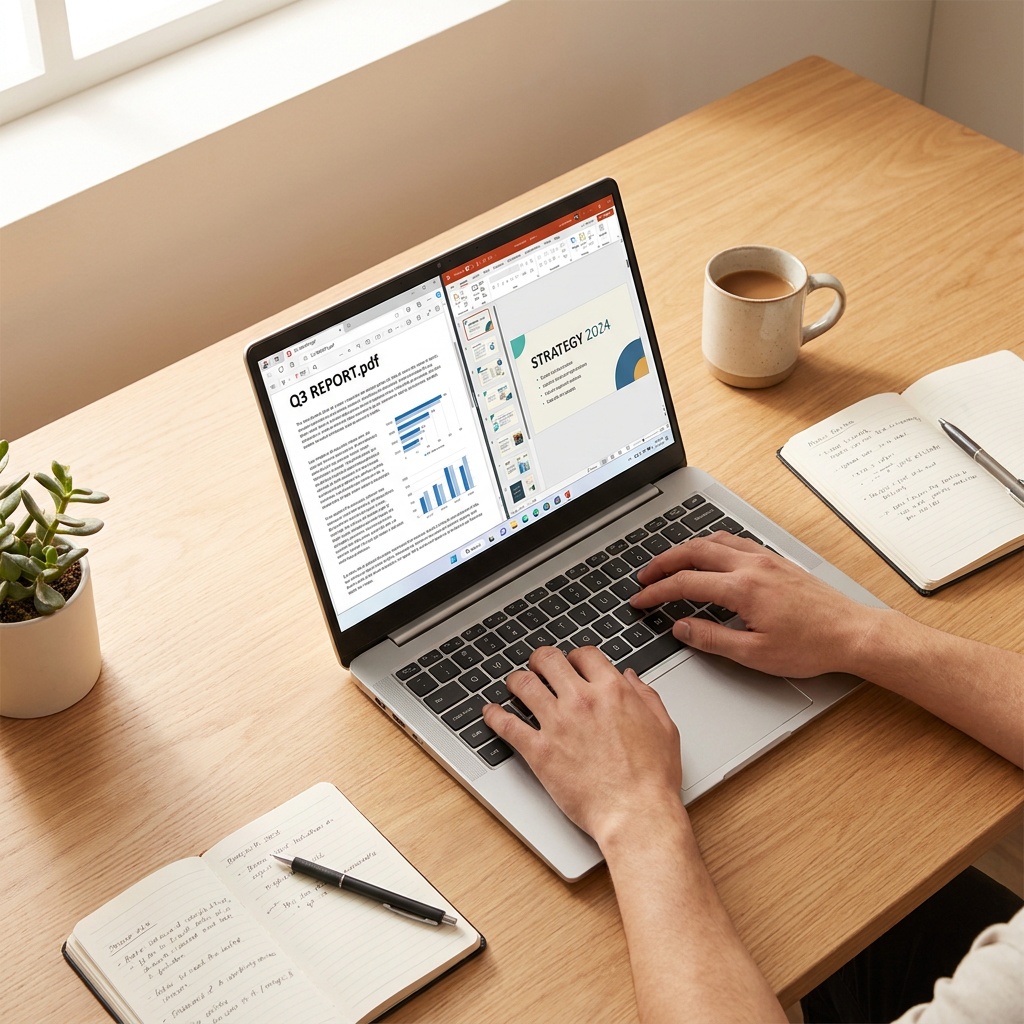
Most articles on this topic list ten methods and pretend they all work equally well. They don’t. I’ve converted hundreds of PDFs to PowerPoint over the years, and the gap between the best method and the worst is enormous. Some preserve every layout detail. Others spit out a deck so broken you’d have been faster rebuilding from scratch.
Here are the five free methods that actually work, ranked by how reliable they are for real PDFs. I’ll tell you which one I use, when each of the others is worth trying, and which scenarios none of them handle well (yes, there are some).
What “Convert” Actually Means (And Why It’s Hard)
Before the methods, a quick reality check. A PDF is a finished, locked document. PowerPoint is an editable, structured document made of slides with shapes, text boxes, and layouts. Converting between them is not like converting JPG to PNG. The underlying structures are different.
There are really only two outcomes:
- Image-based conversion: Each PDF page becomes a single image on a PowerPoint slide. The result looks identical to the PDF but isn’t editable. Easy. Fast. Not useful if you need to change anything.
- Editable conversion: The tool tries to detect text, fonts, images, and tables, then rebuild them as native PowerPoint objects. Useful, but lossy. Some elements always get mangled.
The five methods below mostly target editable conversion. I’ll flag when a method only does image-based output. Decide before you start: do you need to edit the result, or just present it?
Method 1: Adobe Acrobat Online (Free Tier) — Best Overall
If you only try one method, try this one. Adobe makes PDFs, so Adobe’s conversion engine handles them better than anyone else’s. You don’t need a paid Acrobat subscription to use the free online version.
How to use it:
- Go to adobe.com/acrobat/online/pdf-to-ppt.html
- Click “Select a file” and upload your PDF (up to 100 MB)
- Wait 20-60 seconds depending on file size
- Sign in with a free Adobe account to download (yes, account required, but free)
- Download the .pptx file
What you get: Editable text, mostly correct font matching, tables that survive most of the time, images placed roughly where they were in the original. Multi-column layouts sometimes get scrambled, but for single-column PDFs the result is usually 80-90% accurate.
The catch: Free tier limits how many conversions you can do per day (usually 2-3). For occasional one-off conversions this is fine. For volume work, you’ll need a paid plan or one of the other methods below.
Method 2: Microsoft Word as a Bridge — Best for Text-Heavy PDFs
This is the method most people don’t think of, but it’s quietly the best free option for PDFs that are mostly text. Word can open PDFs directly and convert them to editable Word documents, and copying from Word to PowerPoint is then trivial.
How to use it:
- Open Microsoft Word (any version from 2013 onward)
- File > Open and select your PDF
- Word will warn you that conversion may change the layout. Click OK.
- Wait for the conversion. Save as .docx.
- Open PowerPoint. Create a blank presentation.
- Copy text and images from Word into PowerPoint slides as needed.
What you get: Excellent text fidelity. Word handles fonts and paragraph spacing better than most online tools. You can edit the text easily and then paste it into PowerPoint with full formatting.
The catch: This is a two-step process. You’re not getting auto-generated slides. You’ll be building the PowerPoint manually using Word’s extracted content as your source. That’s slower but produces a cleaner, more deliberate result. For PDFs with complex layouts (multi-column reports, infographics, charts), Word also struggles.
If your PDF is a long text document like a whitepaper, contract, or article, this is the method I’d actually recommend. The end product looks like a proper presentation, not a converted document.
Method 3: SmallPDF or iLovePDF — Best for Quick One-Offs
These two free online tools function nearly identically: upload a PDF, wait, download a PPTX. Both have generous free tiers (a few conversions per hour, with a queue if you exceed it). Both handle most PDFs reasonably well.
How to use them:
- Go to smallpdf.com/pdf-to-ppt or ilovepdf.com/pdf_to_powerpoint
- Drag your PDF into the upload area
- Click Convert. Wait 30-90 seconds.
- Download the .pptx file. No signup required for one-off conversions.
What you get: Similar quality to Adobe’s free tier, sometimes slightly worse. Text comes through editable. Images are placed roughly. Tables often break into separate text boxes.
The catch: Your file gets uploaded to their server. If your PDF contains confidential information (contracts, financial documents, anything sensitive), don’t use these. They claim to delete files after an hour, but “trust us” is not a security model. For confidential PDFs, use Method 1 (Adobe) or Method 5 (manual) instead.
The other consideration: ads. Both sites are ad-heavy and try to upsell you to a paid plan after every conversion. Tolerable for occasional use, annoying for daily use.
Method 4: Google Drive / Google Slides — Best for Image-Based Output
This one is a hack that almost nobody talks about, and it’s free for everyone with a Google account.
How to use it:
- Upload your PDF to Google Drive
- Right-click the file in Drive > Open with > Google Docs (yes, Docs, not Slides)
- Google will create a new Google Doc with the PDF’s content as editable text, with each page on its own page
- Copy what you need into a new Google Slides presentation, or paste sections into PowerPoint directly
What you get: Editable text, often with OCR (optical character recognition) applied if the PDF was scanned. Image quality varies. Layout is mostly preserved within reason.
The catch: Like Method 2, this is a two-step process. You’re using Google Docs as a bridge, then manually building the slides. The benefit is that Google’s OCR is genuinely excellent, so this is the method to try when your PDF is a scanned document (a photographed page, a faxed contract, etc.) rather than a digital export.
For scanned PDFs specifically, this is the only method on the list that reliably extracts editable text. The other methods will give you image-based output and call it done.
Method 5: Manual Screenshot or Insert — Best for Visual Fidelity
Sometimes the smartest move is to give up on automatic conversion and just take screenshots. Most presenters resist this approach because it feels lazy. But for some PDFs, it produces the cleanest result.
How to use it:
- Open the PDF and zoom in to make each page fill your screen at maximum quality
- Screenshot each page (Cmd+Shift+4 on Mac, Snipping Tool on Windows)
- Open PowerPoint. Create one slide per PDF page.
- Insert each screenshot as a full-bleed image on its corresponding slide
- Add a text box on top for any edits you need to make
What you get: A presentation that looks exactly like the original PDF. No font substitution, no broken layouts, no mystery formatting bugs. The PDF’s design integrity is fully preserved.
The catch: Nothing is editable. The slides are images. You can add text on top, draw arrows, annotate, but you cannot edit the original content. For presenting an existing document as slides (a marketing report, an annual review, a published whitepaper), this is often the right answer.
Pro tip for Method 5: PowerPoint has an “Insert PDF as Object” option that’s almost the same thing but uses the PDF as the source rather than screenshots. Insert > Object > Create from File. The result is sharper than screenshots since it pulls directly from the vector PDF.
Which Method to Pick (The Decision Tree)
Five methods is too many to remember. Here’s the actual decision tree I use:
- You need editable text and your PDF is normal (digital export, single column or simple multi-column): Method 1 (Adobe Acrobat Online)
- You need editable text and your PDF is text-heavy (article, contract, whitepaper): Method 2 (Word as bridge)
- You need a quick conversion and the content isn’t sensitive: Method 3 (SmallPDF or iLovePDF)
- Your PDF is scanned or has image-based text: Method 4 (Google Docs OCR)
- You just need to present the document visually, no editing required: Method 5 (screenshots)
- The PDF is confidential and contains sensitive data: Method 2 (Word, stays on your machine) or Method 5 (no upload required)
Things That Always Break (No Matter Which Method)
Setting expectations: a few elements rarely survive any PDF-to-PowerPoint conversion. Knowing what will break helps you plan around it.
Fonts. If the PDF uses a font you don’t have installed, all five methods will substitute it. The substitution is usually ugly. Either install the font first, or accept that text styling will shift.
Multi-column layouts. A two-column page often gets reflowed as one wide column, or the columns get reversed, or text from one column ends up between paragraphs from another. Worst with academic papers and magazine layouts. Method 5 (screenshots) is the only reliable workaround.
Tables with merged cells. Simple tables convert reasonably well. Tables with merged headers, nested cells, or rotated text break in every method. Plan to manually rebuild any complex table.
Vector graphics and charts. Chart elements often get converted to flat images, losing the ability to edit individual bars or labels. If you need to update the data later, the conversion will save you nothing.
Embedded videos or interactive elements. Some PDFs have embedded media. None of these methods preserve it. The video will become a thumbnail image. The form fields will become uneditable text.
What to Do After the Conversion
No matter which method you used, do these three things before presenting from the converted deck:
- Page through every slide. Don’t trust the conversion. Spot-check each slide for formatting issues, missing content, or layout errors.
- Replace the fonts. Pick two clean presentation fonts and apply them across the deck. The default fonts the converter chose are almost never the right ones for a presentation. Our guide to the best presentation fonts has reliable pairings to use.
- Cut the content that doesn’t belong on slides. PDFs are designed to be read closely. Slides are designed to be glanced at from across a room. Most of the body text from a PDF should not be on your slides. Move it to your speaker notes instead, and put only the headlines and key visuals on the slide itself.
That third step is the one most people skip, and it’s the difference between a converted PDF and an actual presentation. If you want more on the latter, our piece on how to make slides for a speech covers the cleanup process in detail.
Why Most PDFs Shouldn’t Be Converted at All
One last thing, since I’d feel bad ending the article without saying it: a lot of PDF-to-PowerPoint conversions shouldn’t happen. The PDF was already a finished document. The reason you’re converting it is usually that you’ve been asked to present its content, and you think slides are the way to do that.
They’re often not. If the content is a 30-page report, your audience doesn’t want to sit through 30 slides. They want to know the three things that matter. Build a small fresh deck with those three things and a link to the original PDF for anyone who wants the full version. The audience leaves with the headlines. The detail is one click away if they want it.
Conversion has its place. But for the highest-leverage case, the right answer is rewriting, not converting.