


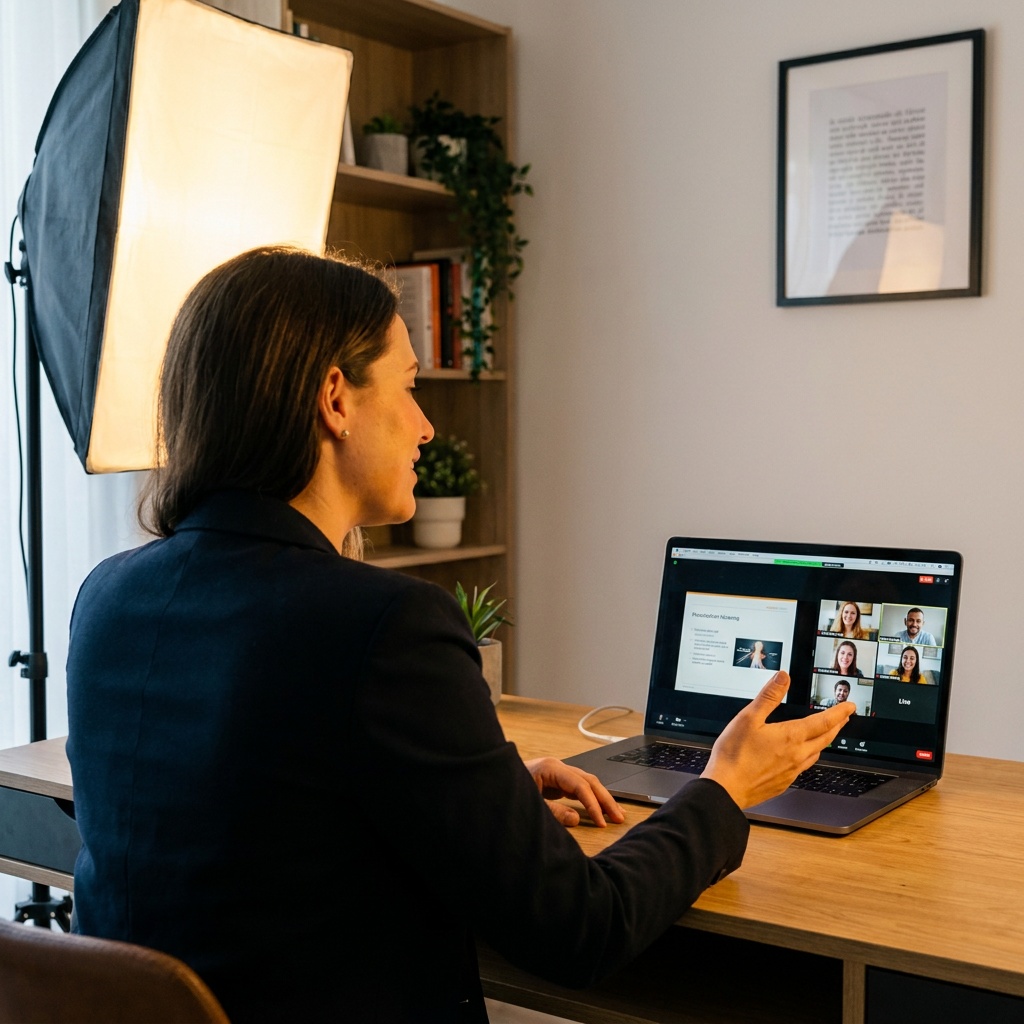
A video call is not a smaller version of a conference room. It’s a fundamentally different medium, and most virtual presentations are bad because the presenter is treating it like the same room with worse coffee.
The good news: there are specific moments in every virtual presentation where you lose people. The bad news: you’ve probably been losing them at all of them. This piece walks through each moment, what goes wrong, and what to do instead.
Moment 1: The First 15 Seconds
This is where you lose half your audience in any virtual call. People join, see a tiny version of you at the top of their screen, glance at the meeting subject in the title bar, and immediately open a second tab to check Slack while half-listening.
You can’t compete with the second tab unless you give them a reason to close it in those first 15 seconds.
What works: open with a specific, tangible thing the audience cares about. Not “thanks for joining today, I’m here to walk through Q3 strategy.” Try “Last quarter we lost two of our top customers, and the postmortem turned up something I think most of us are going to want to fix today.” That’s a hook. The Slack tab can wait.
Don’t introduce yourself in the first 15 seconds either. If they need to know who you are, that should be in the calendar invite. Open with the substance.
Moment 2: When You Share Your Screen
Screen sharing is where presentations die in real time. The moment your face goes from full-screen to a tiny thumbnail in the corner, the audience’s connection to you weakens. Suddenly they’re staring at a static slide with a small floating head in the corner, and the gravity of the meeting shifts toward whatever else is on their second monitor.
Three things help here:
Talk before you share. If you have something important to say, say it with your face full-screen first. Then share the screen as a supporting visual, not as the main event. You set the tone before the slides take over.
Use “presenter mode” if your tool supports it. Zoom, Microsoft Teams, and most modern conferencing apps let you overlay your camera on top of your slides instead of next to them, similar to how a TV news anchor stays visible. This keeps your face larger and more present even during the slide portion. Worth setting up before the call.
Stop sharing during transitions. If you have a 3-minute discussion section in the middle of your presentation, stop sharing. Bring your face back to full-screen. Then re-share when you have a new visual to show. This is rare, which is exactly why it works.
Moment 3: The Q&A Awkwardness
“Any questions?” followed by silence. Every virtual presenter has been there. In a conference room, the silence is uncomfortable but bearable. On video, it’s brutal. People stare at their muted self-tile, nobody wants to be first, and the longer the silence goes, the more clear it becomes that nobody is going to ask anything.
The fix is to never say “any questions?” again. Instead, use a specific prompt:
- “For the people on the sales side, what’s the one piece of this that worries you most?”
- “Drop one word in the chat that describes how you’re feeling about the timeline.”
- “What’s the first thing you’d push back on?”
Specific prompts get specific answers. Open prompts get silence.
The chat is also your friend on virtual calls in a way it isn’t in person. Watch it. Read questions out loud as they come in, even if the answer is obvious. It signals to everyone else that participation is welcome and that you’re paying attention.
Moment 4: When the Connection Hiccups
Your video freezes. Or someone’s audio cuts out mid-sentence. Or you hear yourself echo. These moments happen on roughly half of all professional video calls, and they kill momentum every time.
The pattern most presenters fall into: apologize at length, ask if everyone can hear them, repeat the last few sentences, get more flustered, and finally resume with the energy somewhere around half of where it started.
Better pattern: acknowledge it briefly and move on. “Looks like my video lagged for a second, picking up where I was.” Done. No long apology, no asking if everyone could hear. Most of the time, the audience didn’t even notice, and dwelling on it makes you sound less confident than you should.
Have a backup. If your audio is the problem, you should know in advance that your phone can dial into the meeting as a backup mic. If you’re sharing a video that won’t load, have it open in a tab as a fallback. These are small preparations that prevent big embarrassments.
Moment 5: The Energy Drop Around Minute 20
Virtual presentations have a brutal energy decay curve. Around the 18-22 minute mark, even an engaged audience starts to drift. They’ve been staring at a small screen for almost half an hour. Their phones are buzzing. Their kids walked in. The dog is staring at them.
If your virtual presentation is longer than 20 minutes, you need to plan for the drop. Three things help:
Plan an interaction every 8-10 minutes. Not a generic “any questions” but a specific moment that requires audience participation. A poll, a chat prompt, a vote, a request for one example from one person. These reset the engagement clock.
Stand up. If you’re sitting for the whole call, your energy drops with your posture. Standing changes your voice projection, your gestures, and your overall presence. The audience can feel it through the camera. Get a small standing desk or a stack of books under your laptop if needed.
Take a 60-second break at minute 30 if your presentation runs longer. Tell people: “Quick stretch, grab water, back in 60 seconds.” Real breaks where everyone gets to leave the call mentally for a moment are way better than fake “keep going” energy. Trust your audience to come back. Most will.
Moment 6: The Closing Without an Ending
The worst virtual presentation endings sound like: “Yeah, so that’s basically it, any thoughts, okay, thanks everyone.” The presenter trails off, the call awkwardly ends, and the audience leaves with nothing landing.
You need a specific, planned ending. Not a summary slide. Not “any final questions.” An actual ending that gives the audience something to take away. Examples:
- “The one thing I want everyone leaving with is this: by Friday, decide who’s owning the customer migration. That’s the only decision that actually unblocks Q4.”
- “You’re going to get a one-page summary in your inbox by 5pm today. The action items will be highlighted in yellow.”
- “If you remember one number from this, remember 47. That’s the number of customers we lost last quarter without ever talking to them. That’s what we’re going to fix.”
Specific endings stick. Generic ones evaporate before the meeting tile disappears.
The Setup You Should Have Before Any Important Virtual Presentation
Most virtual presentations look bad because the setup is bad. You don’t need a studio. You need five things:
- A real camera, ideally at eye level. Your laptop webcam pointing up your nostrils from a desk is making you look worse than you are. Either prop your laptop up on books until the camera is at eye level, or use an external webcam mounted higher.
- One key light in front of you. Not behind you (silhouette), not above you (raccoon eyes). In front of you, slightly off to one side, at face level. A window during the day works. A cheap ring light works at night.
- A decent microphone. The single biggest upgrade you can make to your virtual presence is audio. A $50-100 USB mic dramatically improves how authoritative you sound. Audiences will tolerate so-so video. They will not tolerate bad audio.
- A clean background, or a thoughtful one. Blurred backgrounds work. Real bookshelves work. The corner of your bedroom with laundry visible does not. If you’re stuck with a bad backdrop, use blur or a neutral virtual background.
- A wired internet connection if possible. Wi-Fi will fail you at the worst moment. Ethernet is more reliable for high-stakes calls.
Total cost for the gear, if you’re starting from scratch: around $150-250. Total time to set it all up once: about 30 minutes. After that, you’re done forever.
The Three Bad Habits That Kill Virtual Energy
You’ve already won most of the battle if you avoid these three things:
Reading from a script directly below your camera. Your eyes track left-to-right and your head tilts down. From the viewer’s side, it’s obvious you’re reading, and it instantly drops your credibility. If you need notes, put them in big type on your screen near the camera, not below it. Better yet, learn the material well enough to glance at notes once or twice rather than read continuously.
Saying “can you hear me?” or “can you see my screen?” repeatedly. Trust your audience to speak up if there’s a problem. Ask once at the start, then proceed with confidence. Every check-in chips away at your authority.
Filling silence with verbal filler. On a video call, the audio compression makes filler words (um, uh, like, you know) sound worse than they do in person. Pauses, on the other hand, sound more confident on video than they do live. Use that. Pause instead of filling.
The Hardest Part
The single hardest thing about virtual presentations is that you can’t read the room. You can’t see who’s leaning forward, who’s nodding, who’s checking their phone. The feedback loop that live presenters rely on barely exists on video.
The workaround isn’t a perfect solution, it’s just being more deliberate. Build in explicit feedback moments. Ask specific questions. Watch the chat. Notice when reactions slow down. And remember that the audience is rooting for you to do well, even when their faces look blank, because the alternative is sitting through another bad meeting.
If virtual presentations are a regular part of your week, our piece on how to present without reading your slides applies just as much on Zoom as in person. And if you’re recording rather than presenting live, our guide to video recording a PowerPoint covers the production side.
One last thing. Most virtual presenters think the problem is the technology. It isn’t. The problem is that the medium rewards different skills than the conference room does, and almost nobody is practicing those specific skills. Practice the moments above and you’ll already be in the top 10% of people on any video call.

