


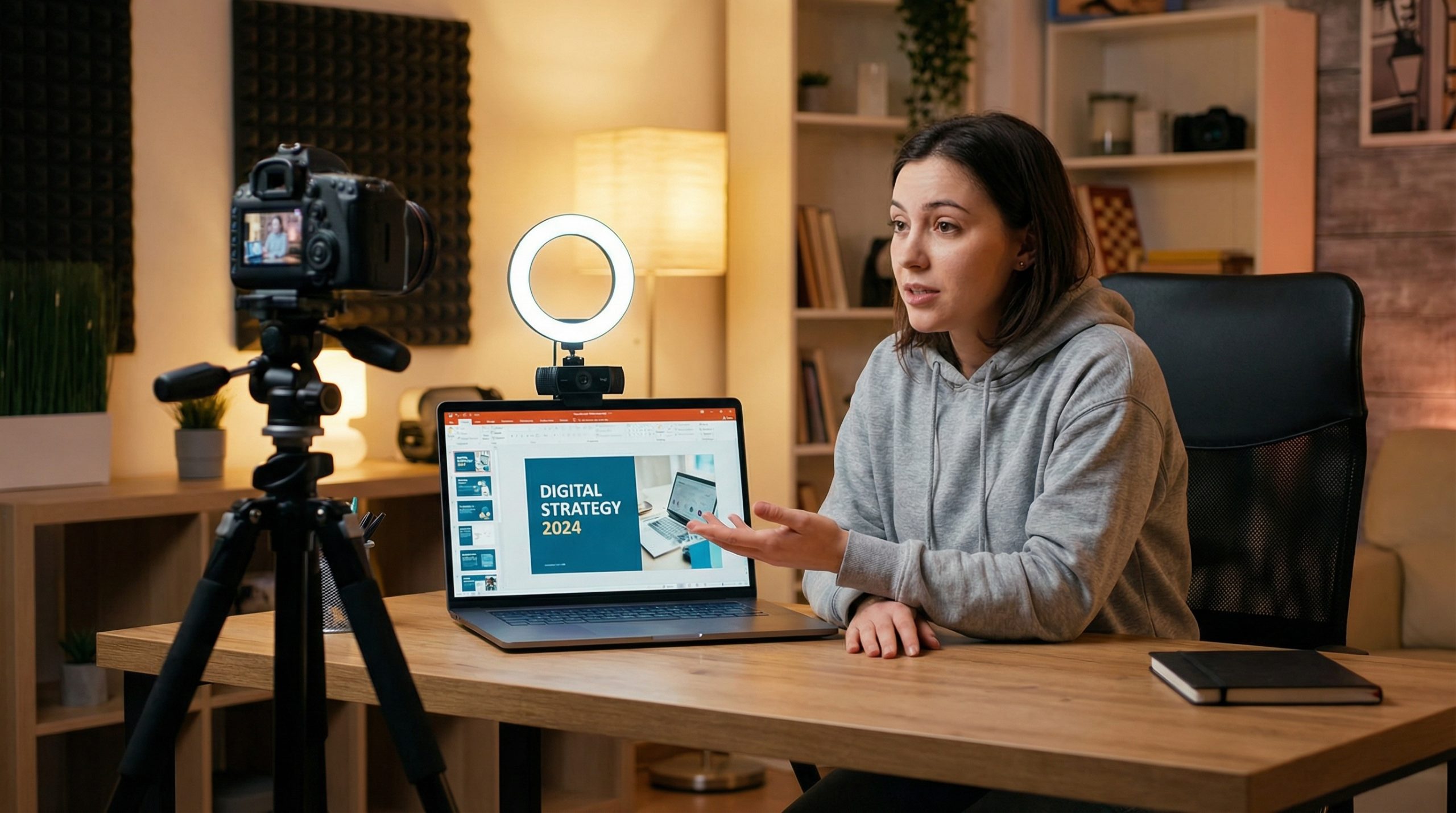
A recruiter once told me that the candidates who stood out most weren’t the ones with the fanciest resumes — they were the ones who sent a three-minute video walking through their portfolio in PowerPoint. That small effort demonstrated communication skills, technical competence, and initiative in one shot.
Whether you’re recording a lecture, creating a training module, building an online course, or putting together a video pitch, knowing how to video record yourself presenting a PowerPoint is a skill that pays dividends. And with the tools available today — many of them free — it’s easier than you might think.
Method 1: PowerPoint’s Built-In Recording Feature
Most people don’t realize that PowerPoint has a built-in tool for recording your presentation with your webcam and narration. No extra software needed.
How to do it (PowerPoint for Windows — Microsoft 365):
- Open your presentation in PowerPoint.
- Go to the Record tab in the ribbon. (In older versions, it’s under Slide Show → Record Slide Show.)
- Click “Record” (or “Record from Beginning”). A recording interface opens.
- You’ll see your slide, a webcam preview (bottom-right corner), and recording controls.
- Toggle your camera and microphone on using the icons at the bottom.
- Click the red Record button. A 3-second countdown begins.
- Present your slides naturally. Use the arrow keys or click to advance slides.
- When finished, click Stop.
- Go to File → Export → Create a Video. Choose your resolution (1080p recommended) and click Create Video.
What you get: An MP4 file with your slides, your voice, your webcam overlay, and any animations or transitions — all baked into one video.
Pro tip: You can record slide-by-slide. If you mess up on slide 7, you don’t have to re-record the entire presentation. Just navigate to slide 7, click “Record from Current Slide,” and re-record only that portion.
Limitations: The webcam overlay is small and fixed in the corner. You can’t customize its size or position within PowerPoint’s recorder. For more control, use one of the methods below.
Method 2: OBS Studio (Free and Professional)
OBS Studio is a free, open-source recording and streaming tool used by YouTubers, educators, and professionals worldwide. It gives you complete control over your layout.
Setup steps:
- Download and install OBS Studio from obsproject.com. It’s available for Windows, Mac, and Linux.
- Create a new scene. In the Scenes panel (bottom-left), click the + button and name it “PowerPoint Recording.”
- Add your PowerPoint as a source. In the Sources panel, click + → Window Capture. Select your PowerPoint slideshow window. (Start your slideshow in PowerPoint first, in a window — use Slide Show → Set Up Slide Show → Browsed by an individual (window).)
- Add your webcam. Click + → Video Capture Device. Select your camera. Resize and position it wherever you want — corner overlay, side-by-side, picture-in-picture.
- Configure audio. OBS usually captures your microphone by default. Check the Audio Mixer panel to confirm your mic is picking up sound.
- Set output settings. Go to Settings → Output. Set the recording format to MP4 or MKV, and the encoder to your preference (x264 is universal).
- Click “Start Recording” and present your slides.
- When done, click “Stop Recording.” Your video is saved to the output folder (check Settings → Output → Recording Path).
Why OBS is worth learning: You can create any layout you want. Put yourself on the left half of the screen with slides on the right. Add a lower-third banner with your name. Include a logo. The flexibility is unmatched for a free tool.
Method 3: Record Using Zoom
If you already use Zoom, here’s a quick trick: start a meeting with just yourself, share your PowerPoint, turn on your camera, and record.
- Open Zoom and start a New Meeting (just you — no one else needs to join).
- Click Share Screen and select your PowerPoint window (or the specific slideshow window).
- Make sure your camera is on — your video will appear as a floating overlay.
- Click Record (choose “Record on this Computer” for a local file).
- Present your slides as you normally would.
- Click Stop Recording, then End Meeting. Zoom will process and save the video as an MP4.
Advantage: If you’re already comfortable with Zoom’s interface, this is the fastest way to get a recording without learning new software. The recording captures your shared screen with your camera overlay.
Limitation: Video quality depends on your Zoom settings. Go to Settings → Recording and enable “Optimize for 3rd party video editor” for better quality output.
Method 4: Loom (Quick and Shareable)
Loom is a popular tool for quick video recordings, especially in business contexts. It records your screen and webcam simultaneously and generates a shareable link instantly.
- Install the Loom desktop app or Chrome extension.
- Click the Loom icon and select “Screen and Camera.”
- Choose to record your full screen or a specific window (select your PowerPoint slideshow).
- Your webcam appears as a circular overlay in the corner — you can drag it to any position.
- Click Start Recording, switch to your PowerPoint, and present.
- Click the Loom icon (or use the shortcut Ctrl/Cmd + Shift + L) to stop.
- Loom uploads the video automatically and gives you a shareable link.
Best for: Quick recordings you need to share with a team or client. Loom’s free plan allows up to 25 videos of up to 5 minutes each. Paid plans remove these limits.
Camera, Lighting, and Audio Tips
Regardless of which method you use, the quality of your video depends heavily on your physical setup. Here’s what makes the difference between a professional-looking recording and a grainy, echoey mess:
Camera positioning: Place your webcam at eye level. If you’re using a laptop, stack it on books or a laptop stand. Looking slightly down into a camera is unflattering and signals low effort. Eye-level contact creates connection.
Lighting: Face a window or place a lamp behind your screen, shining toward your face. Avoid having a bright window or light behind you — that creates a silhouette. Ring lights are inexpensive and effective, but natural window light is often the best option.
Audio: Your laptop’s built-in microphone will work in a pinch, but a USB microphone (Blue Yeti, Samson Q2U, or even a $20 lavalier mic) dramatically improves quality. Record in a quiet room, close the door, and turn off fans or AC if possible.
Background: A clean, uncluttered background looks professional. A bookshelf, plain wall, or tidy office works well. If your space is messy, use Zoom’s or OBS’s virtual background feature — but test it first, as poor lighting can make virtual backgrounds glitch.
Test before you record: Do a 30-second test recording before committing to the full presentation. Check audio levels, camera framing, and lighting. It takes one minute and saves you from discovering problems after a 20-minute recording.
Editing Your Recording
You don’t need professional editing software to clean up your video. Here are quick options:
Trim the beginning and end. Most recordings have a few seconds of fumbling at the start and end. Use the built-in video editor on Windows (Photos app → Edit video) or Mac (QuickTime → Edit → Trim) to cut those out.
Add a title slide. If your PowerPoint doesn’t have a title slide, add a 3-5 second intro using free tools like Canva (export as video) or Clipchamp (built into Windows 11).
Export in the right format. MP4 with H.264 encoding is universally compatible. Export at 1080p for a good balance of quality and file size. If the video is for a learning management system, check their upload requirements first.
Choosing the Right Method for Your Situation
Here’s a quick decision guide:
- Fastest setup, no extra software: PowerPoint’s built-in recording
- Maximum control and customization: OBS Studio
- Already use Zoom regularly: Zoom solo meeting method
- Need to share quickly with a link: Loom
For most people, PowerPoint’s built-in recorder is the path of least resistance. If you need more polish or flexibility, graduate to OBS. And if you’re recording short videos frequently for team communication, Loom is hard to beat.
Whatever method you choose, the most important thing is to start. Your first recording won’t be perfect — and that’s fine. Each one gets easier, more natural, and more professional. For more guidance on video presentations and recording techniques, browse our complete resource library.

